Task Types
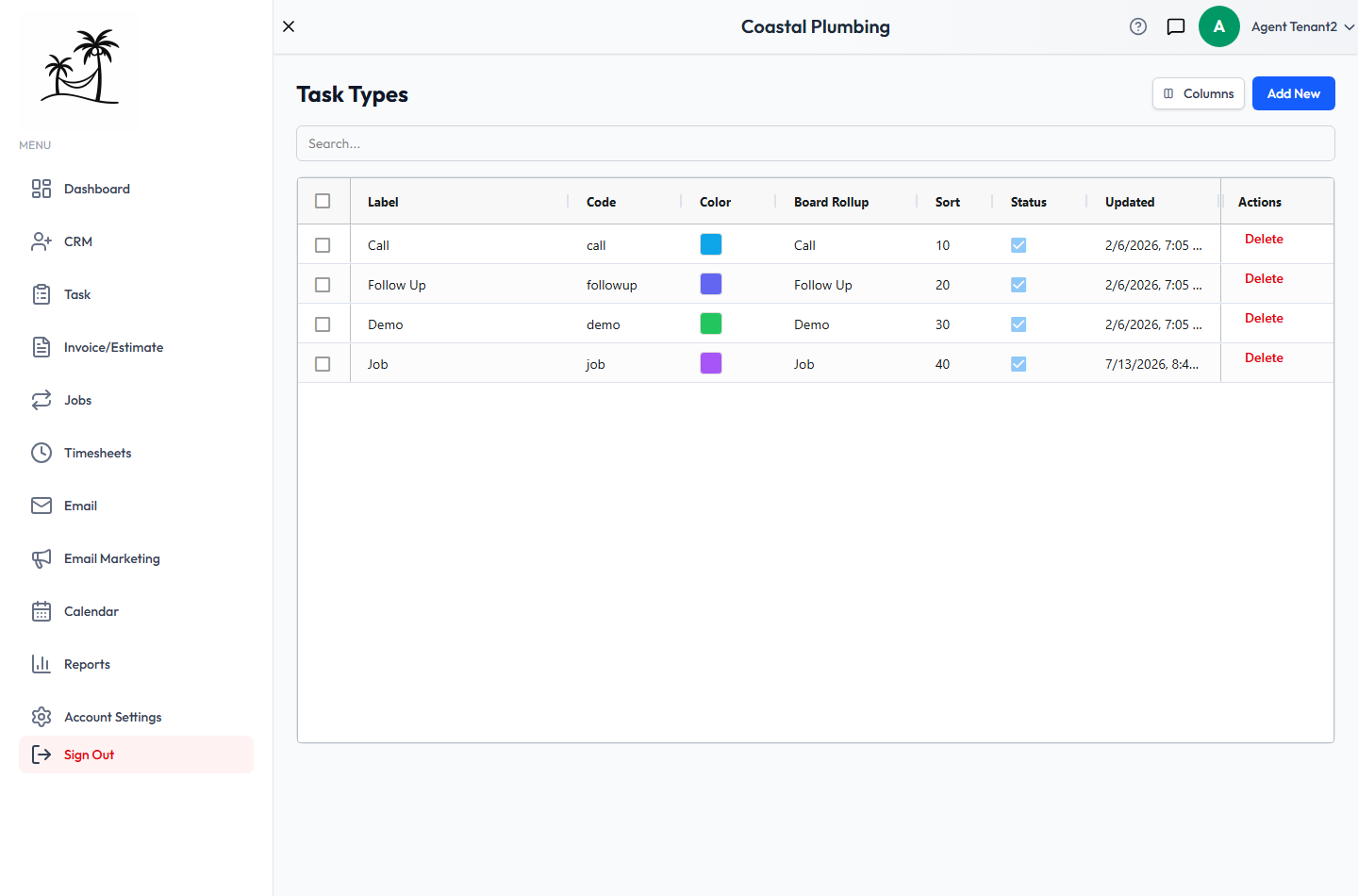
Task types say what kind of work a task is, such as Call, Follow Up, Demo or Job. Every task needs a type. The type:
- groups tasks into columns on the Task Board
- breaks down the Tasks Due chart on your dashboard
- can be set on each step of a Job Task Template
- can trigger workflow automations
Find them at Account Settings → Task Types.
Fields
- Label: the name everyone sees, such as "Follow Up".
- Code: the type's internal ID. It fills in automatically as you type the label, in lowercase with underscores. See Changing a code.
- Description: optional.
- Color: the color used for this type on the board and in charts.
- Board Rollup: the Task Board column this type appears under. See Board rollups.
- Sort Order: the position in dropdowns. Lower numbers come first.
- Active: inactive types no longer appear when creating or editing a task.
Click Add New to create a type. Double-click a row to edit it.
Board rollups
The Task Board is grouped by type, not status, and each column is a board rollup.
- Give types the same rollup name to put them in one column. For example, "Call" and "Email" could both roll up to "Outreach".
- A type with no rollup shows under Unassigned.
- Dragging a card to another column changes the task's type.
Changing a code
When you change a code, workflow automations that trigger on Task Type Change or Job Task Type Change are updated to the new code automatically, so they keep working.
The one exception is the Job type. Every job visit is created with it, so its code job is locked. You can still rename its label.
Deleting a task type
Deactivating is usually the better choice. It hides the type from new tasks, and tasks that already have it keep it.
If you do delete a type that tasks are still using, Tropical Hill doesn't just refuse. It asks what to do with those tasks:
- Switch to existing task type: move them all to a type you already have.
- Assign to new task type: create a new type and move them to it.
Once the tasks are moved, the old type is deleted. Only account administrators can delete.
Tips
- Keep the Job type active. Visits from recurring and Multi-Task Jobs are created with it.
- Watch out for rollups that are nearly identical, like "Follow Up" and "Follow-up". Each spelling becomes its own board column.