Task Statuses
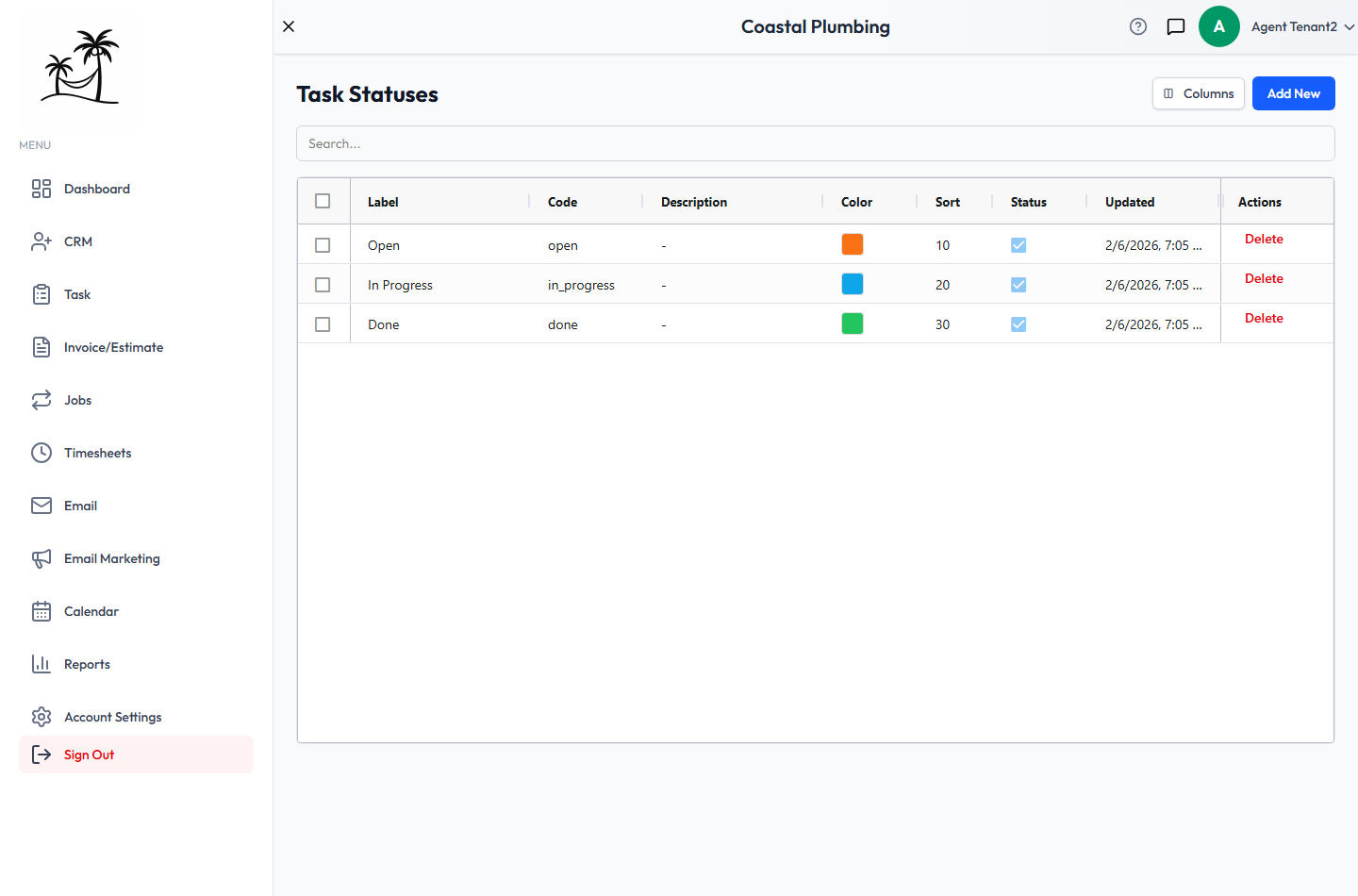
Task statuses track progress on a task, such as Open, In Progress or Done. Every task has one, shown as a colored pill in the Tasks grid. A status change can also trigger workflow automations.
Find them at Account Settings → Task Statuses. Every account starts with Open, In Progress and Done.
Fields
- Label: the name everyone sees, such as "In Progress".
- Code: the status's internal ID. It fills in automatically as you type the label, in lowercase with underscores (
in_progress). See Changing a code. - Description: optional.
- Color: the color of the status pill.
- Sort Order: the position in the dropdown. Lower numbers come first.
- Active: inactive statuses no longer appear when creating or editing a task.
Click Add New to create a status. Double-click a row to edit it.
Three names Tropical Hill looks for
Most statuses are just labels, but three names have built-in behavior. Tropical Hill matches these by label (upper/lowercase doesn't matter), so renaming one changes how the app behaves.
| Label | What it does |
|---|---|
| Open | New tasks with no status default to it. A blocked job task is allowed to stay in it. |
| Done | Marks the task finished. It's hidden from the Tasks grid and Task Board until you turn on Show done, counts toward a job's progress, can complete a Multi-Task Job, and unblocks tasks that depend on it. |
| Completed | Exactly the same as Done. Use whichever word your team prefers. |
A status with any other name, such as "Finished", doesn't count as complete. Tasks in it stay visible, Multi-Task Jobs won't auto-complete, and tasks that depend on them stay blocked. Name your finished status Done or Completed.
Changing a code
When you change a code, workflow automations that trigger on Task Status Changed or Job Task Status Change are updated to the new code automatically, so they keep working.
Labels are different. Renaming Open, Done or Completed changes how the app behaves. See Three names Tropical Hill looks for.
Deactivating vs. deleting
Deactivating hides a status from the dropdown. Tasks already in that status keep it.
Deleting removes the status permanently. You can't delete a status while any task is using it. You'll see a message asking you to move those tasks first. Only account administrators can delete.
Tips
- Give each status a clearly different color. Once the grid has more than a handful of tasks, color is how people scan it.
- Add in-between statuses like "Waiting on Parts" or "Scheduled" instead of renaming Open or Done. Those names have built-in behavior, so keep them.