Task Lists & Assignment
Tasks are follow-ups, calls, and to-dos that can attach to a lead, client, or job, with a due date and an assignee. Like Leads, Tasks has both a data grid and a kanban board — but the board works a little differently here.
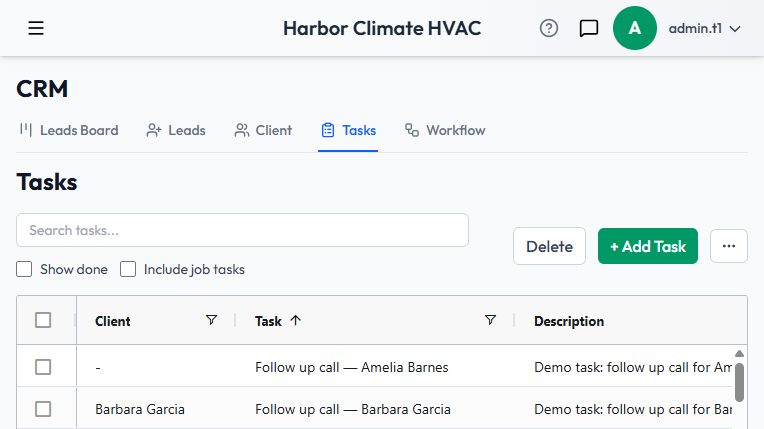
The Tasks grid
- Columns include the linked lead/client, task title, description, type, status (a colored pill), due date, and assigned user. Your layout is saved per-user.
- The search box filters across title, description, type, status, assigned user, and the linked lead's name all at once.
- Show done is off by default — completed tasks are hidden until you check it.
- Include job tasks is also off by default. Recurring visits generated automatically from scheduled jobs are hidden here unless you turn this on, so the main list stays focused on tasks someone actually needs to act on.
Single-click a row for a quick read-only summary panel below the grid. Double-click (or + Add Task) opens the full editor.
Adding or editing a task
- Task (title) is required, along with Task Type, Task Status, and Assigned To — every task has an owner.
- Due Date has quick-set buttons for Today and +1 day.
- Lead is a searchable dropdown — unless the task already belongs to a client, in which case that client's name shows read-only.
- Start Time and Duration are optional, for tasks that are really more like scheduled appointments.
Task types and statuses are customizable
Both live in Maintenance settings — add, edit, reorder, or deactivate them. Each status has its own color, driving the pill you see in the grid. Each task type can be assigned a board rollup — this is what groups task types into columns on the Task Board.
The Task Board
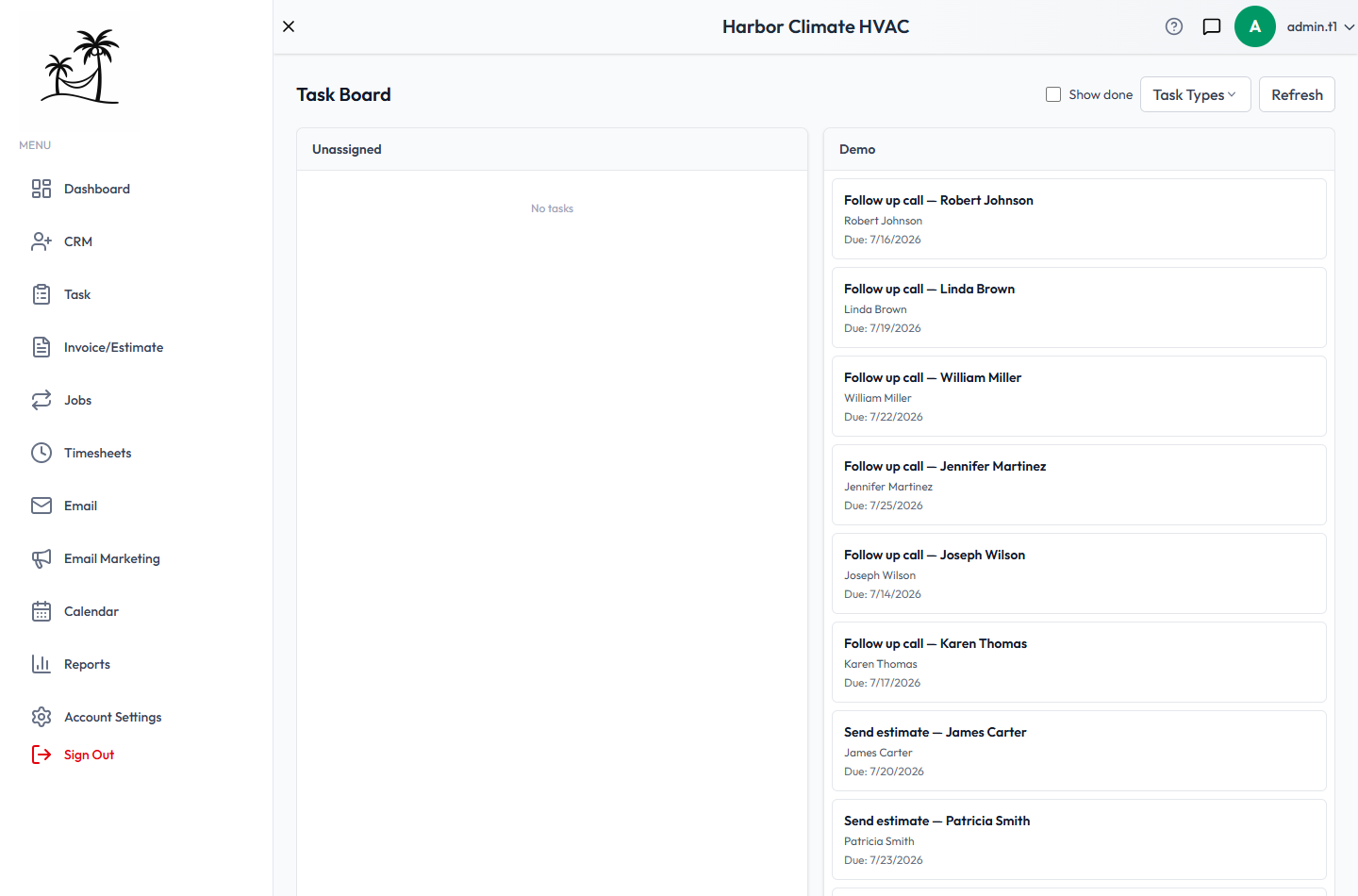
The one place Tasks behaves differently from Leads: the Task Board groups cards by task type, not by status.
- Each column is a board rollup — a shared grouping across one or more types. Types without a rollup fall into an Unassigned column.
- Dragging a card to a different column changes that task's type, not its status.
- Show done toggles the board the same as the grid.
- A Task Types menu lets you check or uncheck which types are visible on the board, and add a new type right there.
Bulk actions
Select rows and Delete to remove several at once — currently the only bulk action on the Tasks grid itself. Bulk task creation across many leads or clients happens from the Leads and Client pages instead.
Tips
- Turn on Include job tasks only when you specifically need to audit recurring job visits — leaving it on by default tends to bury the tasks that need a decision.
- Set up board rollups deliberately: if every type has its own unique rollup, the board turns into a wall of one-card columns.
- Give task statuses distinct colors — it's what makes the grid scannable once you have more than a handful of open tasks.