Subscriptions
The Subscriptions tab in Jobs is where you keep track of service plans — a yearly safety inspection billed monthly, a generator care plan, a trial of a surge-protection plan. Each row records who's signed up, for what, at what price, and the dates that matter.
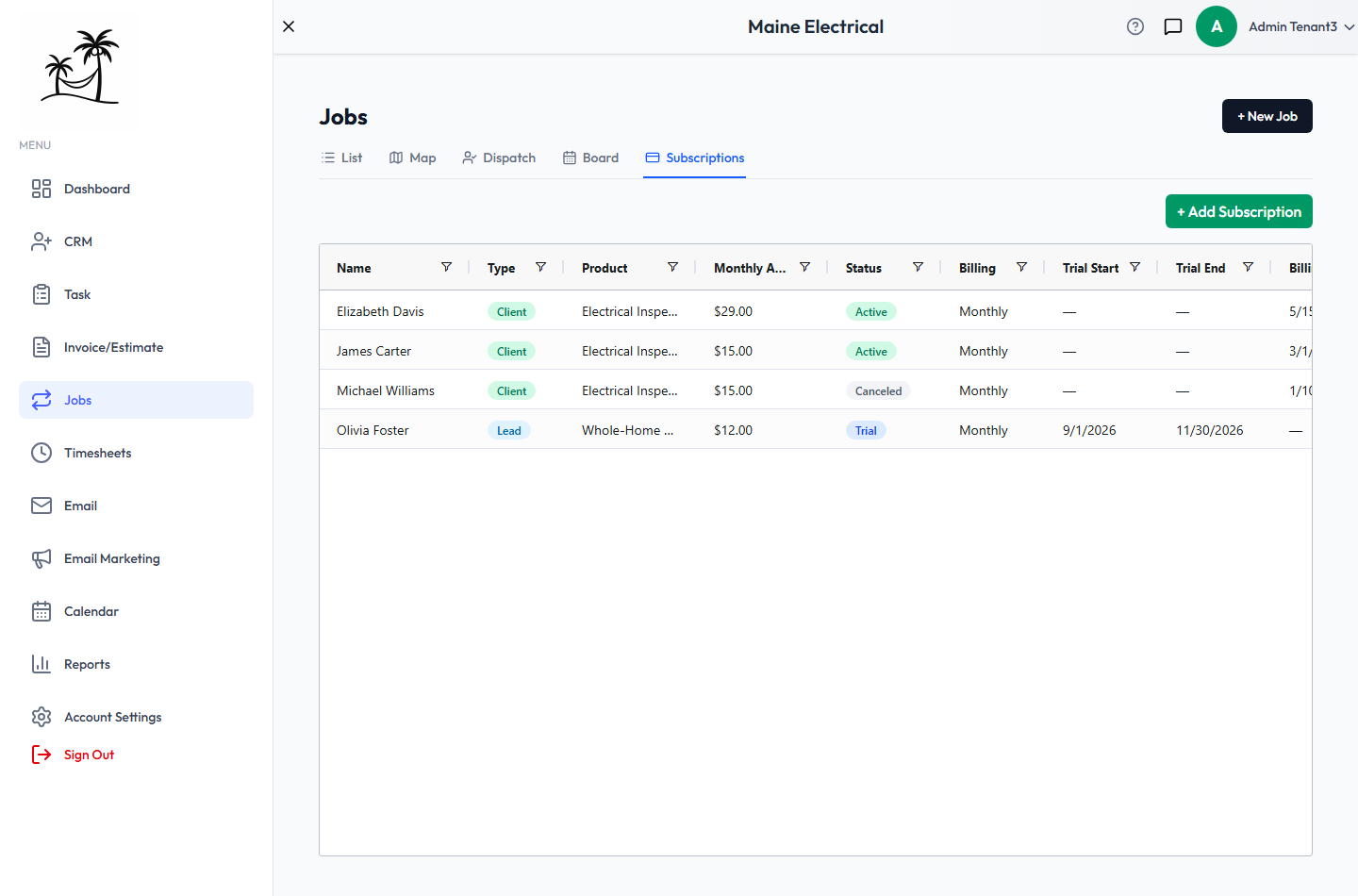
Subscriptions is a record, not a payment system. Nothing here charges a card or sends an invoice — use it to see at a glance who's on which plan and when their dates fall. Bill the work itself through a recurring job or an invoice.
The grid
- Name and Type — the subscriber, and whether they're a Lead or a Client.
- Product — the service from your catalog the plan is for. Not mapped means none was chosen.
- Monthly Amount and Billing — the price and how often it's billed: Trial, Weekly, Monthly or Yearly.
- Status — Trial, Active, Paused, Past Due, Pending, Expired, Canceled or None.
- Trial Start, Trial End, Billing Start, Billing End — the plan's dates.
- Canceled By — for a canceled plan, whether it was Admin or a Customer request.
- CC w/ Merchant — a tick you set as a reminder to check the client's card with your payment processor. It doesn't contact anyone.
Sort or filter any column — for example, filter Trial End to see which trials finish this month.
Adding a subscription
Click + Add Subscription.
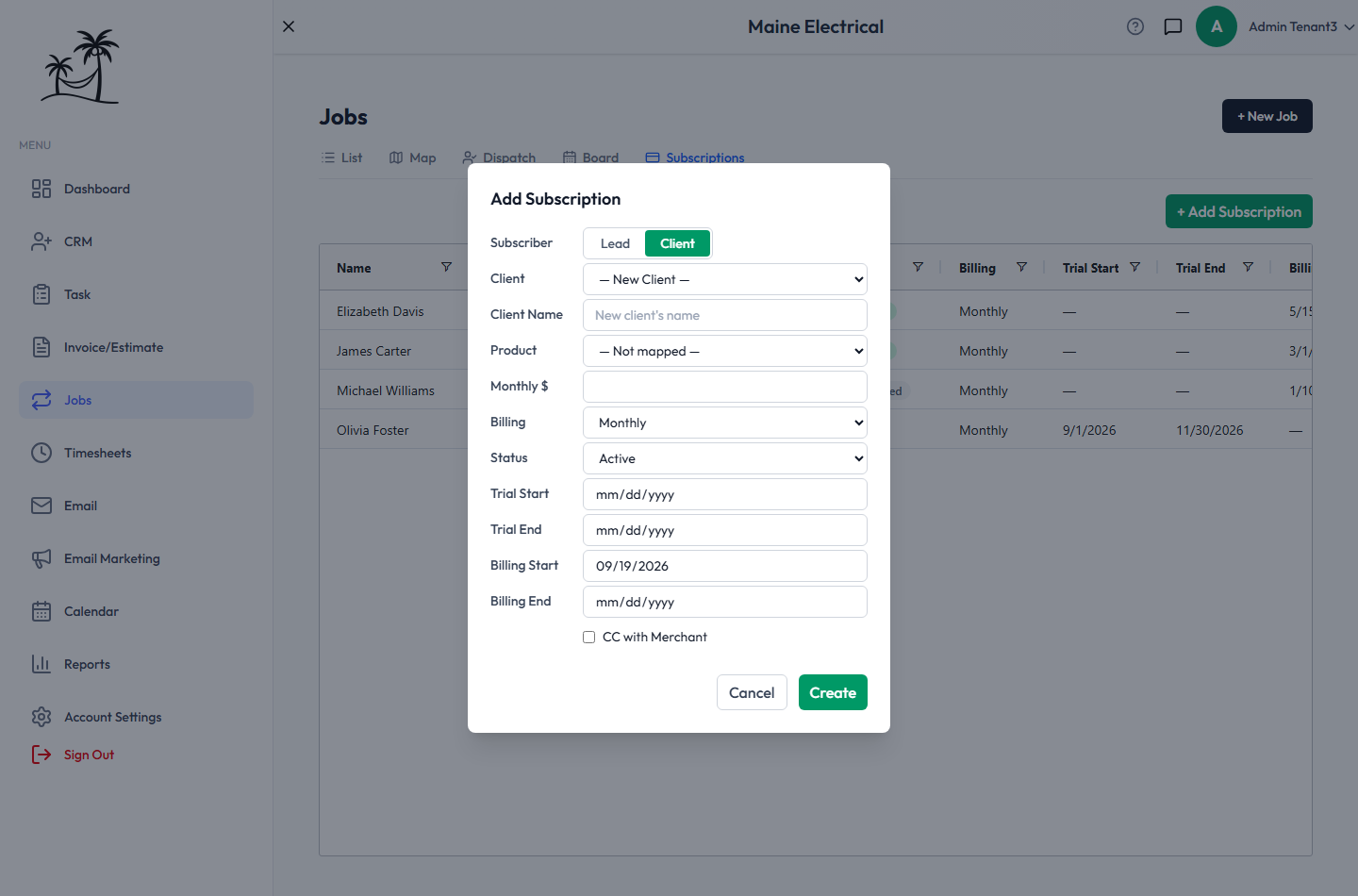
- Subscriber — Lead or Client, then pick them from the list. For a client who isn't in the CRM yet, choose — New Client — and type their name; the client is created along with the subscription.
- Product — the catalog service the plan is for — and Monthly $, the plan's price. The price isn't taken from the catalog, so enter it yourself.
- Billing, Status and the four dates.
- CC with Merchant — the reminder tick.
Each lead or client can have one subscription. Click Create to save.
Updating a subscription
Double-click a row.
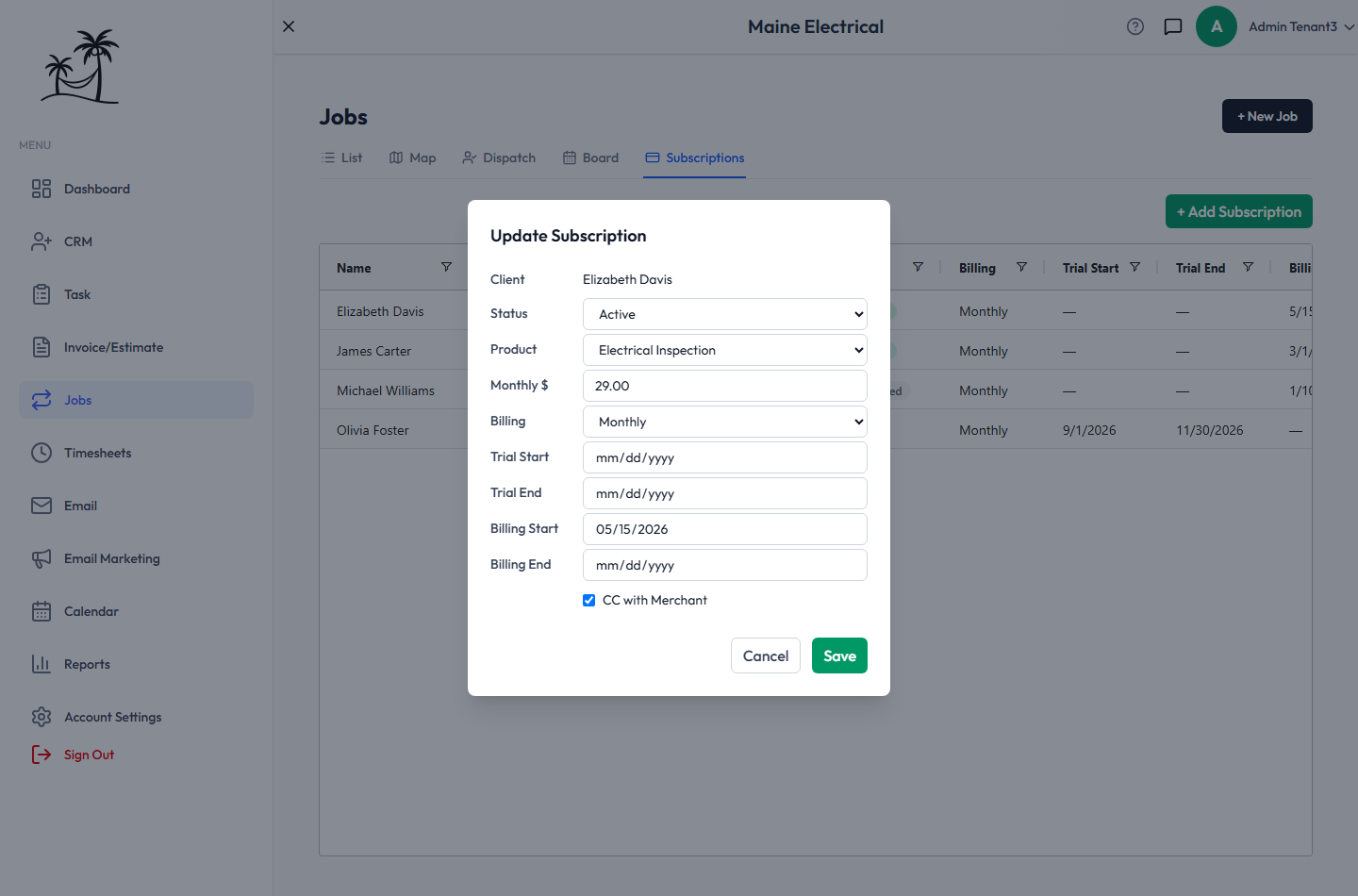
The subscriber is fixed; everything else can be changed. Setting Status to Canceled adds Canceled By, so you can record whose decision it was.
Subscriptions aren't deleted — cancel them instead, so the history stays.
Related
- Recurring Service Jobs — schedule and bill the visits a plan includes
- Clients and Leads — the subscribers