Scheduling Appointments
The Calendar pulls together everything with a date on it — tasks, leads, and recurring job visits — into one scheduling view, instead of checking three separate grids to see what's happening today.
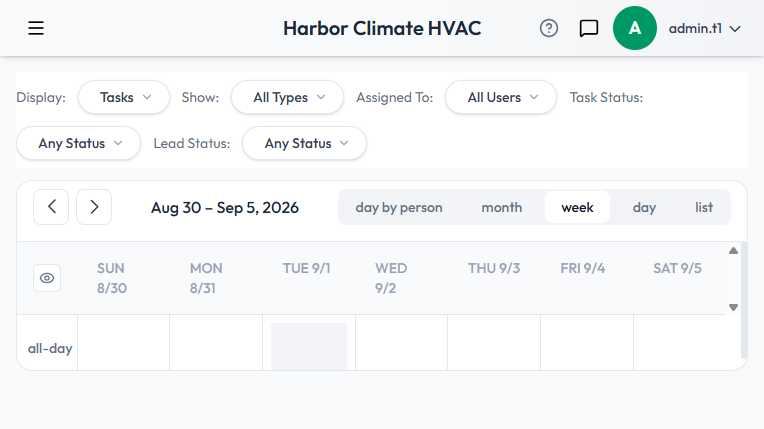
Views
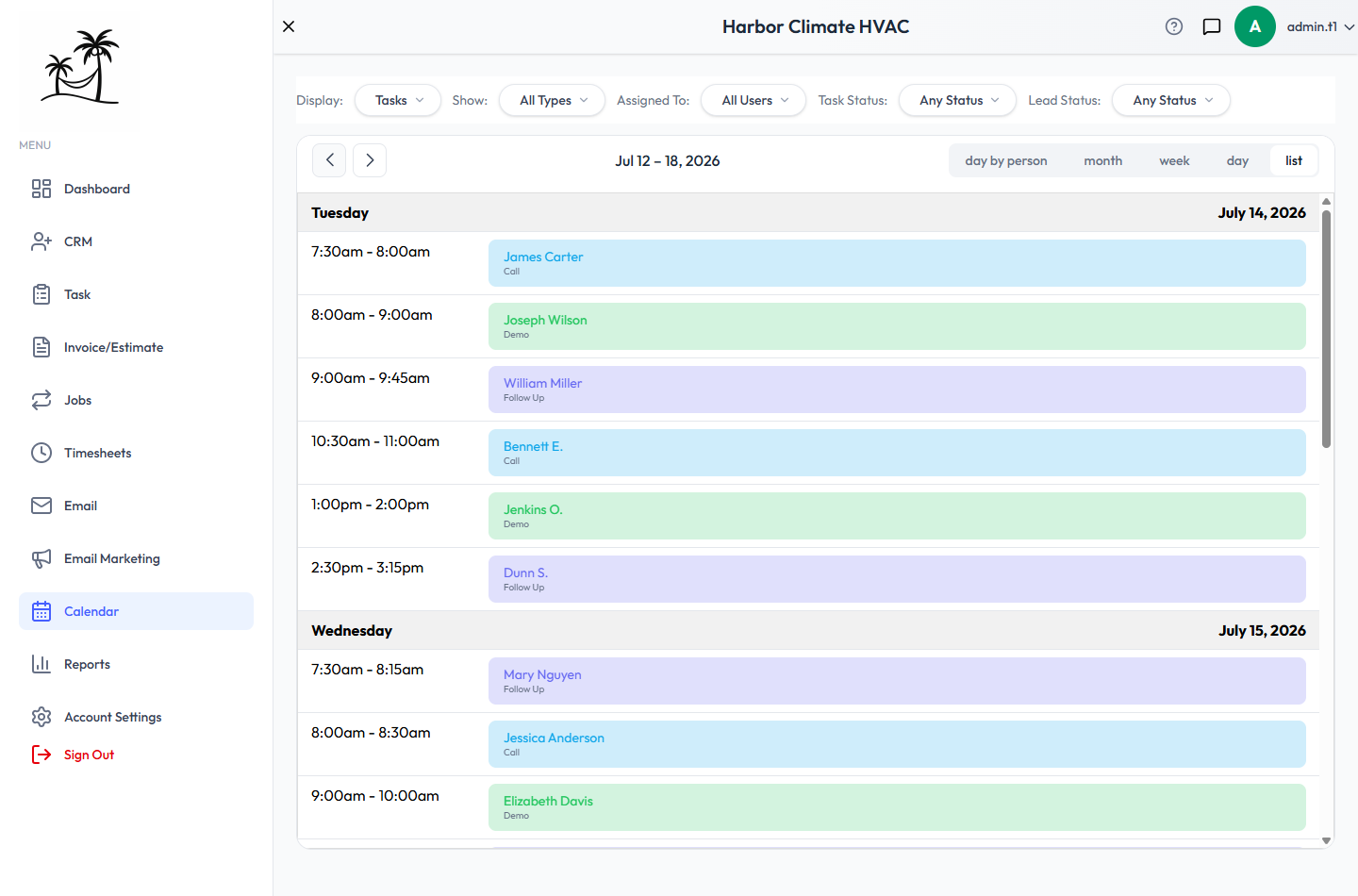
Switch between Month, Week, Day, and a List (agenda-style) view from the toolbar — it opens in Week view by default. Use the arrow buttons to move forward and back.
What shows up on it
- Tasks, Leads, and Jobs can each be toggled on or off with a Display checkbox.
- Job visits aren't a separate kind of event under the hood — they're tasks that belong to a recurring job, so anything true of tasks generally applies to job visits here too.
- Lead events are placed based on when the lead was last created or updated, giving a rough sense of recent lead activity alongside your scheduled work.
Filtering
Assigned To filters the calendar down to one specific user — the fastest way to see just your own schedule, or a teammate's. Show filters by task type, with separate Task Status and Lead Status filters to narrow further.
Working with events
- Hover for a tooltip with due date, type, assigned user, and — for lead-linked items — the lead's contact info and status.
- Double-click an event to open it fully on the Tasks or Leads page, rather than editing in place on the Calendar.
- Drag a task or job event to reschedule — the change saves automatically.
- Lead events can be dragged visually, but that move doesn't actually save — leads don't have a "due date" the way tasks do, so treat dragging a lead event as a preview, not a real reschedule.
Color coding
Events are tinted using the task type's assigned color where one is set, falling back to a status-based color otherwise. There's no on-screen legend — check an event's type or status directly (or Task Type/Status Maintenance) if a color isn't obvious.
Per-person dispatch view
For day-of-work dispatching rather than general scheduling, Jobs → Dispatch shows a day's visits grouped by person, alongside skill-based technician suggestions — see Dispatch. To plan the order to drive them in, see Map & Route Planning. For job work alone on a calendar, see the Board.
What Calendar doesn't do
- No click-an-empty-slot to create a task directly — create it on the Tasks, Leads, or Jobs page and it appears here automatically once it has a date.
- No "Today" shortcut button — use the navigation arrows.
- No sync with an external calendar like Google Calendar — this is strictly an internal view.
- No print or export option.
Tips
- Use List view for a scannable rundown instead of parsing a grid.
- Filter by Assigned To before a daily huddle so each person can glance at just their own day.
- Give task types distinct, memorable colors in Maintenance settings — since there's no legend, consistent color choices are what make it scannable.