Recurring Service Jobs
A recurring service job is for the client you visit on a schedule — every other Tuesday, the 6th of every third month. Set it up once and it keeps the next visits scheduled and writes the invoices, so you don't book or bill each one by hand.
Create one with + New Job → Recurring Service, or double-click a recurring job in the Jobs list.
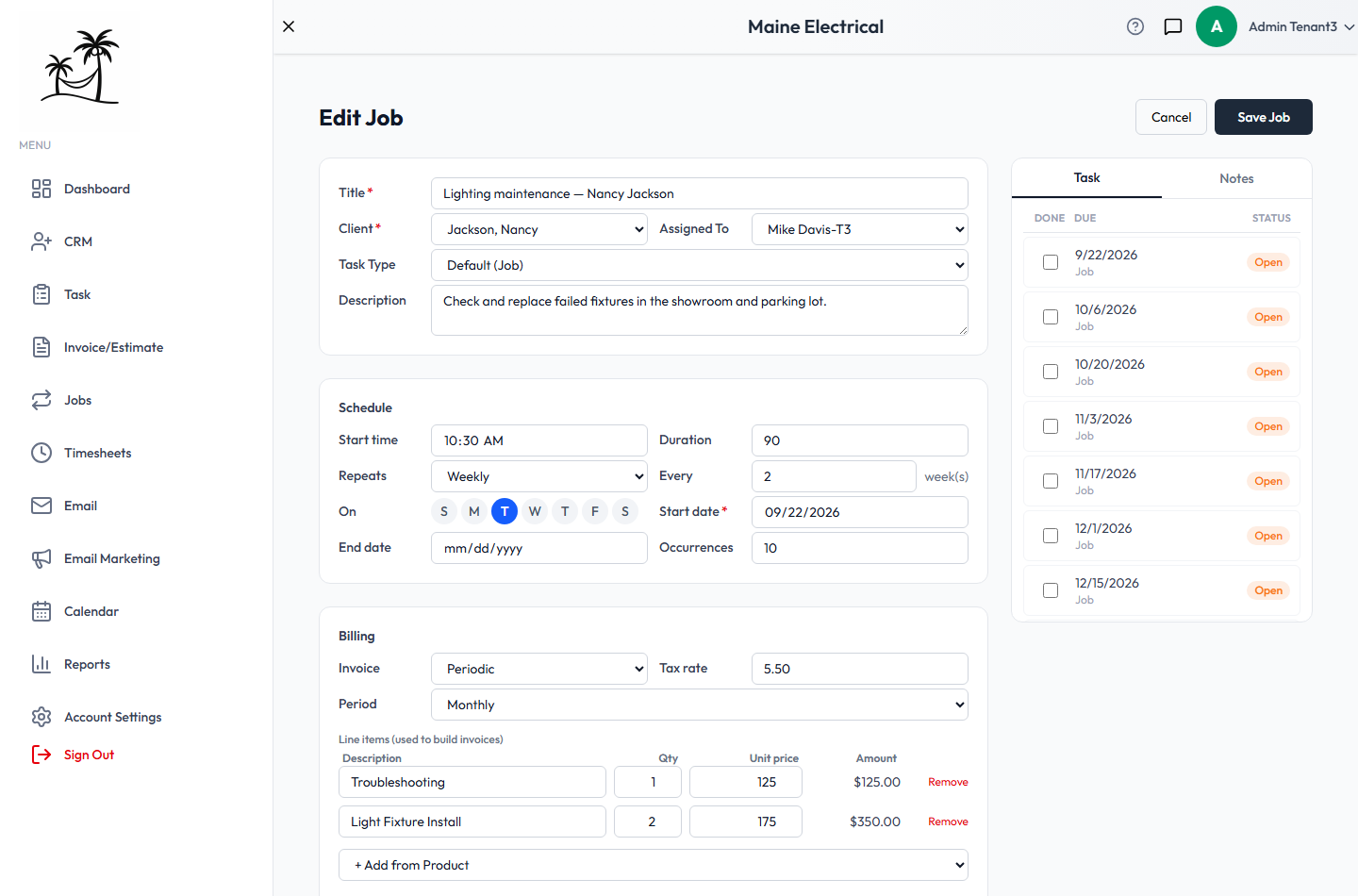
The job
- Title — required. Something you'll recognise in the list, such as "Lighting maintenance — Nancy Jackson".
- Client — required.
- Assigned To — who does the visits. Every visit the job creates is assigned to this person. The list is ranked by how well each person's skills match the job — see Dispatch.
- Task Type — what type the visits are. Leave it on Default (Job) unless you've made a more specific task type.
- Description — notes about the work, carried onto each visit.
The schedule
- Start time and Duration (in minutes) are optional. With them, each visit sits at that time on the calendar; without them, it's an all-day entry.
- Repeats is One time, Weekly or Monthly, and Every sets the interval. Weekly with Every 2 is fortnightly; Monthly with Every 3 is quarterly.
- On picks the weekday for a weekly job. Day picks the day of the month for a monthly one.
- Start date is required — the first date a visit can land on.
- End date is optional. No visits are scheduled after it.
- Occurrences is how many upcoming visits to keep on the calendar at any one time — 10 by default. It's a rolling count, not a total: as visits pass, new ones are added so there are always that many ahead. To stop a job after a set point, use End date.
Billing a job
- Invoice — Per visit creates one invoice for each visit once its date arrives. Periodic creates one invoice per billing Period (weekly or monthly), once that period has ended, however many visits fell in it.
- Tax rate — applied to the taxable line items.
- Line items — what goes on each invoice. Type them, or use + Add from Product to pull a service from your catalog with its price. A catalog package expands into its individual items. Remove takes one off.
Invoices from a job are created as drafts, so you can check them before sending. A job with no line items, or a paused job, doesn't create any.
Decide between Per visit and Periodic before the job has much history. Switching later changes what's billed from then on; invoices already created stay as they are.
The services on the line items also decide which skills the job's visits need.
Visits and notes
Once the job is saved, the panel on the right has two tabs:
- Task lists the upcoming visits with their due dates and status. Tick Done to mark one complete, which moves it to your "Done" status.
- Notes holds notes about the job as a whole.
The visits are ordinary tasks, so they also appear on the Board, the Calendar, the Map and Dispatch, and anyone can open and update one from there.
Save Job saves your changes; Cancel leaves without saving.
What saving does to the upcoming visits
Visits that already exist don't silently follow every edit, so saving asks when it needs to. Completed visits are never touched.
| What you changed | What happens |
|---|---|
| Billing, tax rate, line items or notes | The upcoming visits are left alone. |
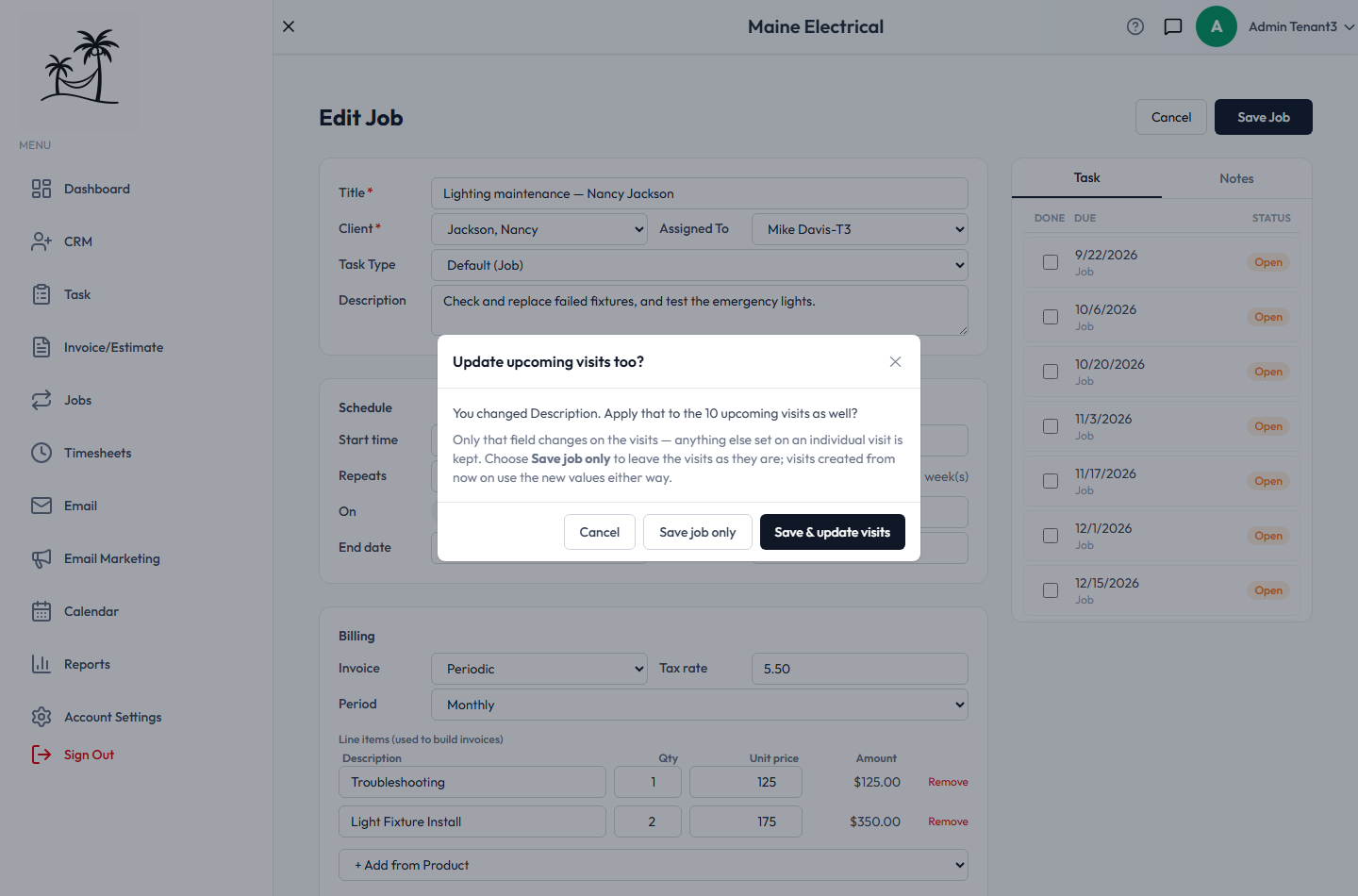
| A detail the visits carry — Title, Client, Assigned To, Task Type, Description, Start time or Duration | You're asked whether to apply it to the upcoming visits as well. Save & update visits changes just those details on them, keeping anything else set on an individual visit. Save job only leaves them as they are. Either way, visits created from then on use the new values. |
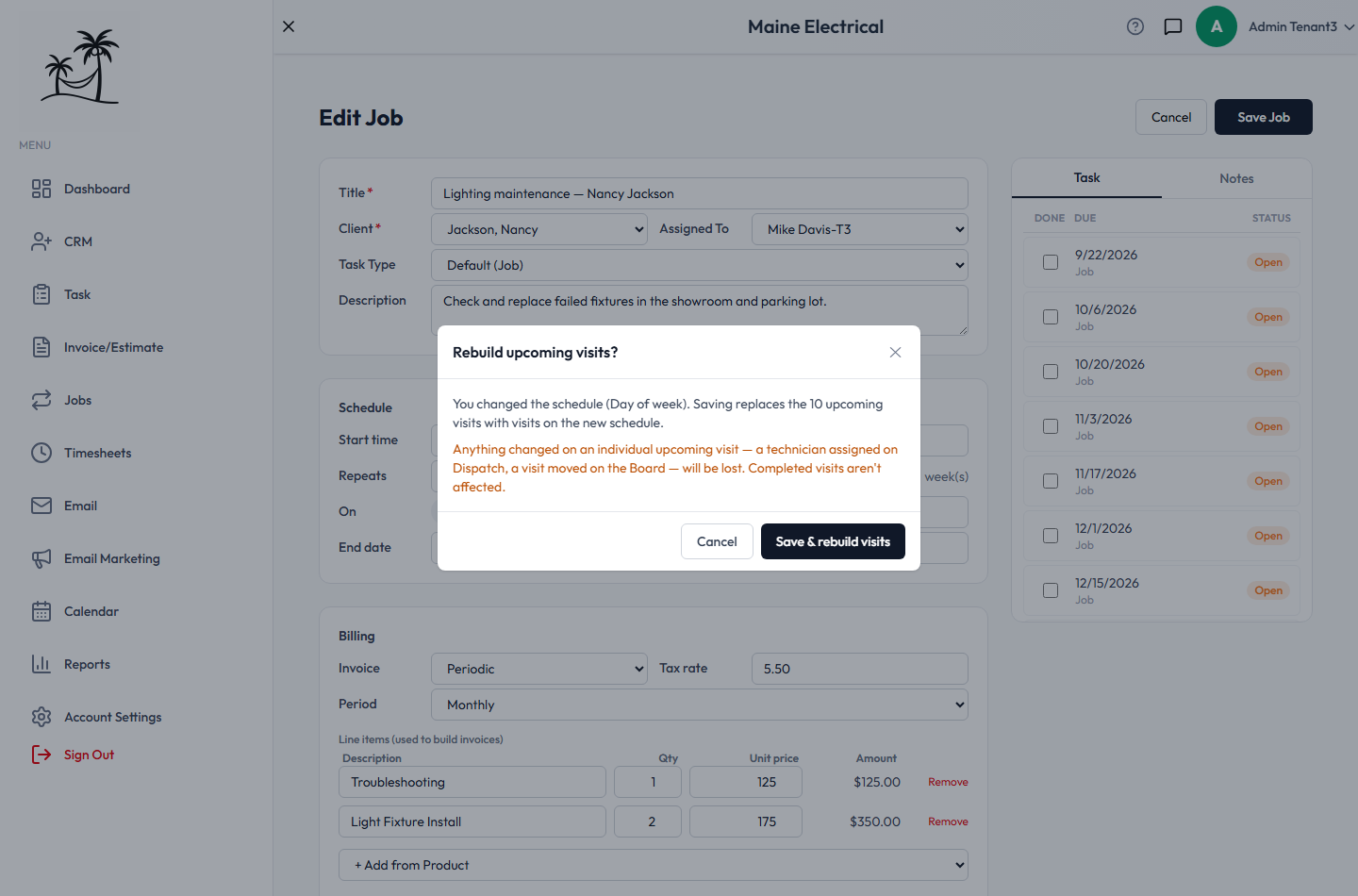
| The schedule — Repeats, Every, On/Day, Start date, End date or Occurrences | The upcoming visits have to be rebuilt on the new schedule, so you're asked to confirm. Anything set on an individual upcoming visit is lost: a technician assigned on Dispatch, or a visit moved on the Board. |
To change the assignee for one visit only, use Dispatch. That survives later edits to the job, as long as you don't change the schedule.
Related
- Jobs — the list, pausing and deleting
- Multi-Task Jobs — for one-off projects instead
- Invoicing & Payment Collection — sending the invoices a job creates