Multi-Task Jobs
A multi-task job is a one-time project made of steps — a kitchen remodel, a panel upgrade with a permit and an inspection. Each step is a task that can have its own person, due date and status, and the job tracks how far along the whole thing is.
Create one with + New Job → Multi-Task Job, or double-click one in the Jobs list.
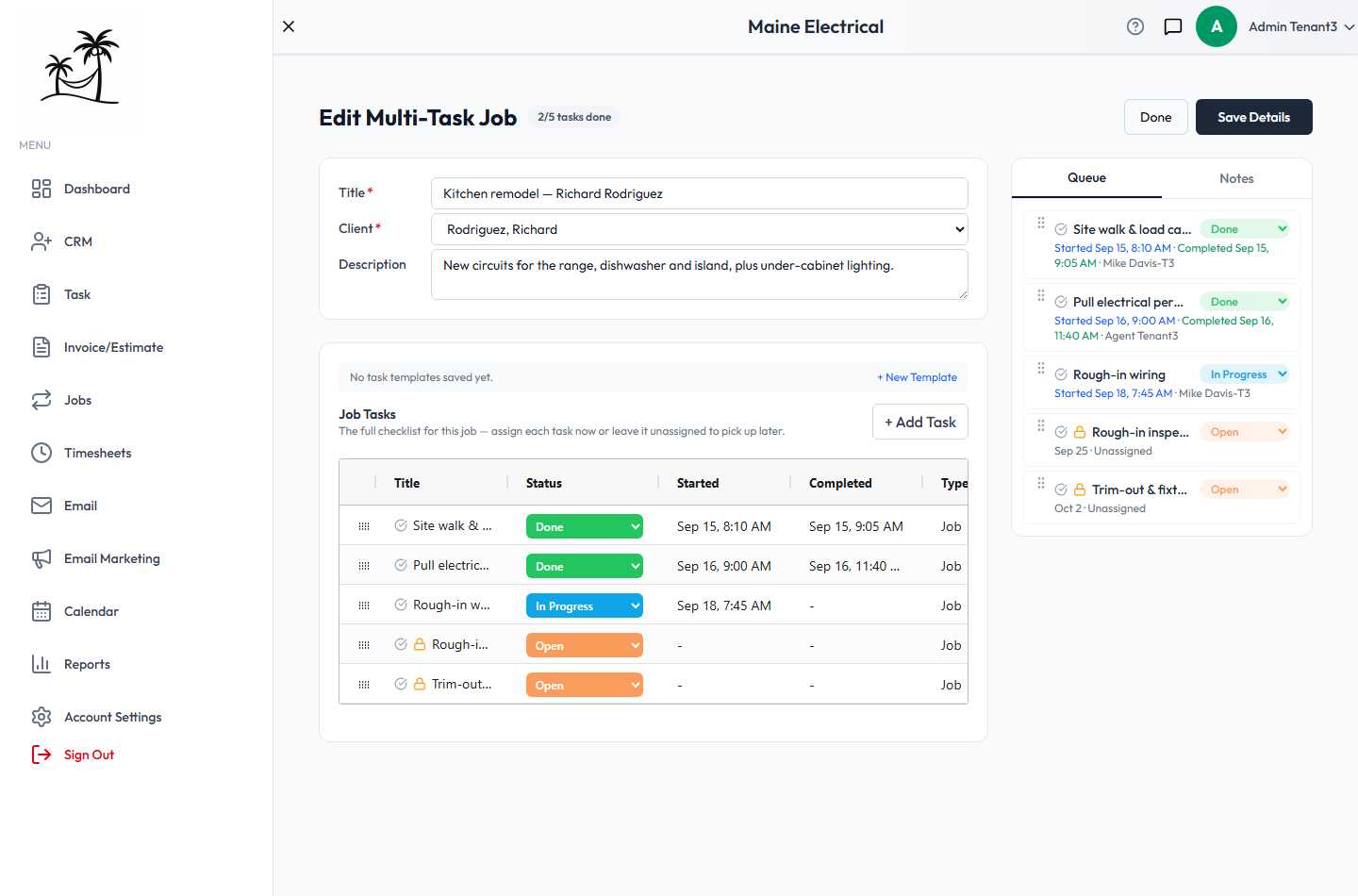
Starting the job
- Title — required, for example "Kitchen remodel — Richard Rodriguez".
- Client — required.
- Description — the scope of the work.
- Template — when creating the job, pick a job task template to fill in the checklist for you, or Start blank — I'll add tasks myself. + New Template opens the template screen in a new tab, so you don't lose what you've typed.
Save to create the job, then build out its tasks. On an existing job, Apply a template adds a template's tasks to the checklist.
The checklist
Job Tasks is the full checklist for the job. + Add Task adds a step. For each task you can set:
- Task — what the step is — and Notes
- Assigned To — or leave it unassigned and pick someone when you get to it
- Due Date and Start Time
- Task Type and Task Status
- Required — on by default. Only required tasks count toward finishing the job, so untick it for optional extras.
- Depends On — nothing, the previous task in the list, or a specific task
A padlock beside a task means it's waiting on a task that isn't done yet. Its status can't be moved on until that task is finished. "The previous task" follows the checklist's current order, so reordering changes what a task waits on.
The grid shows each task's Status, which you can change right there, plus when work Started and when it was Completed. Drag a row by its handle to reorder the checklist.
The Queue
The Queue on the right is the same checklist in compact form: each task with its status, date and assignee, and started/completed times once work has begun. Drag tasks here to reorder them too. Notes holds notes on the job as a whole.
Progress and completion
The heading shows how many required tasks are done — 2/5 tasks done. The same count appears as a progress bar in the Jobs list.
When every required task is done, the job completes on its own — there's nothing to close. Reopen a task and the job goes back to active.
Unlike a recurring job, a multi-task job has no schedule and can't be paused.
Save Details saves the title, client and description. Task changes save as you make them. Done returns to the Jobs list.
Where the tasks show up
Each task is an ordinary task. A task with a due date appears on the Board and the Calendar, and in the assignee's own task list. Multi-task job tasks don't appear on the Map or on Dispatch, which are for recurring visits.
Related
- Job Task Templates — build the checklist once, reuse it on every similar job
- Recurring Service Jobs — for work that repeats
- Task Statuses — which status counts as done