Map & Route Planning
The Map tab in Jobs plots one day's job visits and draws the driving route between them. It can also reorder the stops into a shorter route, starting from your shop.
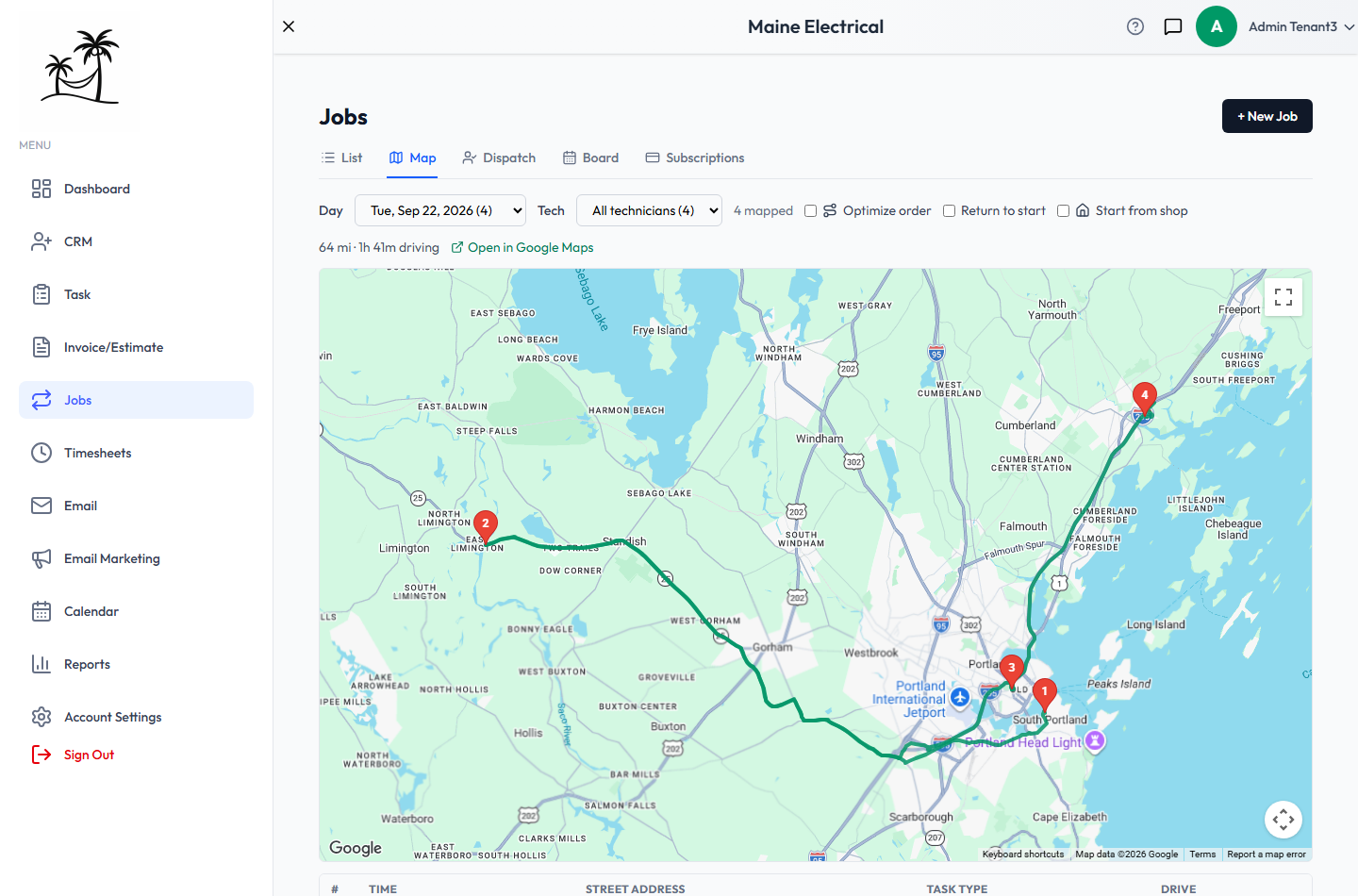
Choosing what to show
- Day lists every upcoming date that has visits, with a count for each — Tue, Sep 22, 2026 (4). A visit rescheduled on the Board appears under the day it moved to.
- Tech narrows the map to one person's visits, or to the unassigned ones. It only appears when the day's visits aren't all with the same person.
- Next to them, 4 mapped counts the visits placed on the map. Any that couldn't be placed show as unmapped — see When a visit isn't on the map.
The stops are numbered in visit order, and the line between them is the driving route. Above the map is the total distance and driving time. Click a pin to see the visit's details.
Below the map, a table lists each stop with its number, Time, Street Address, Task Type and the Drive from the previous stop. Open job on a row goes to that visit's job.
Planning the route
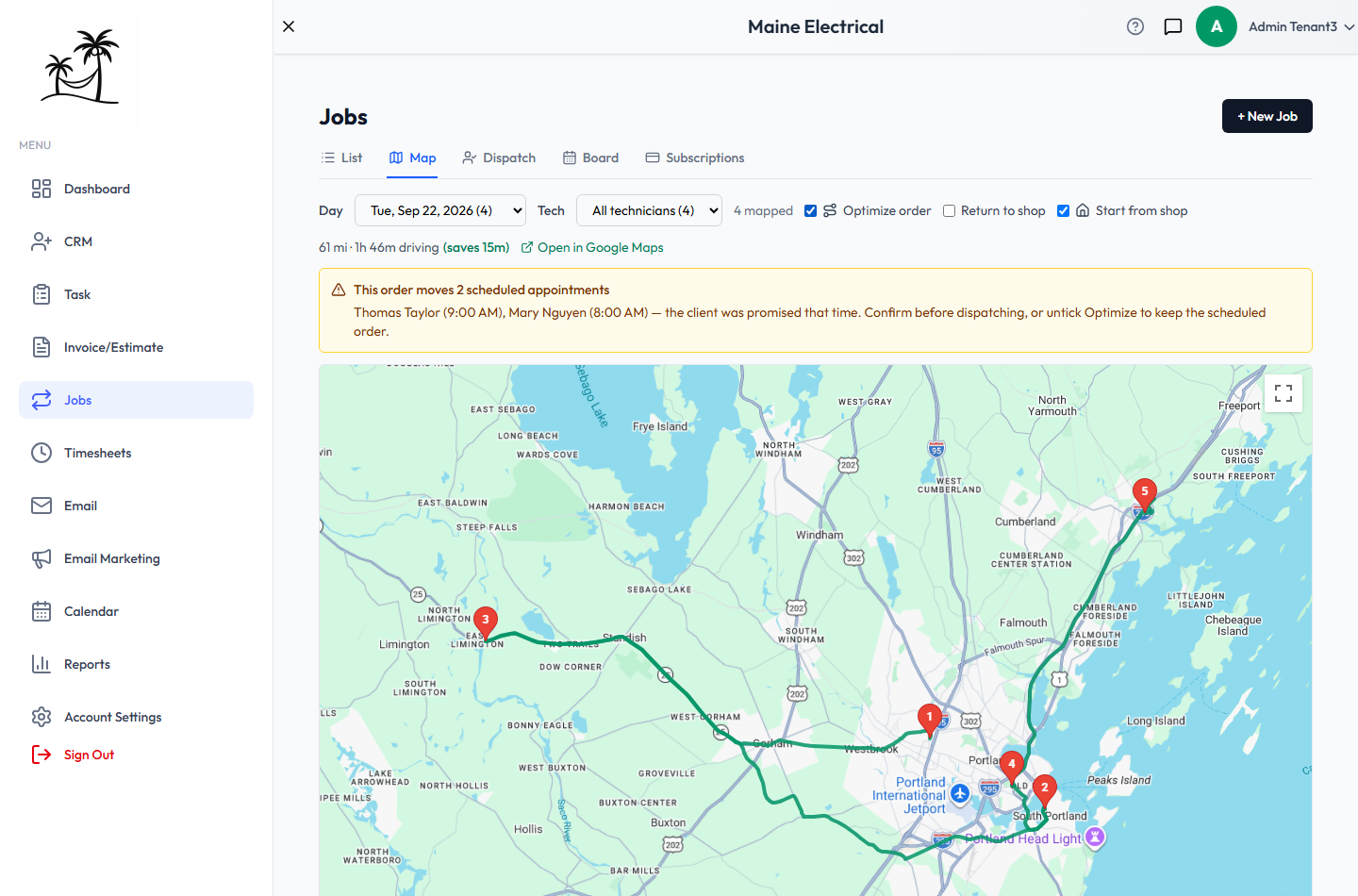
- Start from shop begins the route at your business address instead of the first visit. It appears once your address is set under Company Profile & Branding.
- Return to shop (or Return to start) makes the route a round trip.
- Optimize order reorders the stops into the shortest driving route. The total shows how much time that saves — (saves 15m) — or (already near-optimal) if the order you had was already about as good.
- Open in Google Maps opens the route, in its current order, for turn-by-turn directions on a phone.
Promised appointment times
A shorter route that has you arriving hours after a time you promised isn't a better route. If optimizing moves any visit that has a set start time, a yellow warning lists them — Thomas Taylor (9:00 AM), Mary Nguyen (8:00 AM). Confirm with those clients before you dispatch, or untick Optimize order to keep the scheduled order.
Optimizing only changes the order on the map. It doesn't change anyone's visit times or assignments.
Busy days
A route can include up to 25 locations, counting your shop. On a busier day, every pin is still shown but no route is drawn. Use Tech to plan one technician's day at a time.
When a visit isn't on the map
A visit is placed using its client's address, which is looked up automatically when the address is saved. If a visit is counted as unmapped, or its pin is somewhere it shouldn't be, check the client's address in Clients — a missing town or a typo is the usual cause.
Related
- Dispatch — assign the day's visits to the right people
- Board — the same visits on a calendar
- Recurring Service Jobs — where the visits come from