Jobs
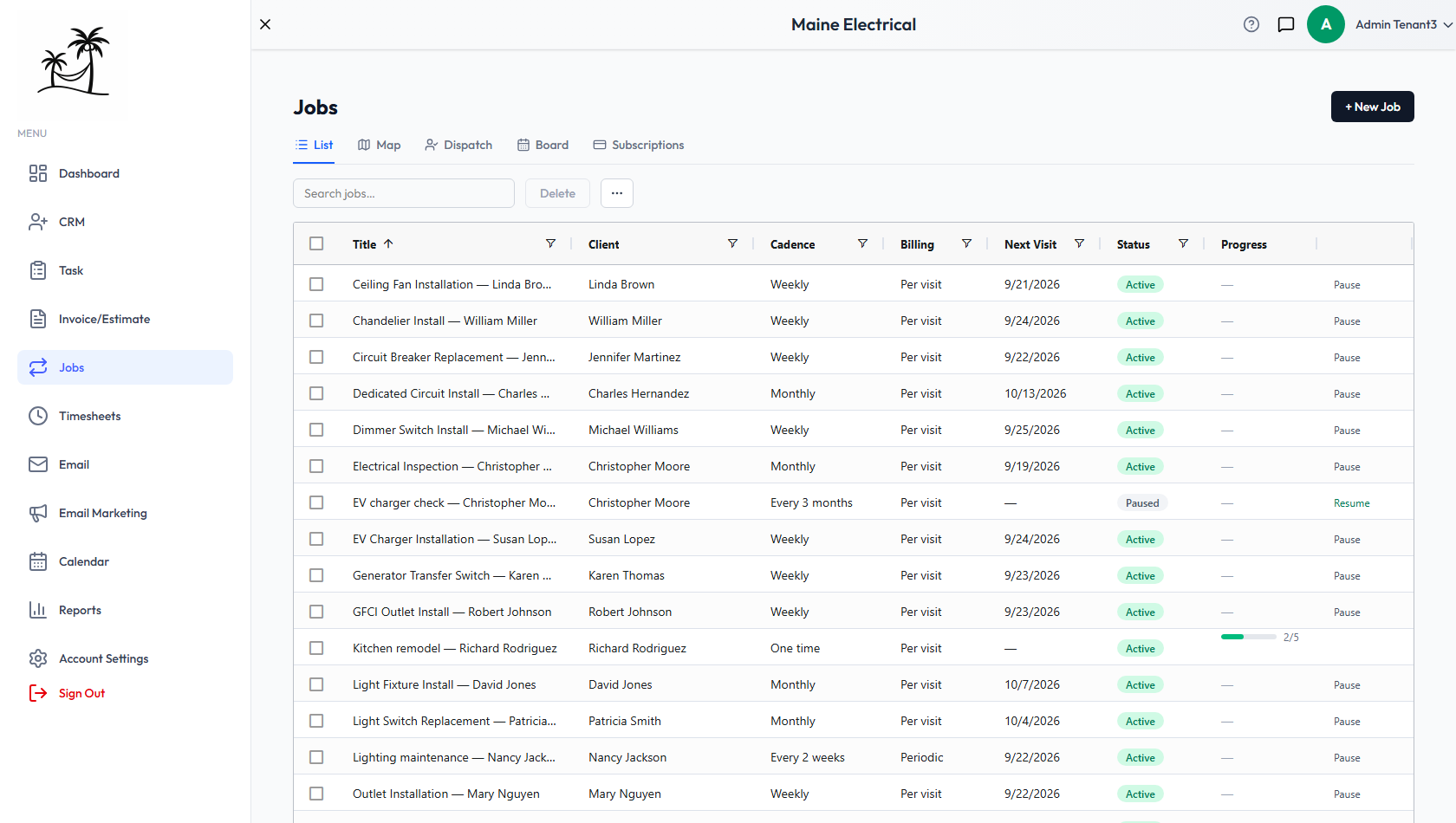
A job is work you do for a client over more than one visit or step. Jobs in the main menu opens the list of all of them, plus four other views of the same work: the Map, Dispatch, the Board and Subscriptions.
Jobs is included on the plans that include invoicing.
Two kinds of job
Click + New Job and pick one:
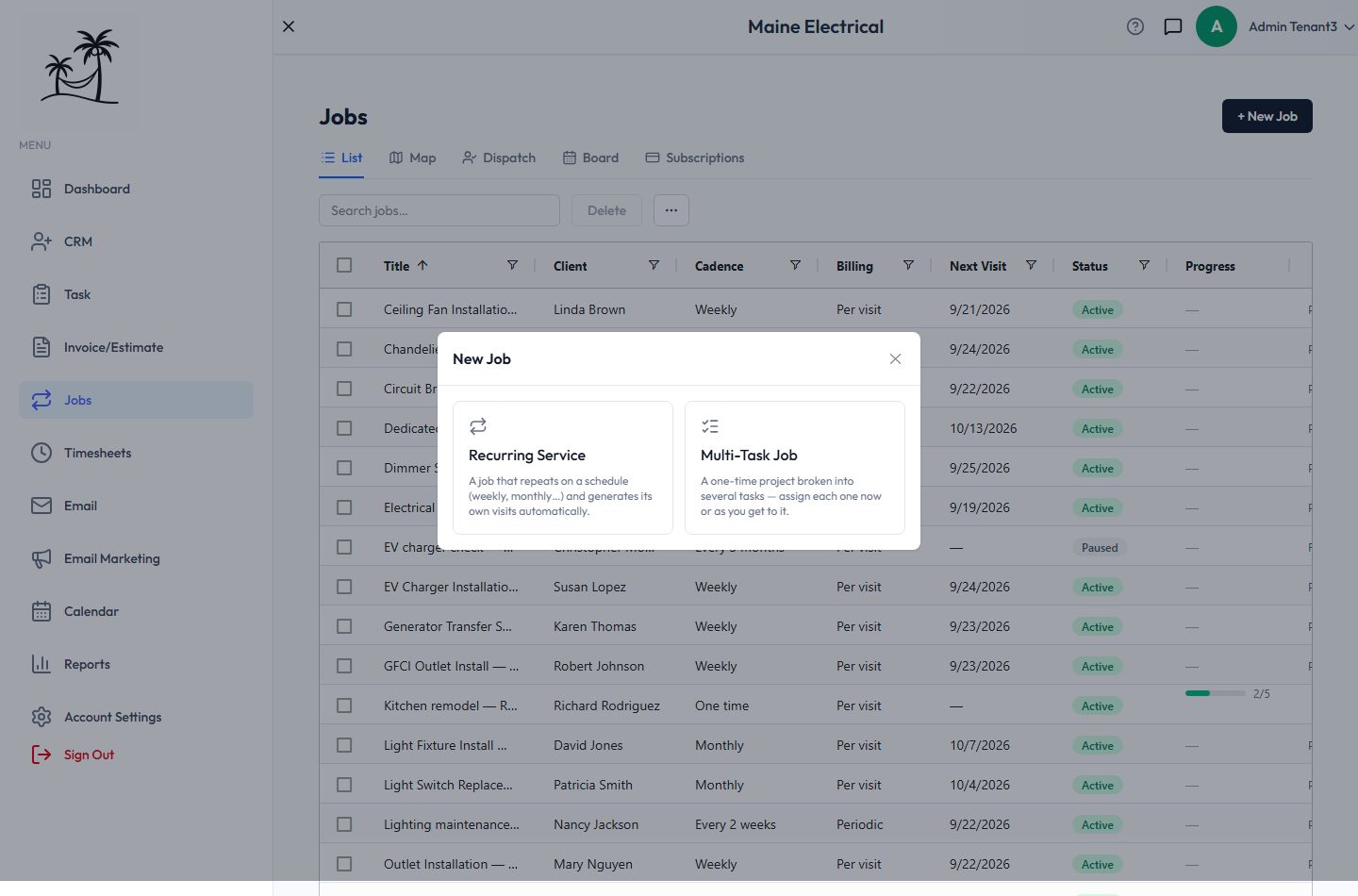
| Recurring Service | Multi-Task Job | |
|---|---|---|
| For | Work that repeats on a schedule — monthly maintenance, a fortnightly service call | A one-time project broken into steps — a remodel, an install |
| Creates | A visit on every date the schedule lands on | A checklist of tasks, each assigned when you're ready |
| Finishes | When you pause it, or its end date passes | Automatically, once every required task is done |
| Page | Recurring Service Jobs | Multi-Task Jobs |
The list
- Search jobs… matches the job title and the client's name.
- Cadence describes the schedule in words: Weekly, Every 2 weeks, Every 3 months, or One time for a multi-task job.
- Billing is Per visit or Periodic. See Billing a job.
- Next Visit is the next scheduled visit date. Paused and multi-task jobs show a dash.
- Status is Active, Paused or Completed.
- Progress appears on multi-task jobs only: tasks done out of the total, as a bar.
- … → Columns adds hidden columns, such as Type, Assigned To, Start Time, Duration, Start and End Date, Billing Period, Tax Rate, Description, Created and Updated. Your layout is saved to your account.
Double-click a job to open it in the right editor for its kind.
Pausing and resuming
The end of each recurring job's row has Pause or Resume.
- Pause stops the job and removes its upcoming visits that aren't done. Past visits, notes and line items stay. No invoices are created while it's paused.
- Resume makes it active again and schedules its upcoming visits afresh from today.
Multi-task jobs don't have Pause. They complete on their own when their tasks are done.
Use Pause, not Delete, when a client puts service on hold — you keep the history and can pick up where you left off.
Deleting jobs
Tick one or more rows and click Delete. A job's upcoming visits are removed with it. Visits already completed stay in your task history.
Related
- Recurring Service Jobs and Multi-Task Jobs — the two editors
- Job Task Templates — reusable checklists for multi-task jobs
- Managing Services & Pricing — the catalog that job line items come from