Job Task Templates
A job task template is a saved checklist of steps in a set order. If your jobs follow the same sequence every time (quote → demo → rough-in → final walkthrough → invoice, for example), build it once and apply it to new jobs instead of retyping each step.
Templates live in Account Settings → Job Task Templates and work with Multi-Task Jobs.
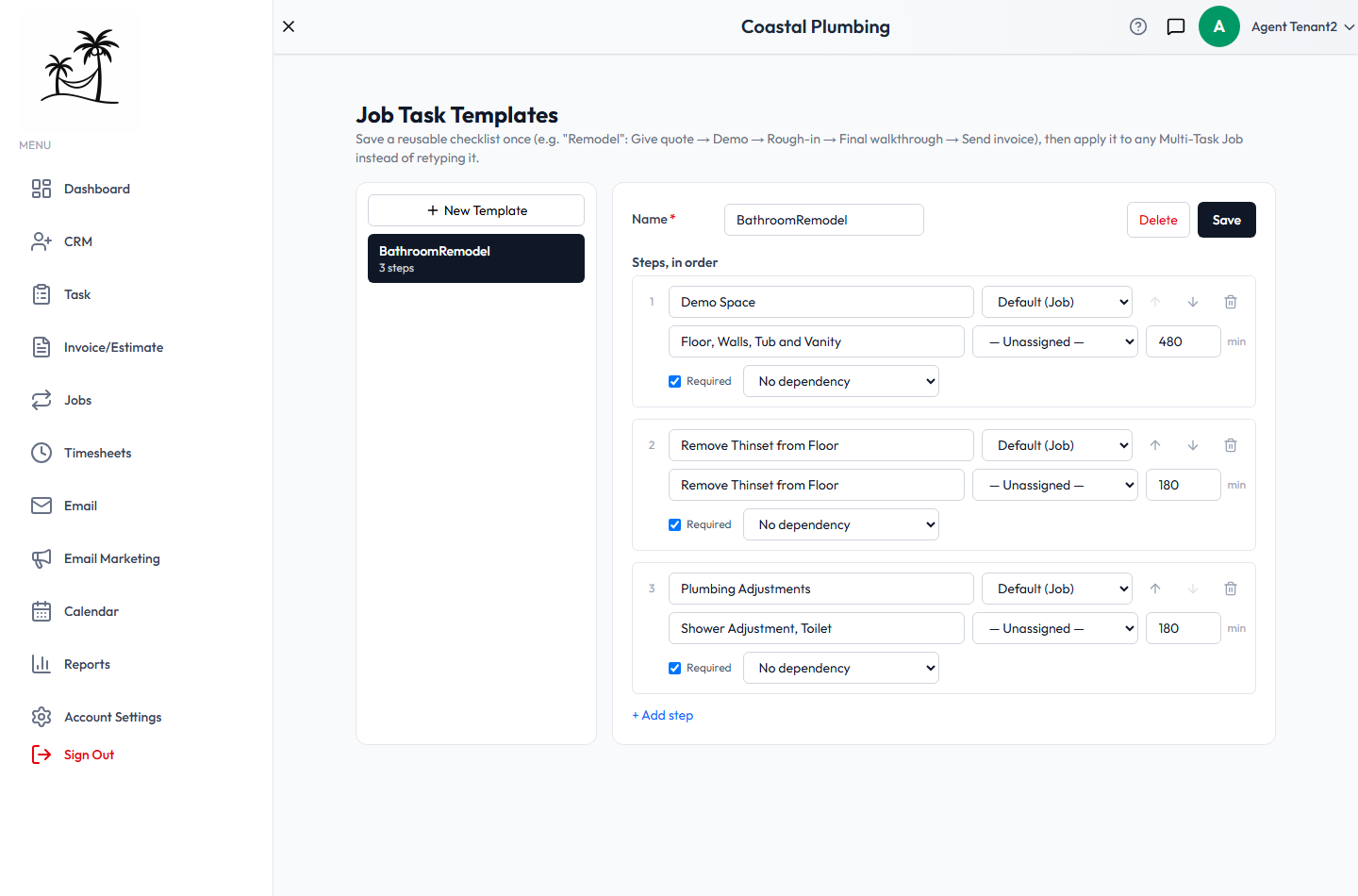
Building a template
- Go to Account Settings → Job Task Templates. Your saved templates are listed on the left.
- Give the template a Name, such as "Remodel" or "Furnace Install".
- Add steps under Steps, in order, and use the arrows to reorder them.
- Save.
To edit a template, select it in the list. To remove it, use the delete button.
What each step holds
A step has the same fields as a real task:
- Title: what needs to be done.
- Task type: Job by default, or any of your task types.
- Description: optional notes or instructions.
- Default assignee: the person who usually does this step. Leave it Unassigned if it varies.
- Duration: estimated time, in minutes.
- Required: whether the job can finish without this step. See Required and optional steps.
- Dependency: what must be finished before this step can start. See Step dependencies.
Steps don't include dates or times. A template gets reused on jobs scheduled at different times, so a fixed date wouldn't apply. Tasks created from a template start unscheduled, and you schedule them on the job.
Applying a template to a job
On a Multi-Task Job's checklist, pick a template under Apply a template. Each step becomes a task on that job, in the template's order.
Applying a template adds its tasks. It doesn't replace tasks already on the job, so you can apply more than one template to the same job.
Editing a template later doesn't change jobs you've already applied it to. Those jobs keep their own copies of the tasks.
Step dependencies
A dependency stops a task from being started before another task is finished. Each step has one of three settings:
- No dependency: the task can start at any time.
- Must complete previous task: the task waits for whichever step sits directly above it in the checklist. If you reorder the checklist, it waits for the new step above it.
- Depends on specific task: the task waits for one step you choose, wherever that step is in the list.
A blocked task can stay in its Open status. If you try to move it to any other status, you'll see "Blocked by task name — complete it first" until the task it depends on is done.
A task counts as done when it's marked complete, or when its status is named Done or Completed.
Required and optional steps
Steps are required by default. Turn off Required for steps that are useful but shouldn't hold up a job, like "Photograph old equipment."
Optional steps don't count toward the job's progress bar. A Multi-Task Job completes automatically once every required task is done, even if optional ones are still open.
Tips
- Keep your starting task status named Open. Dependency blocking looks for that exact name. See Task statuses.
- For a strict sequence, use Must complete previous task. It stays correct when you reorder the checklist. A specific dependency always points to the same step, wherever it moves.
- Set a default assignee only on steps the same person almost always does. On the others, you'd just end up changing it on every job.