Creating and Managing Jobs
Jobs are for recurring service agreements — the client you visit every week, every other Tuesday, or on the 1st of every month. Instead of manually scheduling each visit and writing each invoice, a job auto-generates both on the cadence you set.
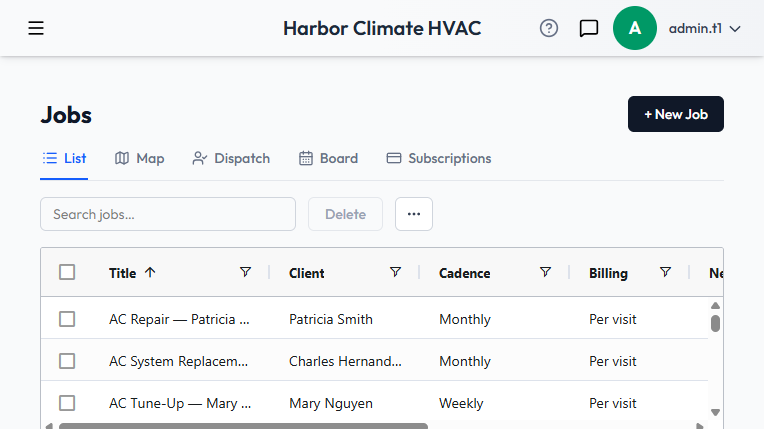
The Jobs grid
Visible by default: Title, Client, Cadence (a plain-English summary like "Weekly" or "Every 2 weeks"), Billing mode, Next Visit date, and Status (Active or Paused). Type, Assigned To, Start/End Date, Billing Period, Tax Rate, and more are available from the Columns menu but hidden by default.
Each row has an inline Pause or Resume action, so you can stop a job from generating new visits without deleting its history. A List / Map toggle switches between the grid and the day map.
Creating a job
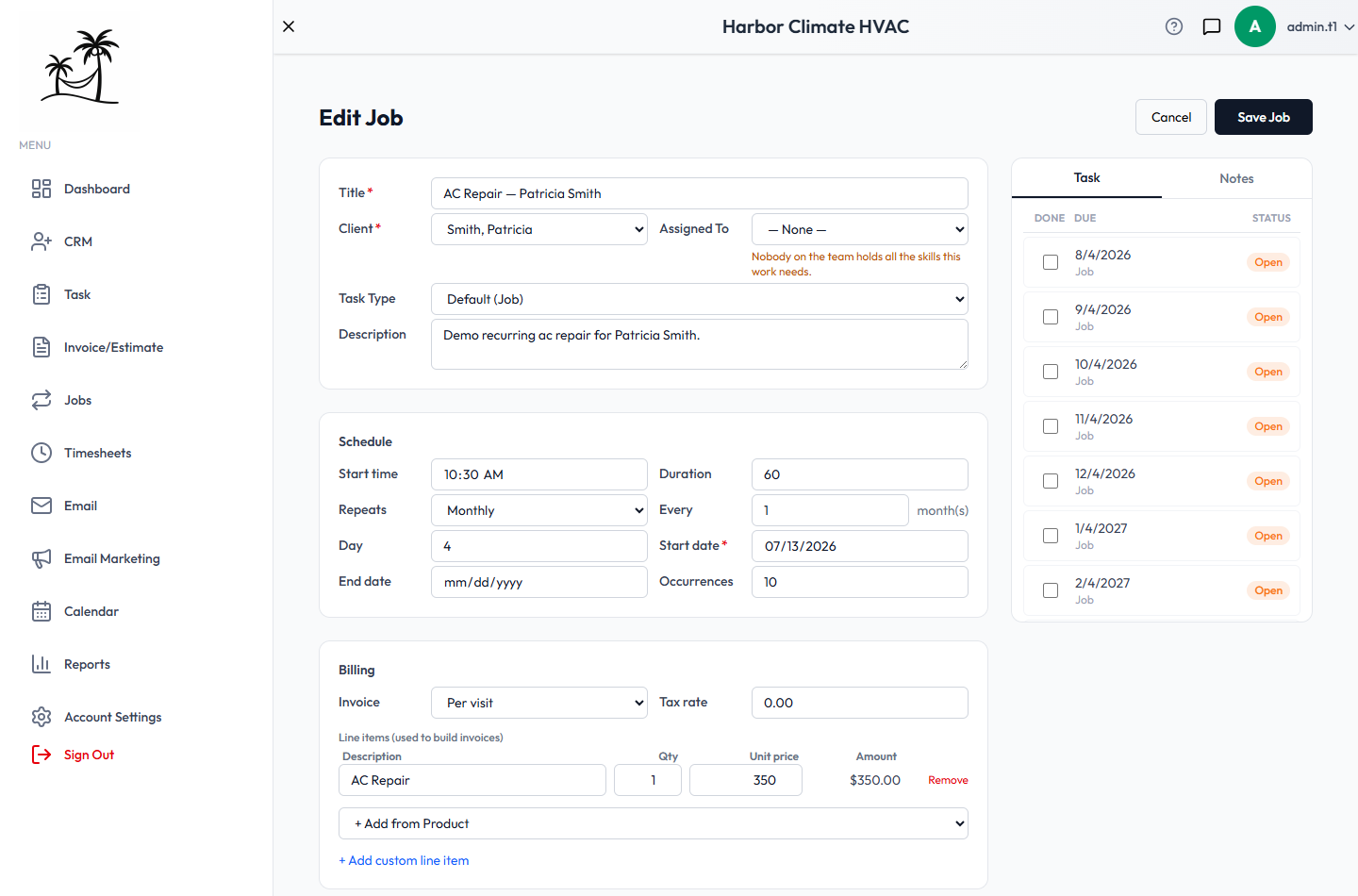
Title, Client, and Start date are required. Assigned To and Task Type are optional — leaving Task Type blank uses your default "Job" type.
Setting the schedule
- Set an optional Start time and Duration for each visit.
- Repeats is Weekly or Monthly, combined with an Every interval — Weekly + Every 2 gives biweekly visits.
- Weekly jobs get a day-of-week picker; monthly jobs pick a day of the month.
- Set an End date, a target number of Occurrences, or both to control when recurrence stops.
Billing a job
Choose Per visit to generate a separate invoice for every visit, or Periodic to bill on a set cycle regardless of how many visits happened in between. Line items — typed freely or pulled from your service catalog — are what actually get carried onto the invoices this job generates; a catalog "package" automatically expands into its individual line items.
Tracking visits
Once a job is saved, a side panel shows Task and Notes tabs (visits aren't visible until the job is saved for the first time). The Task tab lists every generated visit with its due date and status — check one off to mark it done, which flips its status to your tenant's "Done" status automatically.
Assigning a technician
The Assigned To field on a job or visit — and the Dispatch board — ranks your team by how well they match the job's required skills, derived from the services on the job's line items. See Skill-Based Dispatch.
The Day Map and route optimization
Switch to Map to see one day's visits plotted geographically. A Day dropdown lists upcoming dates with a visit count for each. Visits plot on the map once the client's address is geocoded, which happens automatically in the background — if a visit isn't showing where expected, check the client's address first.
The day map can also order the day's stops into an efficient driving route starting from your own shop — see Route Optimization.
Tips
- Use Pause instead of deleting when a client puts service on hold — it stops new visits without losing history or line items.
- Decide Per visit vs. Periodic billing before you save a lot of history against a job — switching later won't retroactively change invoices already sent.
- Turn on the Assigned To and Next Visit columns if multiple techs share the Jobs grid.