Workflow
A workflow runs a series of steps automatically when something happens in your CRM. For example, when a lead reaches About To Close, it can create a call task tomorrow and a follow-up task three days later, without anyone setting reminders by hand.
Workflows are on the Workflow tab in CRM, and they're available on the Business and Growth plans. In the app, workflows are also called sequences.
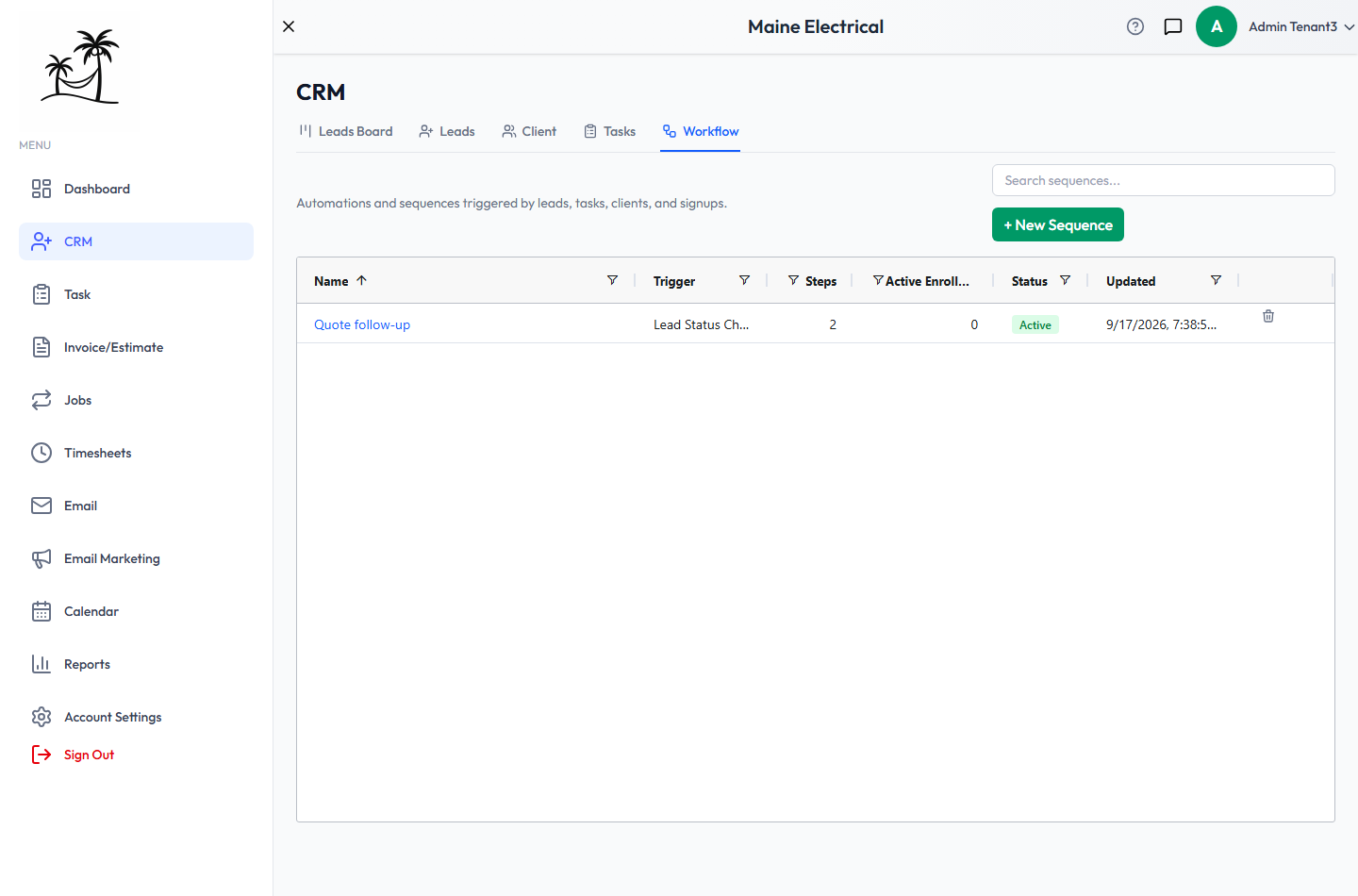
The workflow list
- Name opens the workflow's steps page.
- Trigger is the event that starts the workflow.
- Steps is how many steps it runs.
- Active Enrollments counts the leads, clients or tasks currently going through it.
- Status shows Active or Paused. Click it to switch. A paused workflow doesn't start for new events.
- The trash icon deletes the workflow. Anything it has scheduled but not yet sent or created is cancelled.
Creating a workflow
Click + New Sequence. To change a workflow's name, description, trigger or status later, double-click it in the list.
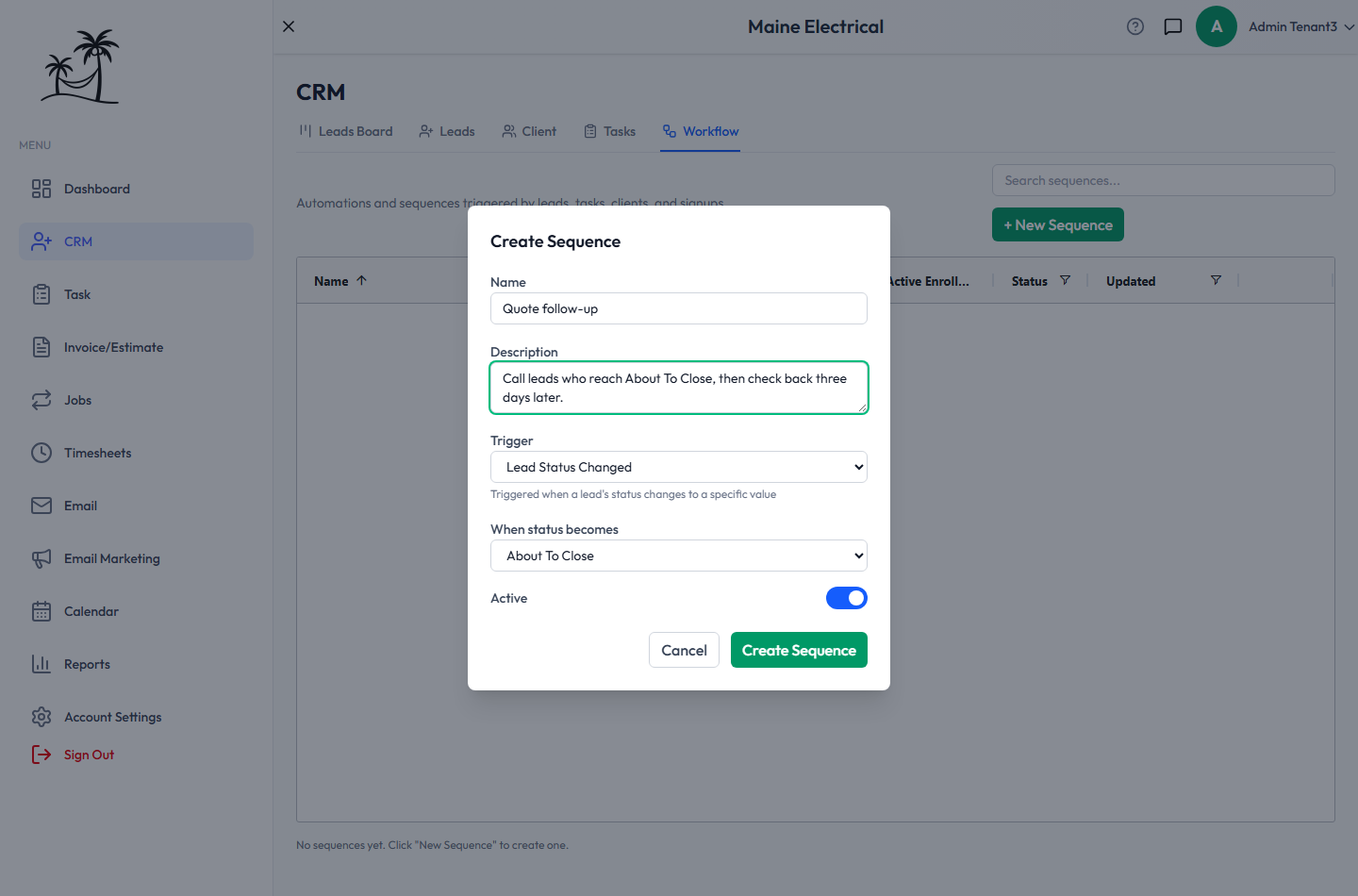
- Give it a Name and, optionally, a Description.
- Choose a Trigger. Triggers are grouped by what they watch:
- Lead: created, status changed, tag changed
- Task: created, status changed, type changed
- Client: created, client type changed
- Estimate and Invoice: created, status changed
- Job: created, and a job visit's type or status changed
- Other: Tropical Hill's own trial events, which you won't normally need
- For a changed trigger, choose the value it should fire on, such as When status becomes: About To Close.
- Leave Active on, and click Create Sequence.
Next, add steps.
Adding steps
Click the workflow's name to open its steps page.
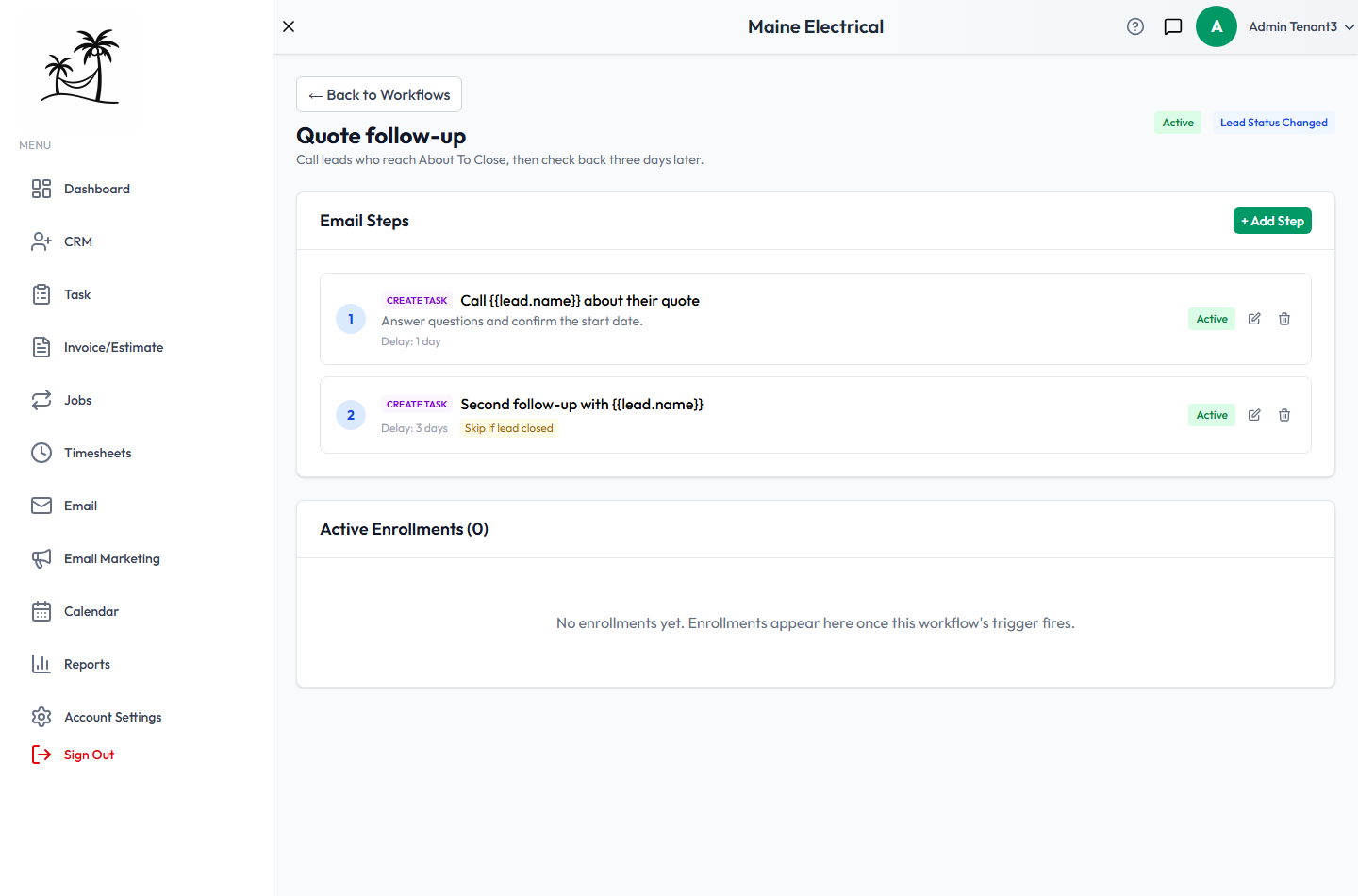
Click + Add Step, or click the pencil icon to edit a step.
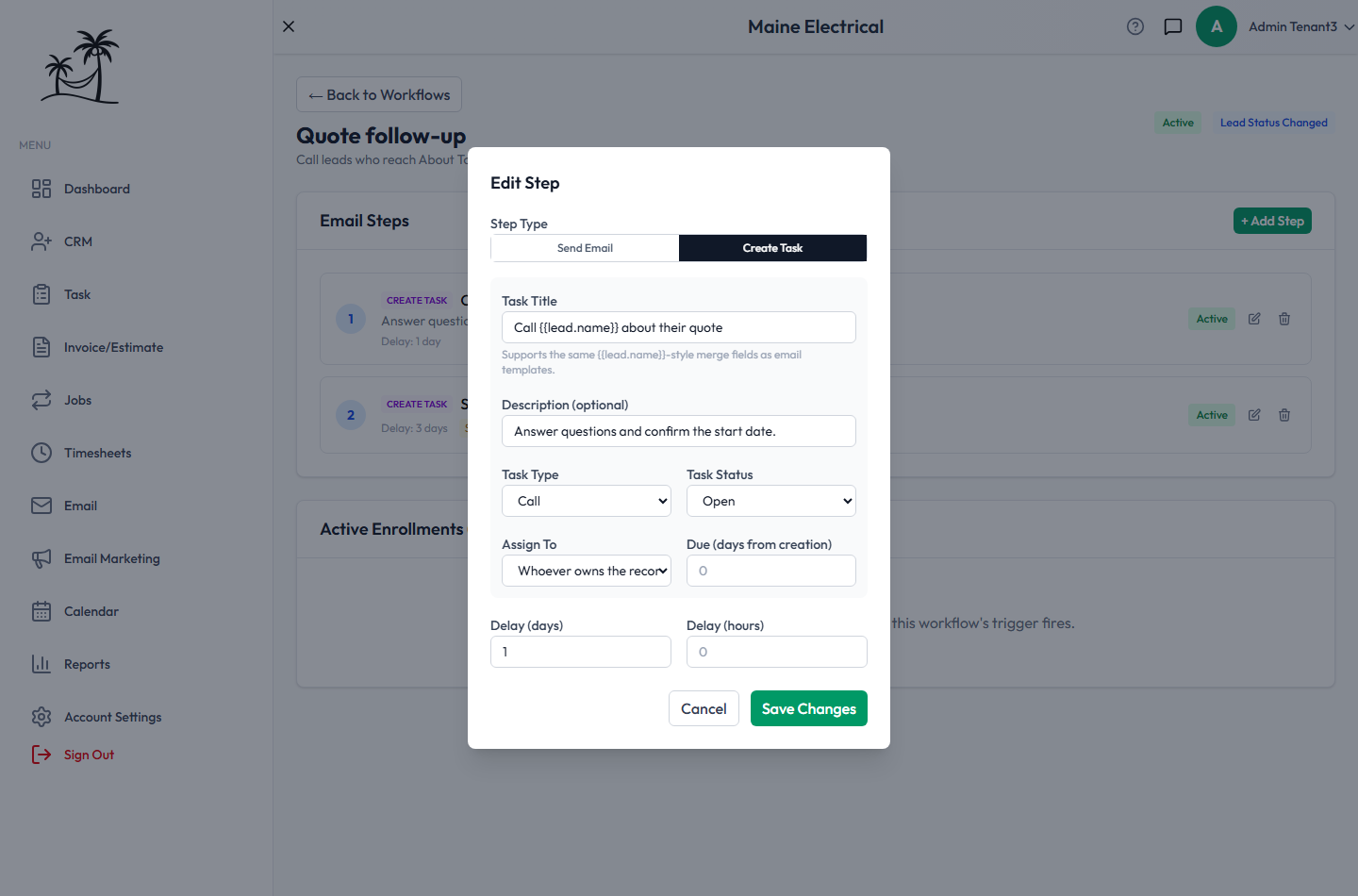
Each step does one of two things:
Send Email sends one of your email templates. On a workflow about an invoice or estimate, the template can also use that document's own details — {{invoice.number}}, {{invoice.balance_due}}, {{invoice.due_date}}, {{invoice.link}} and the matching {{estimate.*}} fields — and they're re-read when the email actually sends, so a balance paid down in the meantime is correct.
- Subject Override replaces the template's subject for this step only.
- Skip if lead is closed doesn't send once the lead reaches a closed status (Closed, or Won or Lost if you use them).
Create Task adds a task.
- Task Title and Description can use merge fields such as
{{lead.name}}, just like email templates. - Task Type and Task Status set what the task starts as.
- Assign To can be a specific person, or Whoever owns the record so the task goes to the lead's or client's owner.
- Due (days from creation) sets the due date relative to when the task is created.
When steps run
Each step has a Delay (days) and Delay (hours). Delays count from when the workflow starts, not from the previous step.
So a first step with a 1-day delay and a second step with a 3-day delay run on day 1 and day 3, not day 1 and day 4. To space steps out, give each one its full delay from the start. A step with no delay runs immediately.
Seeing who's in a workflow
The steps page also lists Active Enrollments: every lead, client or task currently going through the workflow, with its progress and when it started. Cancel an enrollment to stop its remaining emails and tasks for that one record, without affecting anyone else.
Tips
- Start with a single step and confirm it does what you expect before adding more.
- Use Whoever owns the record for follow-up tasks, so they land with the salesperson who owns the lead instead of one fixed person.
- Pause a workflow rather than deleting it while you make changes. Deleting cancels everything it has scheduled.
- Renaming a status, tag or type code doesn't break workflows that use it. They're updated automatically. See Lead Statuses.