Tasks
Tasks are the calls, follow-ups and to-dos that keep work moving. Each task has a type, a status, a due date and an owner, and can be linked to a lead, a client or a job. The Tasks tab in CRM lists them all.
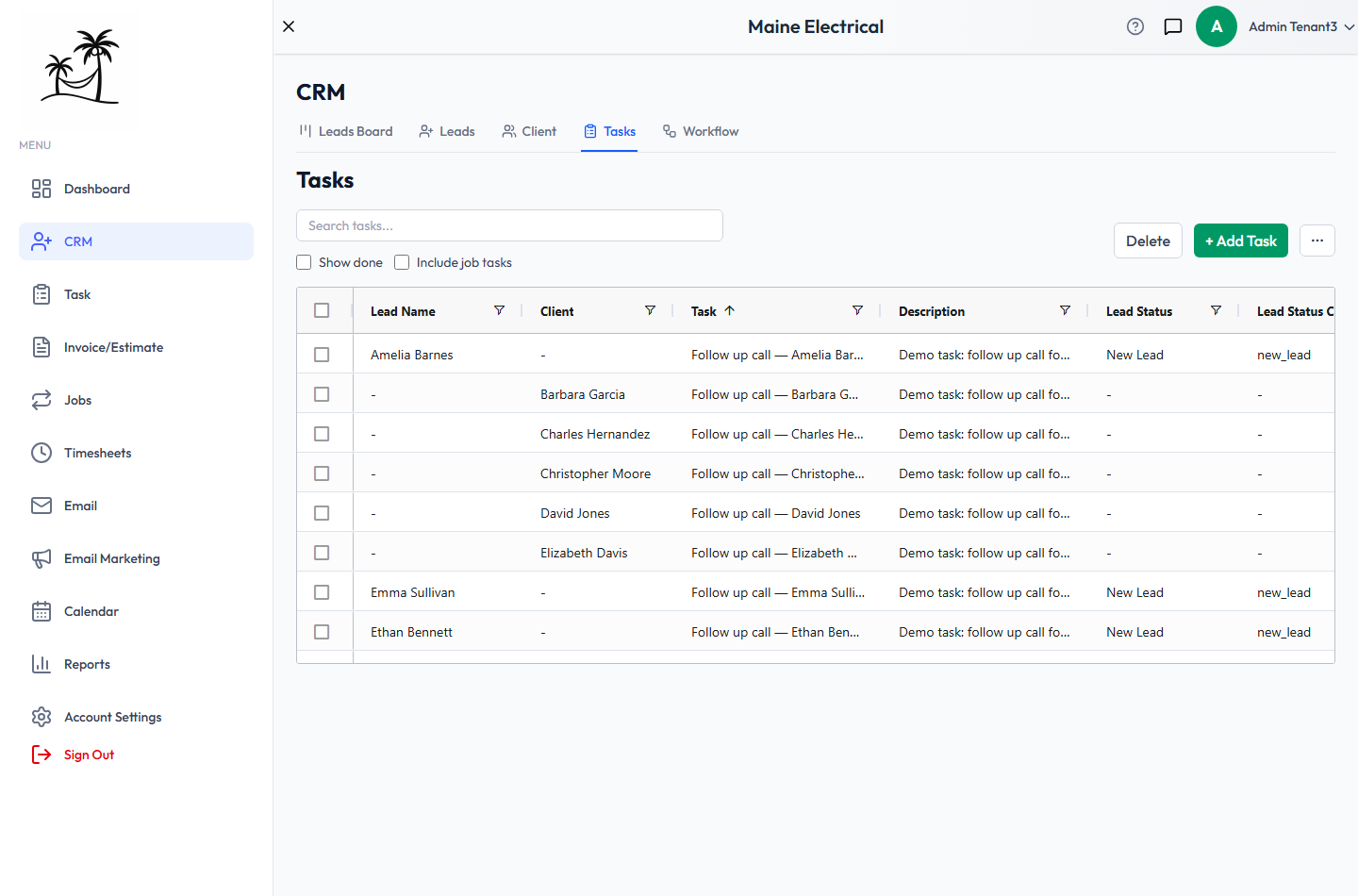
Finding tasks
- Search matches the task title, description, type, status, assignee and the linked lead's name.
- Show done is off by default, so finished tasks are hidden. A task counts as finished when its status is Done or Completed. See Task Statuses.
- Include job tasks is also off by default. Visits created automatically from recurring and Multi-Task Jobs stay hidden, so the list shows tasks someone needs to act on.
- … → Columns shows or hides columns. Your layout is saved to your account.
Previewing a task's lead
Click a task once to see its lead underneath the grid, without opening an editor.
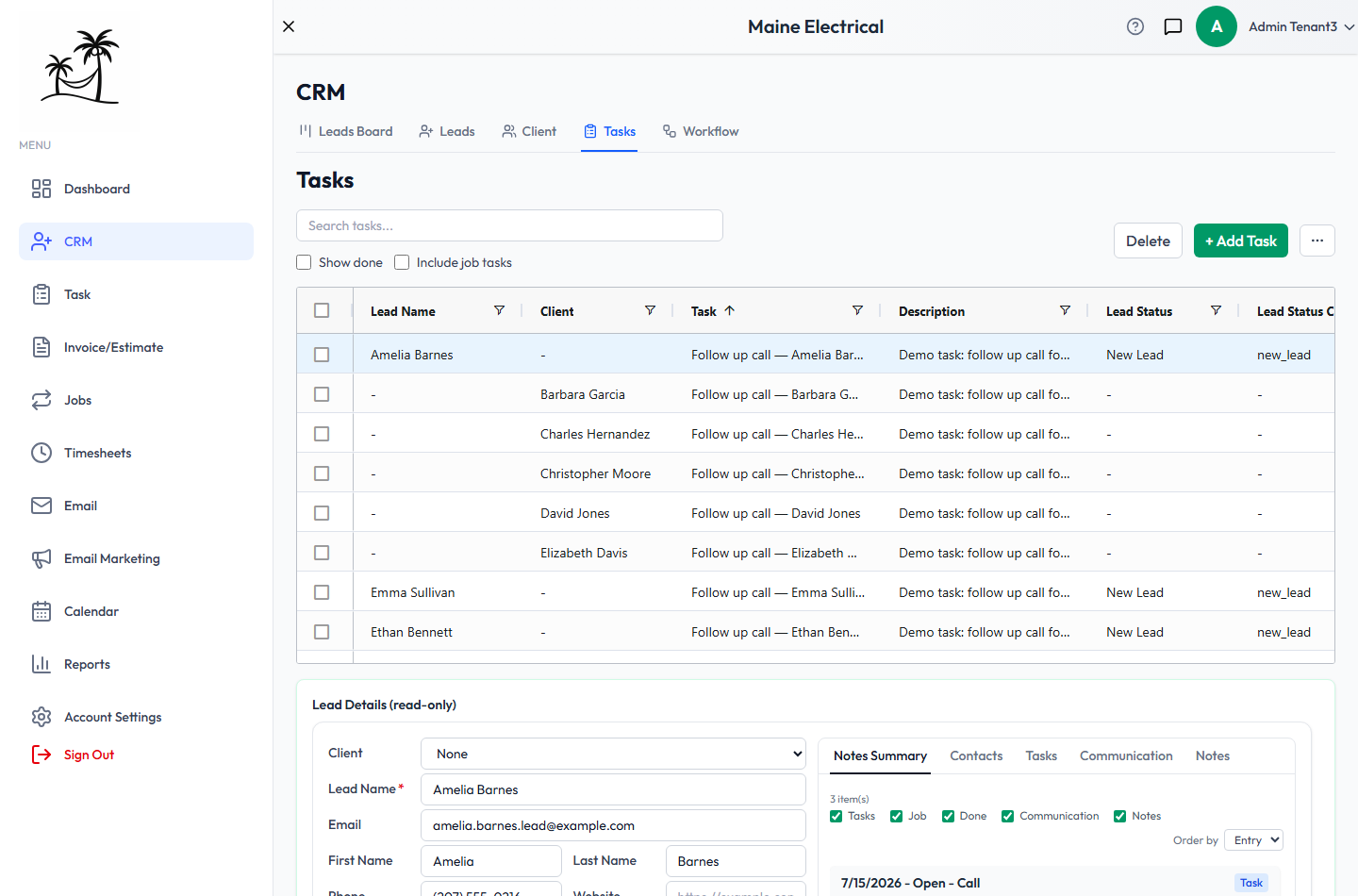
The preview is read-only. To change anything, double-click the task instead.
Adding or editing a task
Click + Add Task, or double-click a task to open Edit Task.
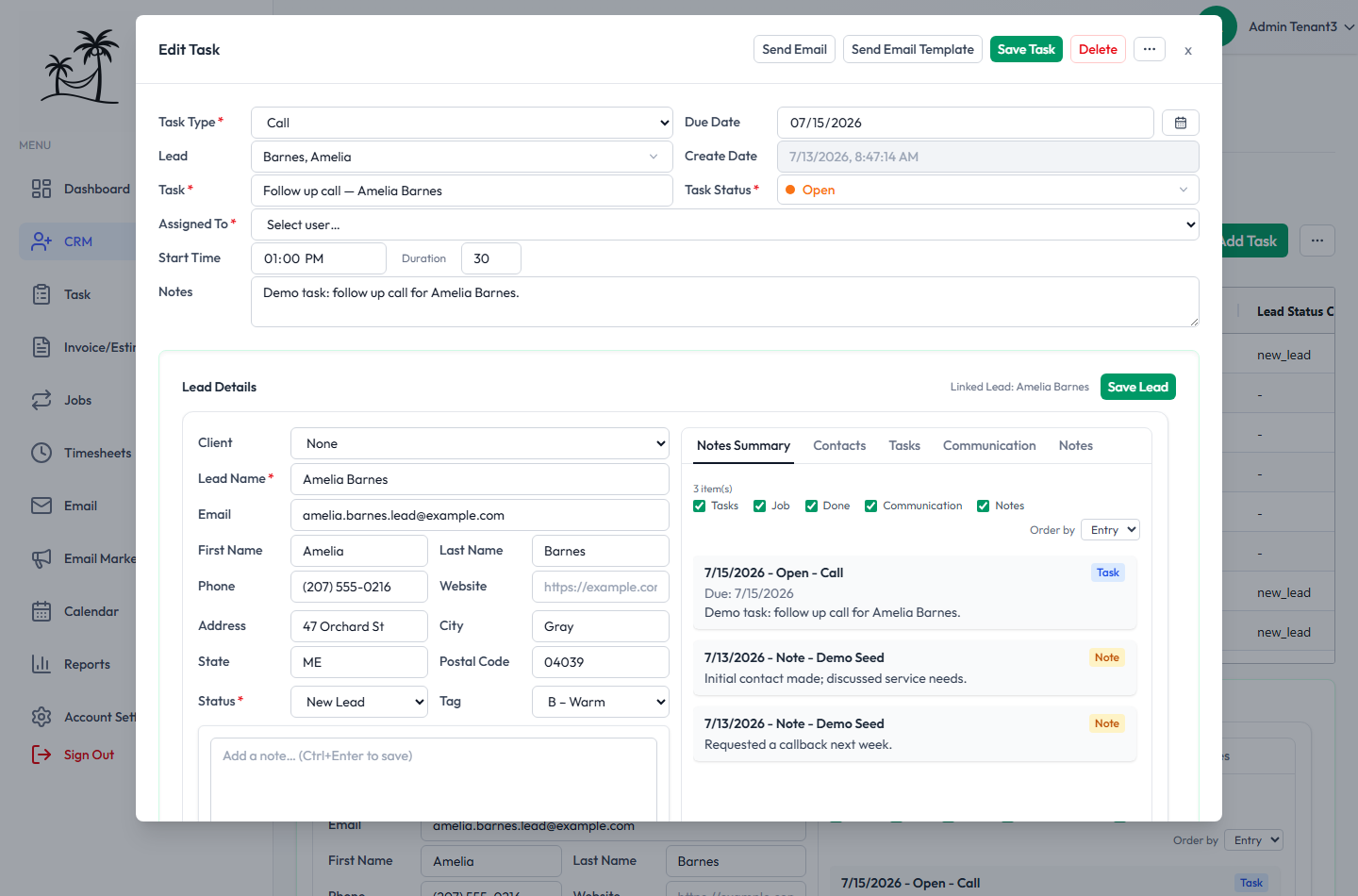
- Task Type, Task, Task Status and Assigned To are required. Every task has an owner.
- Lead or Client: use the toggle to link the task to a lead or to a client, then pick one from the searchable list.
- Due Date has a calendar picker.
- Start Time and Duration are optional, for tasks that work like appointments.
- Notes holds details for whoever picks the task up.
Below the task fields, Lead Details shows the linked lead with the same tabs as the Edit Lead window, so you can update the lead while working the task. Use its own Save Lead button for lead changes.
The buttons at the top let you Send Email or Send Email Template to the lead, Save Task, or Delete the task.
Working with many tasks at once
Tick the checkboxes next to the tasks you want:
- … → Task Status Update moves every selected task to one status, for example marking a batch Done.
- Delete removes the selected tasks.
To create the same task for many leads or clients at once, use Create Tasks on the Leads or Clients tab.
The Task Board
The Task item in the main menu also has a Task Board, a column view of your tasks.
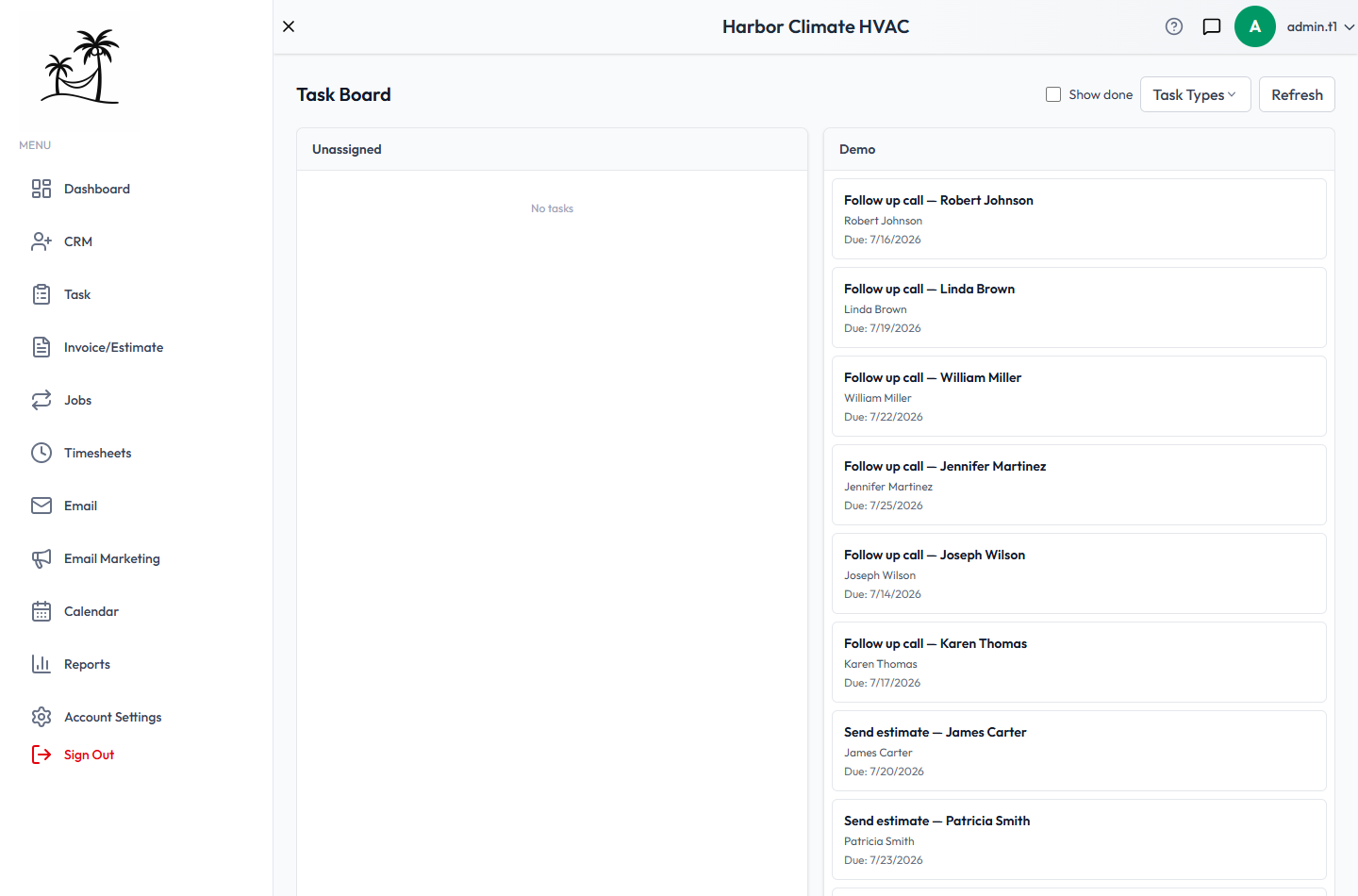
Unlike the Leads Board, the Task Board groups tasks by type, not status:
- Each column is a board rollup, which can combine several task types. Types without a rollup go under Unassigned.
- Dragging a card to another column changes the task's type.
- Show done works the same as in the grid.
See Task Types to set up the columns.
Tips
- Leave Include job tasks off unless you're checking recurring job visits. With it on, one-off follow-ups get buried.
- Give each task status a distinct color. Once the grid has more than a handful of tasks, color is how people scan it.
- Let Workflow create routine follow-ups automatically, so they don't depend on someone remembering.