Leads Board
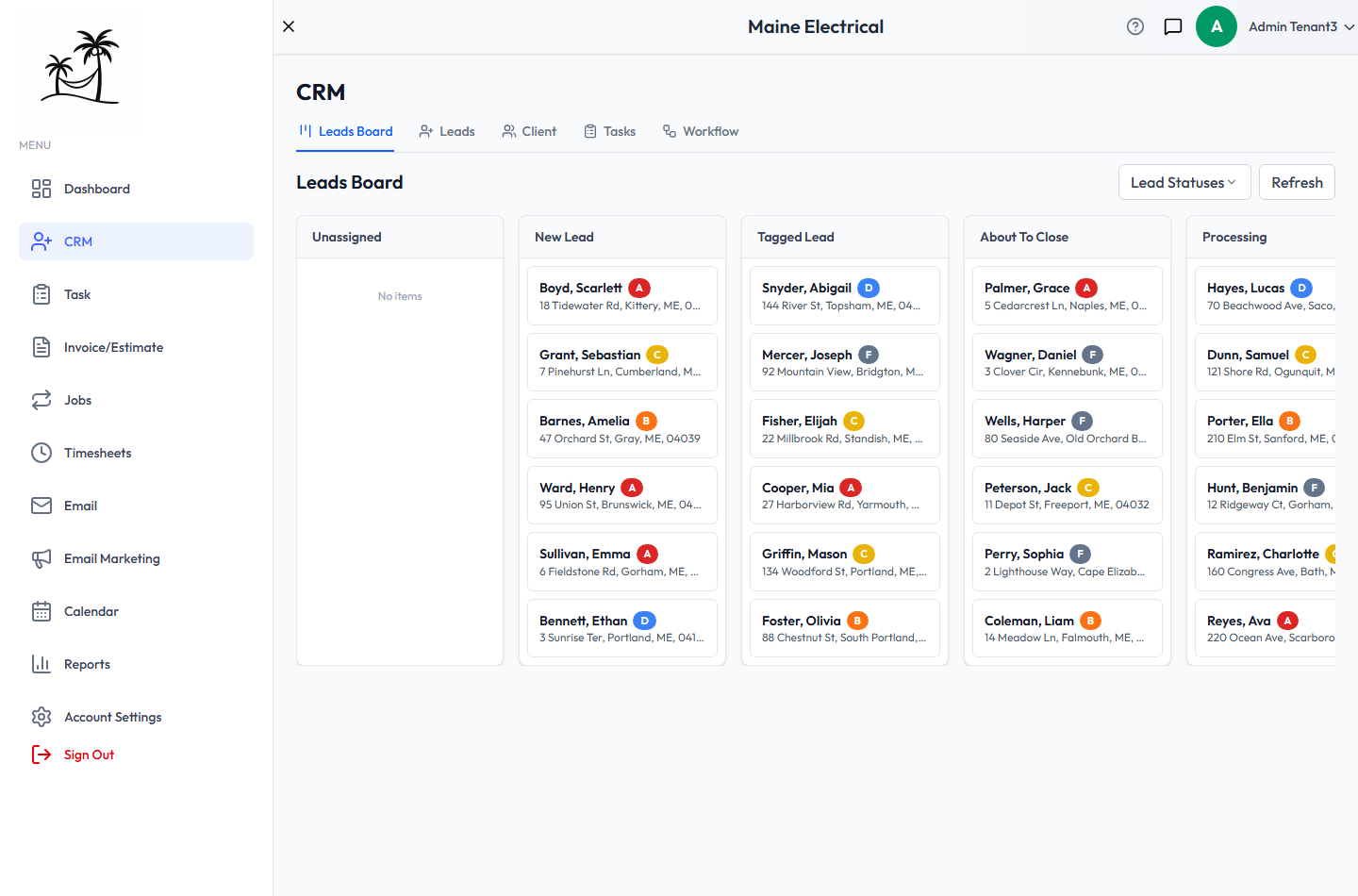
The Leads Board shows your pipeline as a row of columns, one per stage. Every lead appears as a card in the column for its status, so you can see where your deals stand at a glance.
It's the first tab you see when you open CRM.
Reading the board
- Each column is a board rollup. A rollup groups one or more lead statuses. By default each status has its own column, but you can combine several statuses into one. See Board rollups.
- Unassigned holds leads whose status isn't part of any column.
- Each card shows the lead's name, address and tag. The tag's color matches your hot-to-cold scale, so warm leads stand out.
Moving a lead to a new stage
Drag a card into another column. The lead's status changes as soon as you drop it, and you don't need to save.
- If a column contains more than one status, the lead gets the first status in that column, by sort order.
- If you drop a card into a column for tagged leads (any column or status with "tag" in its name), you're asked to choose a tag first. Click Cancel and the card goes back where it was.
Click a card to open the lead's full Edit Lead window. See Leads.
Choosing which columns you see
Click Lead Statuses to open the column menu.
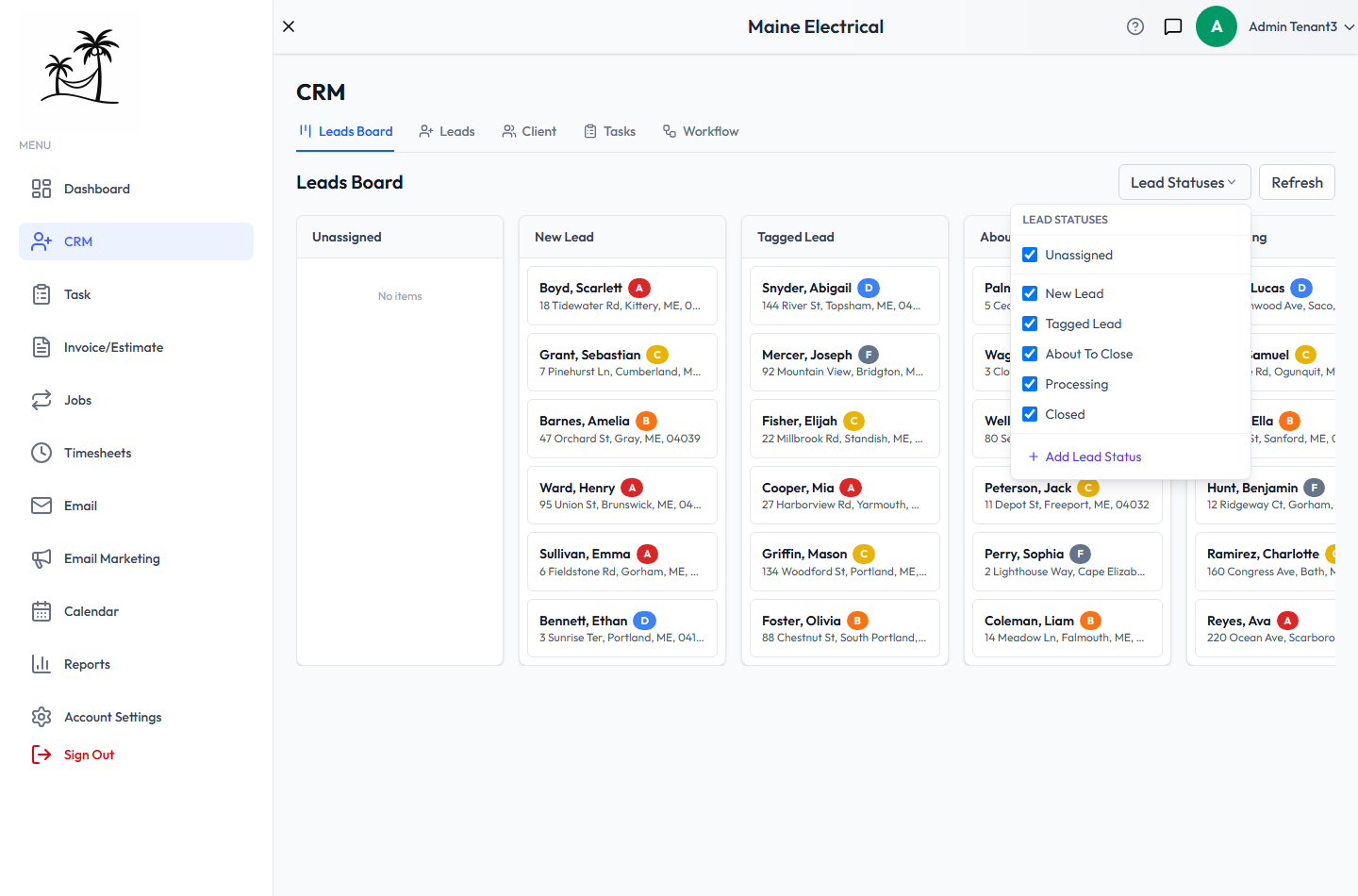
- Unassigned shows or hides the Unassigned column. This only affects your own view and is remembered in your browser.
- The status checkboxes affect everyone on your account. Unchecking a status deactivates it, so its column disappears from everyone's board and it's no longer offered when choosing a status. Leads already in that status keep it.
- Add Lead Status creates a new status from the board. Enter a label and, optionally, the column it belongs in. If you leave the column blank, the status gets a column of its own.
For more control, including colors, sort order and codes, use Account Settings → Lead Statuses. See Lead Statuses.
Refresh reloads the board, so you can pick up changes other people have made since you opened it.
Tips
- Aim for five to seven columns. More than that, and the board stops giving you a quick read on your pipeline.
- Use the board for moving deals forward, and the Leads tab for searching, bulk changes and importing.
- A lead that goes cold is worth keeping. Move it to a closing status rather than deleting it, so you keep a record of where your inquiries came from.