Leads
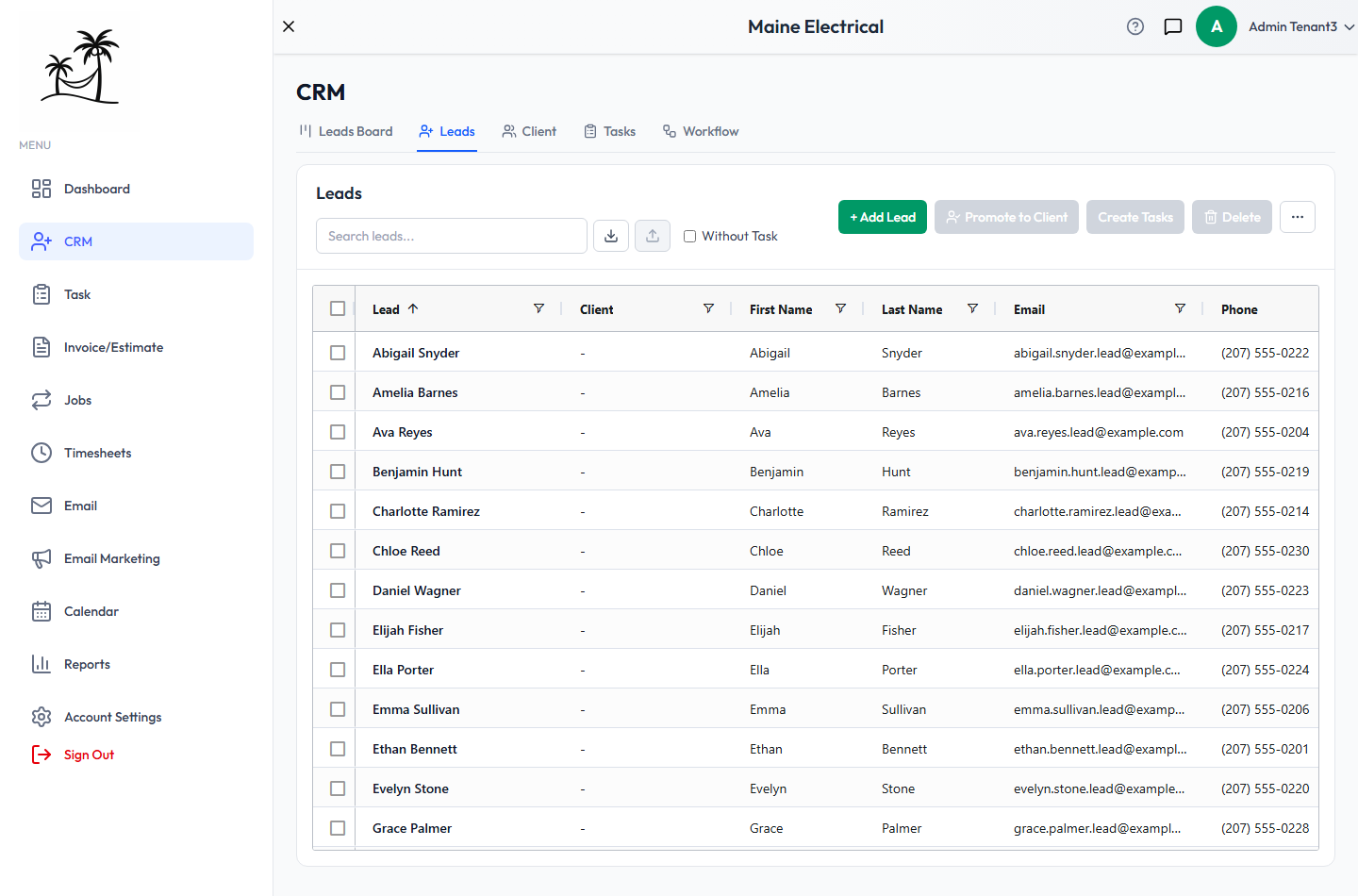
A lead is anyone who's contacted you but isn't a paying client yet. The Leads tab in CRM lists every lead in a searchable grid. From here you can add and edit leads, work on many at once, import a list, and promote the leads you win into clients.
Where leads come from
- Added by hand. Click + Add Lead. Only Lead Name and Status are required, so you can capture a lead quickly and fill in the rest later.
- Your website. Quote and contact forms on your Tropical Hill website create leads automatically, starting in your New Lead status.
- An import. Upload a list you already have. See Importing leads.
Finding leads
- Search matches almost everything on a lead: name, email, phone, website, address, status, tag, description and up to three extra contacts.
- Without Task narrows the grid to leads with no task attached. Those are the leads nobody is following up on yet.
- Click a column header to sort. Use the filter icon on a column to filter it.
- … → Columns shows or hides columns. Your column layout is saved to your account, so it follows you to other devices.
Editing a lead
Double-click a lead to open Edit Lead. The same window opens when you click a card on the Leads Board.
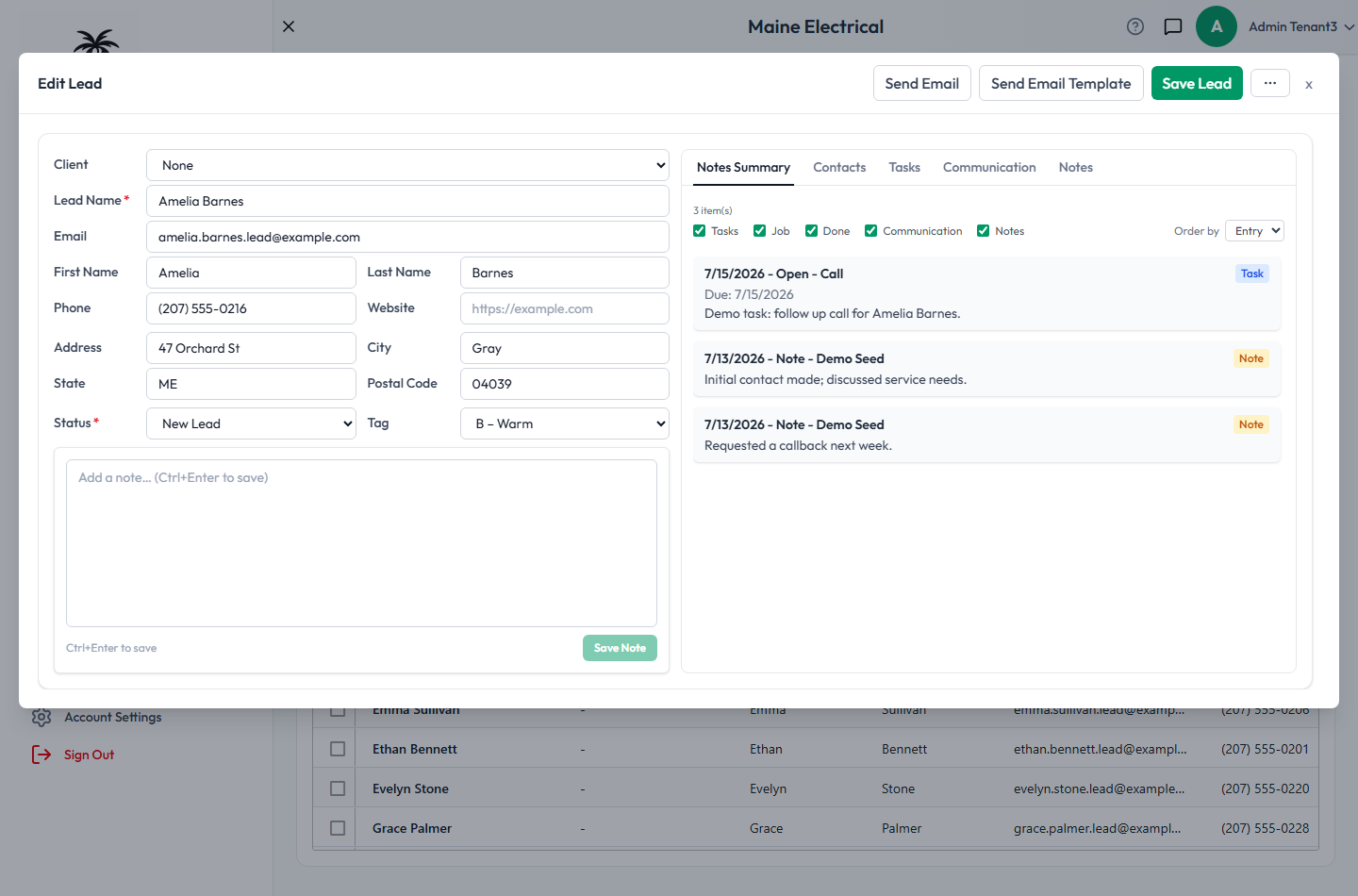
On the left are the lead's own details: name, contact information, address, Status and Tag. Below them is a quick note box. Type a note and press Ctrl+Enter to save it.
On the right are tabs covering everything connected to the lead:
- Notes Summary combines the lead's tasks, job visits, emails and notes in one list. Use the checkboxes to hide the types you don't need, and Order by to sort it.
- Contacts holds the other people linked to this lead, such as a spouse or a property manager.
- Tasks holds the follow-ups for this lead.
- Communication lists emails sent to and received from the lead.
- Notes holds the lead's notes in full.
At the top:
- Send Email and Send Email Template email the lead without leaving the window.
- Save Lead saves your changes to the details on the left. Contacts, tasks and notes save as you add them.
- … has shortcuts to your tag, status and contact type settings.
Working with many leads at once
Tick the checkboxes next to the leads you want. The buttons at the top become active.
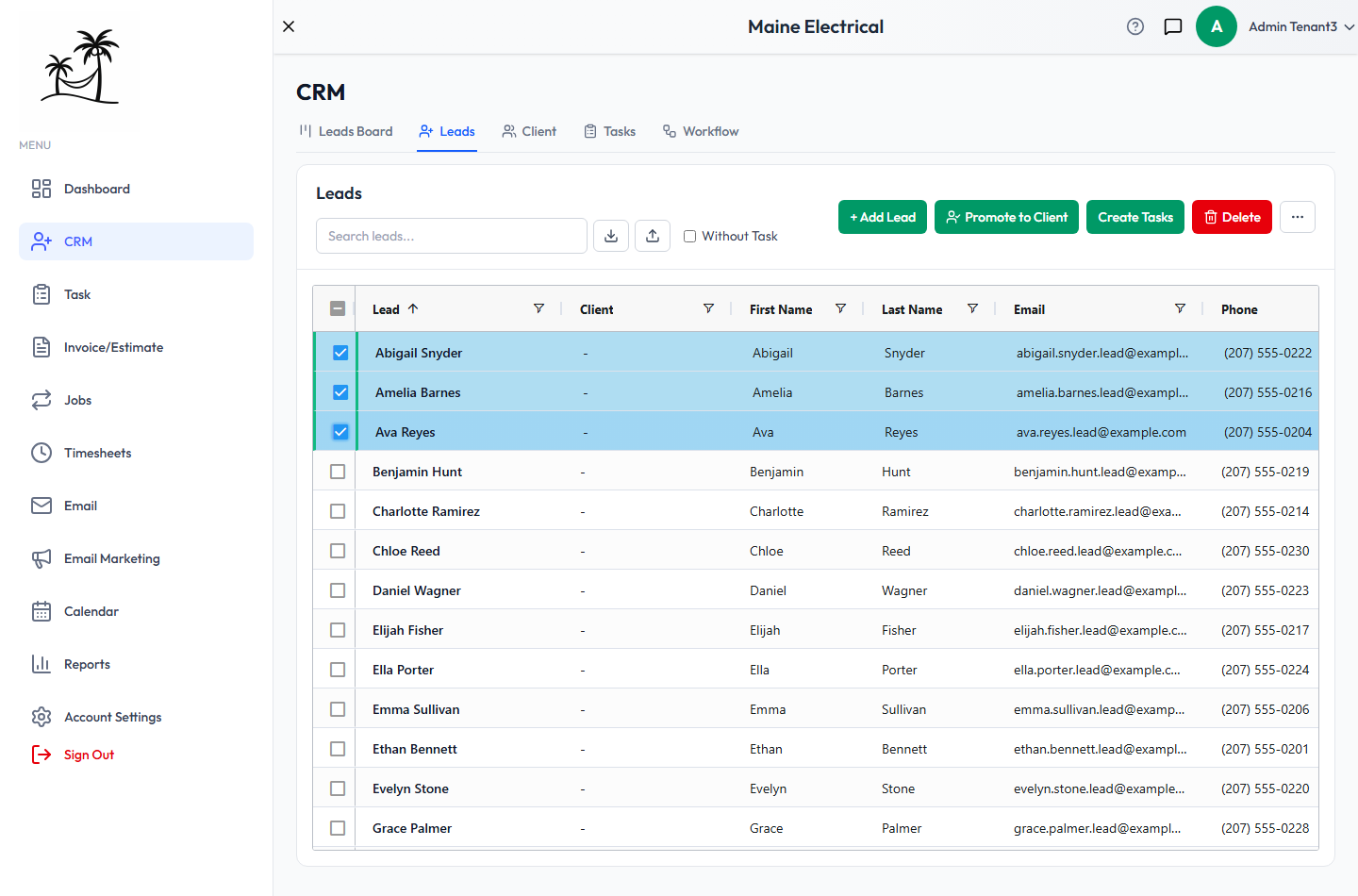
- Promote to Client turns each selected lead into a client. See Promoting leads to clients.
- Create Tasks creates the same task for every selected lead. Set the title, type, status, due date and assignee once.
- Delete removes the selected leads.
More actions are under …:
- Lead Status Update moves every selected lead to one status.
- Send campaign opens Email Marketing with the selected leads ready to add.
- Export Lead downloads the selected leads as a CSV file. The download button next to the search box does the same thing.
- Lead Sort Order opens the setting that controls the grid's default order. See Lead Sort Order.
Importing leads
Click the upload button next to the search box, or … → Import Lead.
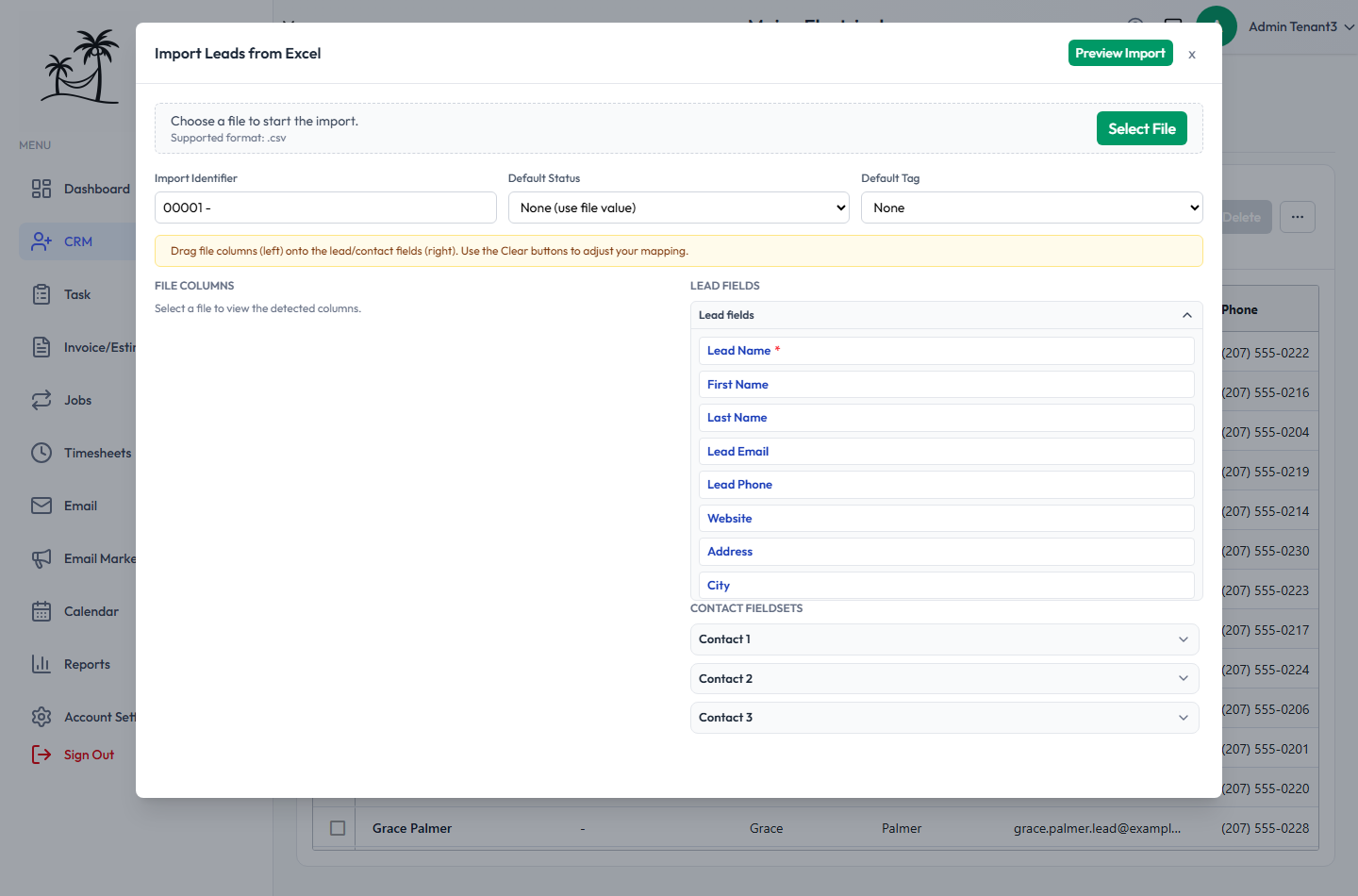
- Click Select File and choose a .csv file.
- Optionally set a Default Status and Default Tag for rows whose file doesn't include one. Import Identifier adds a line such as
Import Identifier: 00001to each imported lead's description, so you can find the whole batch later by searching for it. - Your file's columns are matched to lead fields by header name. To change a match, drag a column from File columns onto the right field. You can also map up to three extra contacts per row using Contact 1–3.
- Click Preview Import. The preview shows how many rows are Ready, and flags a Warning on any row that has neither an email nor a phone number.
- Click Confirm Import.
Promoting leads to clients
When you win a lead, select it and click Promote to Client. For each selected lead, Tropical Hill:
- creates a new client from the lead's name, contact details and address;
- moves the lead's contacts, tasks and notes to that client;
- adds a primary contact from the lead's own name, email and phone if the lead had no contacts;
- links the lead to the new client, which then shows in the lead's Client column.
The lead itself isn't deleted. It stays in your Leads grid as a record of the original inquiry. Delete it yourself if you don't need it.
Promoting is safe to repeat. A lead that already has a client is skipped, and you'll see how many were skipped. See Clients for what comes next.
Tips
- Check Without Task every week. It's the fastest way to find leads that are going cold.
- Set a tag right after your first conversation, while you still remember how interested they were.
- Promote your won leads in one batch instead of one at a time.