Lead Tags
Lead tags are a quick grade for how likely a lead is to buy. Every account starts with a letter scale:
| Tag | Meaning |
|---|---|
| A – Hot | Ready to buy |
| B – Warm | Interested, needs a nudge |
| C – Neutral | Undecided |
| D – Cool | Low interest |
| F – Cold | Unlikely to buy |
A tag is separate from a lead's status. The status says where the lead is in your pipeline. The tag says how warm it is. Two leads can both be "About To Close", one tagged A and the other D.
Find tags at Account Settings → Lead Tags, where you can rename, recolor or add to the scale.
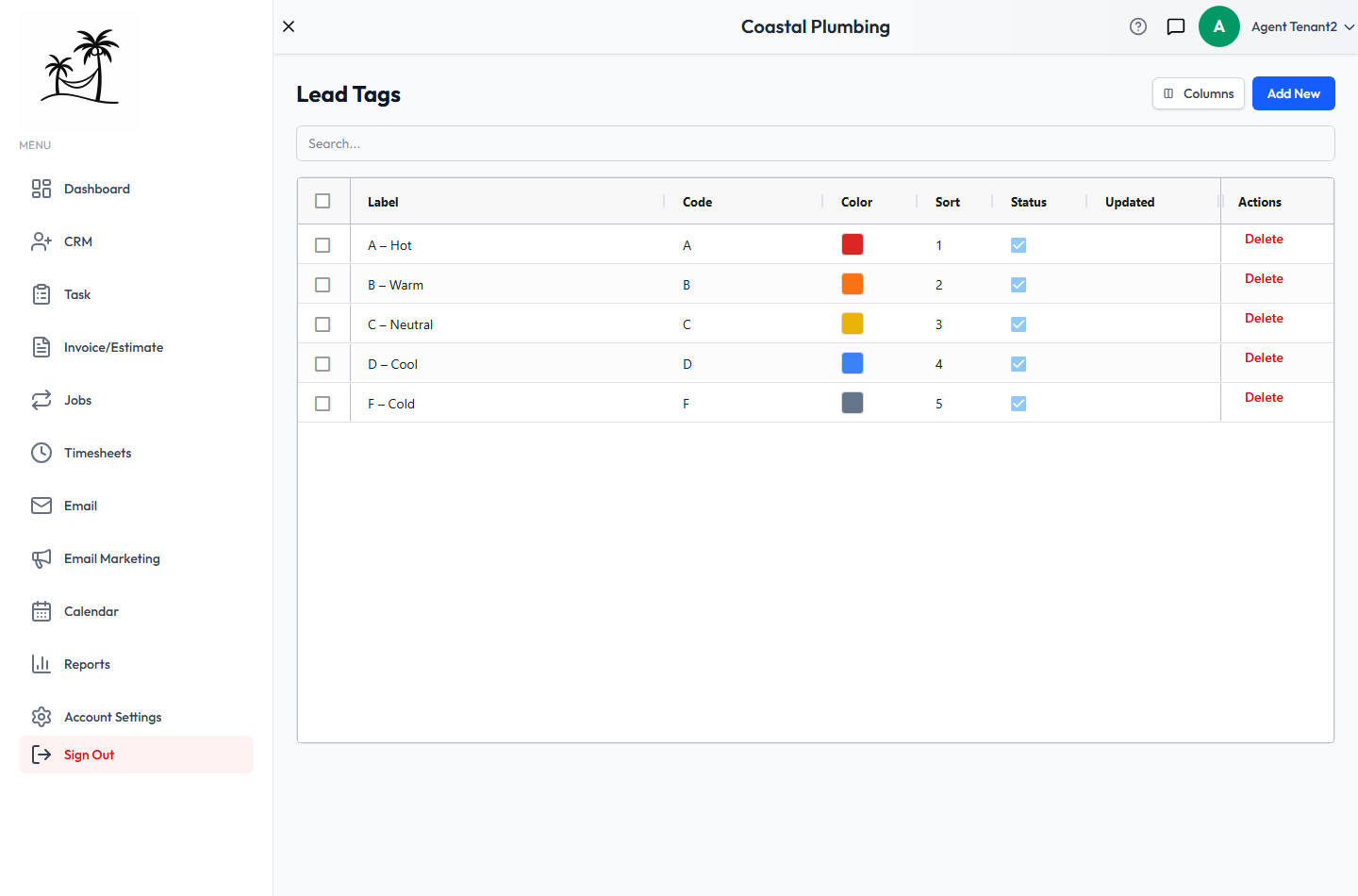
Fields
- Label: the name shown on the lead, such as "A – Hot".
- Code: the short value stored on the lead. It fills in automatically in UPPERCASE as you type the label. Keep tag codes short: one or two characters works best.
- Color: the color of the tag badge on the Leads grid and Leads Board.
- Sort Order: the position in the tag picker. Lower numbers come first.
- Active: inactive tags no longer appear when tagging a lead.
Click Add New to create a tag. Double-click a row to edit it.
Changing and deleting tags
- Renaming a label changes what everyone sees, and every lead with that tag updates automatically.
- Changing a code is safe too. Every lead with the old code is retagged, and so are your Lead Sort Order, mailing lists that filter by tag, and Lead Tag Change automations.
- Deleting a tag is always allowed, even while leads use it. Those leads keep the code as plain text but lose the tag's label and color. If you might want the tag back, deactivate it instead. Only account administrators can delete.
Tips
- Agree on what each letter means with your team before you start tagging. A tag is only useful if "B" means the same thing to everyone.
- Any tag you add, not just A–F, can be used in Lead Sort Order to bring your warmest leads to the top of the grid.
- Use colors that run from hot to cold, like red for A through gray for F. Then the Leads Board shows where your warmest leads are without reading a single label.