Lead Statuses
Lead statuses are the stages in your sales pipeline, such as New Lead, Tagged Lead, About To Close and Closed. Every lead has one status. The status is shown in the Leads grid, used to group the Leads Board, and can start workflow automations.
Find them at Account Settings → Lead Statuses.
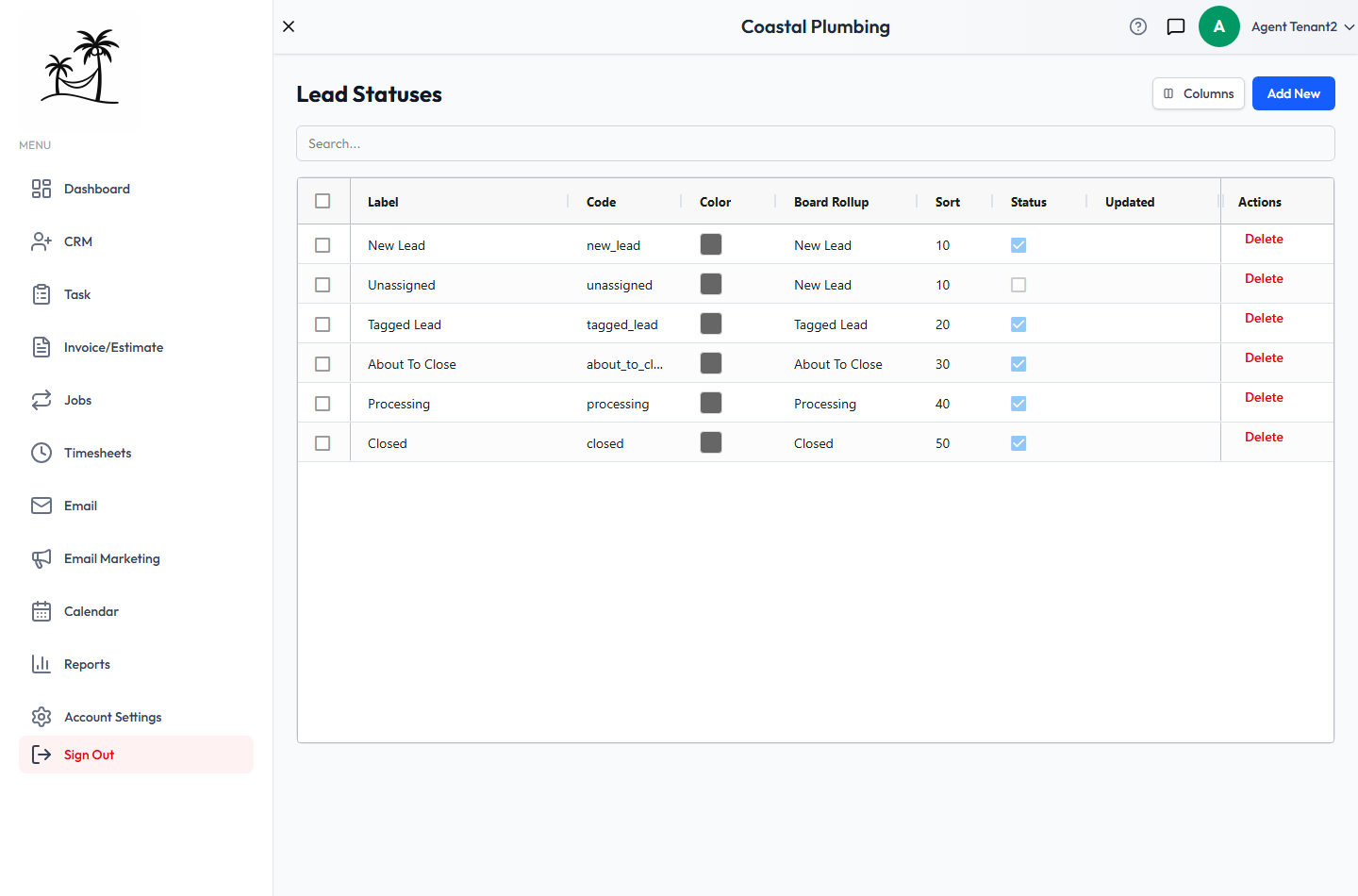
Fields
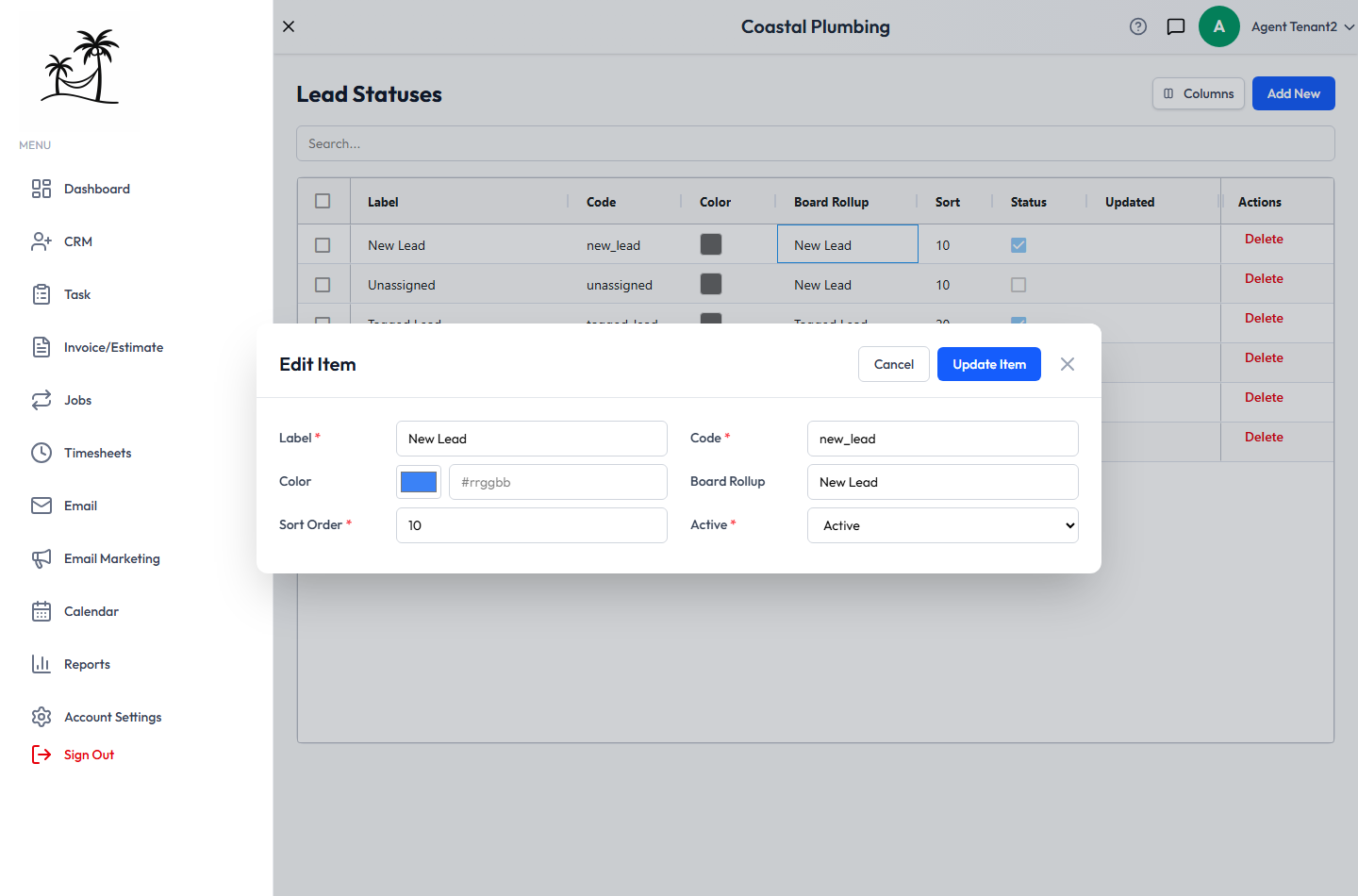
- Label: the name everyone sees, such as "About To Close".
- Code: the status's internal ID. It fills in automatically as you type the label, in lowercase with underscores (
about_to_close). See Changing a code. - Color: the color of the status pill.
- Board Rollup: the Leads Board column this status appears under. See Board rollups.
- Sort Order: the position in dropdowns. Lower numbers come first.
- Active: whether the status is in use. See Deactivating vs. deleting.
Click Add New to create a status. Double-click a row to edit it.
Board rollups
The Leads Board shows columns, not individual statuses. Board Rollup decides which column a status belongs to.
- Give statuses the same rollup name to put them in one column. For example, "Proposal Sent" and "Negotiating" could both roll up to "About To Close".
- A status with no rollup shows under Unassigned.
- When you add a status from the Leads Board's Lead Statuses menu, its rollup is set to its own label, so it gets its own column.
Changing a code
When you change a code, Tropical Hill updates everything that stored the old one, so nothing needs fixing by hand. That includes:
- workflow automations that trigger on Lead Status Changed
- your Lead Sort Order
- mailing lists that filter by status
Codes you can't change
A few statuses have built-in jobs, so their codes are locked. You can still change the label, for example renaming "New Lead" to "Inquiry".
| Code | What depends on it |
|---|---|
new_lead | Every new lead starts here, including leads from your website's contact form. |
closed | Scheduled follow-up emails stop once a lead reaches this status. won and lost work the same way, so they're locked too if you add them. |
If you try to change one of these codes, you'll see a message saying it can't be changed.
Deactivating vs. deleting
Deactivating (set Active to Inactive) hides a status from the Leads Board. Its column disappears if no other active status shares it. Leads already in that status keep it. Use this for stages you've stopped using but still want in your history.
Deleting removes the status permanently. You can't delete a status while any lead is using it. First move those leads to another status, or deactivate the status instead. Only account administrators can delete.
Tips
- Number sort orders in steps of 10 (10, 20, 30). You can then slot in a new stage later without renumbering the rest.
- Keep roughly five to seven board columns. Too many, and the board stops showing where deals stand at a glance.
- Statuses also drive your default Leads grid order. See Lead Sort Order.