Lead Pipeline & Stages
The Leads grid
The default view — a full table of every lead with configurable columns (name, client/company, email, phone, address, status, tag, task due, and more). Click Columns to show or hide any of these; your choices are saved to your profile. Columns can be dragged to reorder.
The Leads board
Switch to the board view for a kanban-style layout grouped by status.
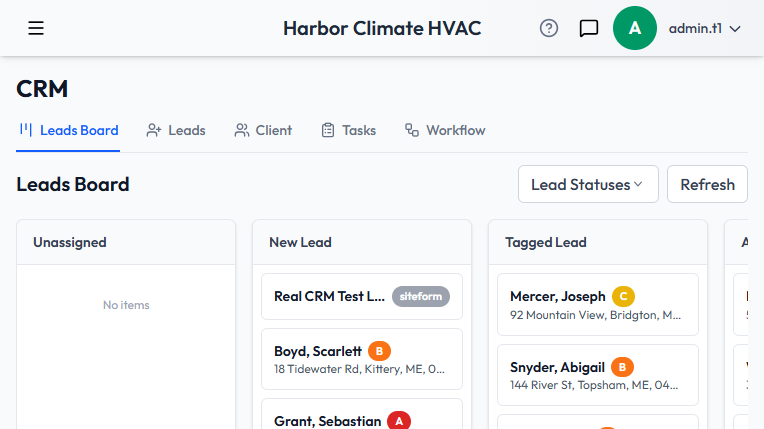
- Each column on the board is a lead status. Statuses without a column assignment fall into an Unassigned column.
- Drag a lead card from one column to another to change its status — the update saves immediately.
- If you drag a card into a column tied to a tag, a quick tag-picker pops up first so you assign an A–F tag before the move completes.
- Click any card to jump back to the grid view with that lead's full edit panel already open.
Statuses are fully customizable
Unlike tags (a fixed A–F scale — see Creating and Qualifying Leads), statuses are yours to shape in Maintenance settings: add, edit, reorder, or deactivate them, and assign each one to a board column. Typical defaults are Open, In Contact, Open Offers, Processing, and Today's Sales, but you can rename this list around how your shop actually works.
You can't delete a status that's still assigned to any lead — the system blocks it until those leads are moved or reassigned first.
A Lead Statuses dropdown right on the board also lets you view existing statuses and add a new one on the spot — just a label, its board column, and a sort position.
Working with many leads at once
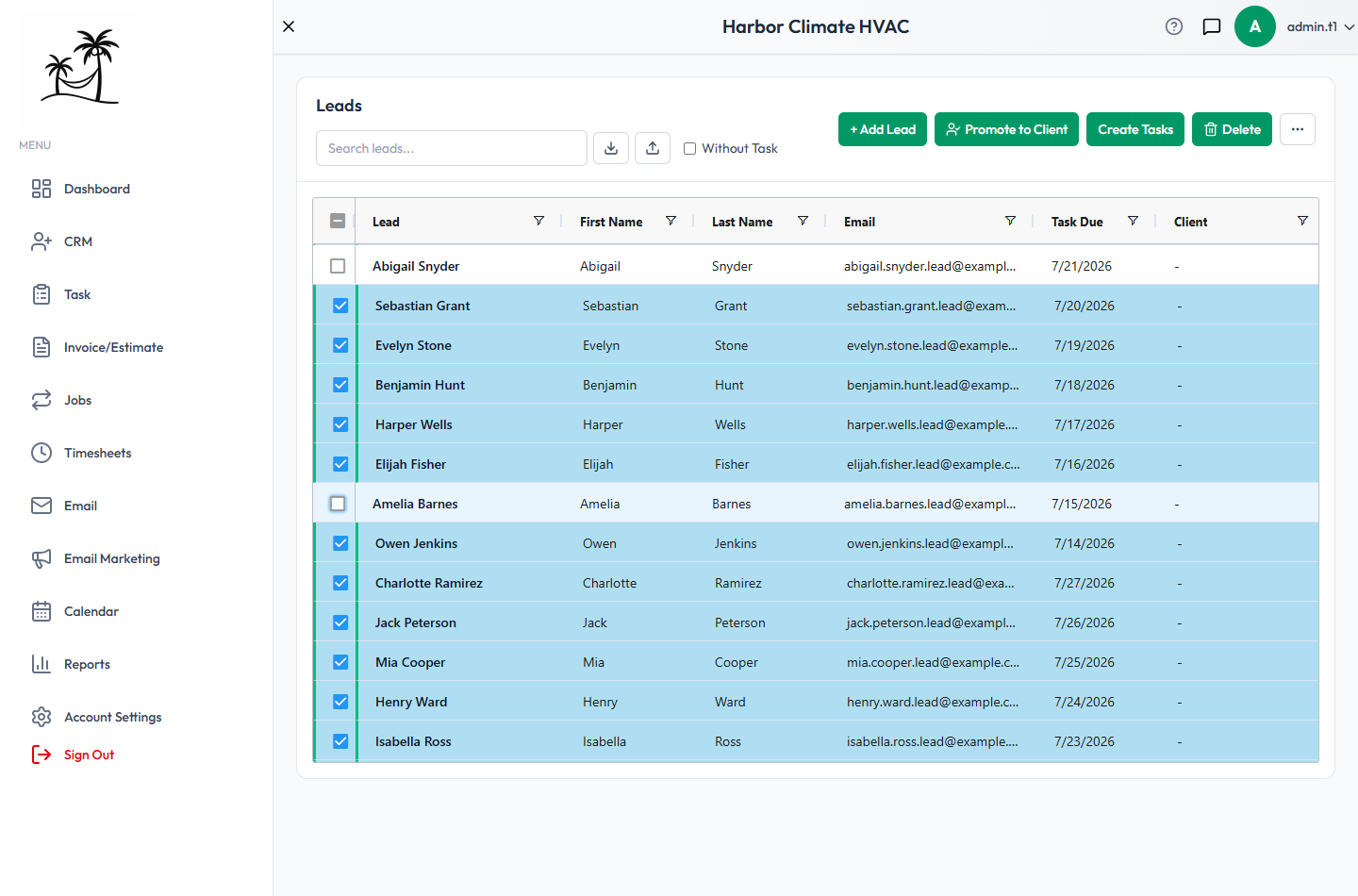
Select multiple rows in the grid with the checkboxes to unlock bulk actions:
- Export Selected — download as a CSV
- Promote to Client — see Creating and Qualifying Leads for the full workflow
- Create Tasks — build one task and apply it across every selected lead at once
- Send Campaign — hand the selected leads straight to email campaigns
- Delete — remove the selected leads in bulk
What happens to old leads
A lead that never converts stays in the system as a record of the inquiry — nothing is auto-deleted. If a lead goes cold, update its status rather than removing it, so you keep a full picture of where your inquiries actually come from.
Tips
- Keep your status list short and mapped to real board columns so the board view stays useful — too many statuses without a column assignment just pile everything into Unassigned.
- When you're ready to close out a batch of won leads, select them all and Promote to Client in one pass instead of one at a time.