Creating and Qualifying Leads
A lead is anyone who's reached out but hasn't become a paying client yet. Tropical Hill gives you two ways to work them — a full data grid and a drag-and-drop board — plus tools to bulk-manage, import, and promote leads into clients once they're won.
Where leads come from
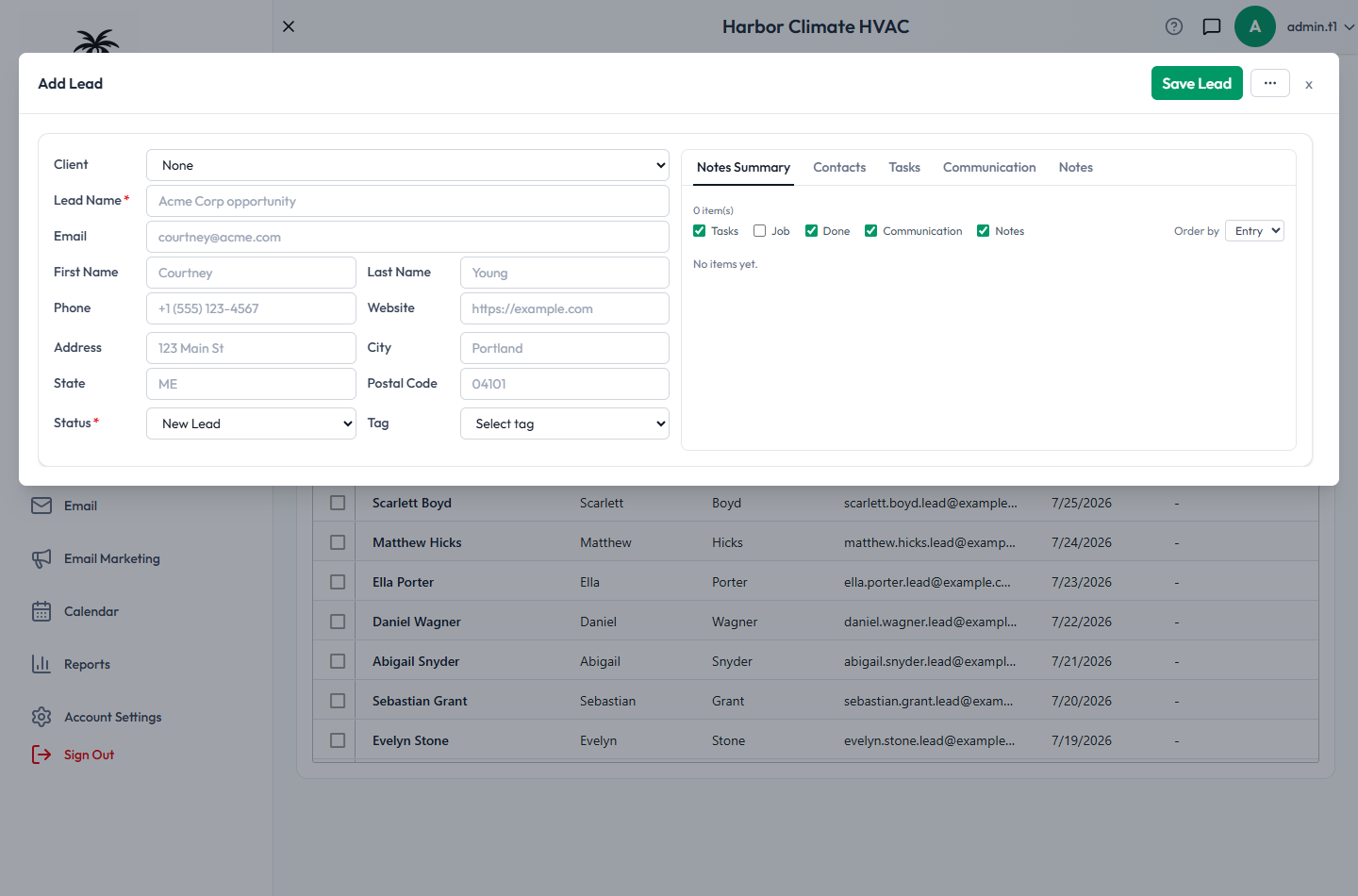
- Manually — click + Add Lead to open the lead form in a draggable, resizable window. The only required field is the lead's name — everything else (email, phone, address, tag, status, notes) is optional, so you can capture a lead fast and fill in details later.
- Your website — quote and booking forms feed straight into Tropical Hill automatically, so a new inquiry becomes a lead without anyone re-typing it.
- Importing a CSV — use Import Lead to upload existing leads. Columns are auto-matched to lead fields by header name, and you can adjust the mapping before confirming. A preview screen flags rows missing both an email and a phone number so you can catch incomplete records before they're imported.
Every lead's edit window also has Contacts and Tasks tabs, so you can add additional contacts or create a follow-up task without leaving the lead. From there you can also Send Email or Send Email Template directly to the lead.
Tags: your quick read on how hot a lead is
Tags are a fixed five-point scale — A – Hot, B – Warm, C – Neutral, D – Cool, F – Cold. You can't rename or add to this list; it's a deliberately simple temperature read, separate from status (see Lead Pipeline & Stages for how status works).
Qualifying and following up
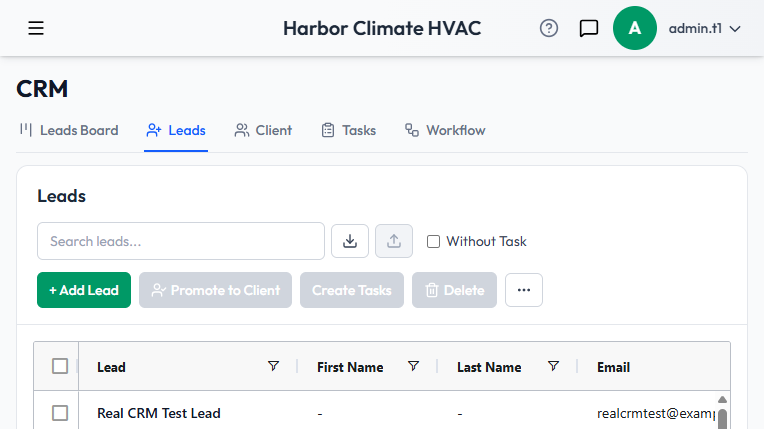
- The Leads grid's search box filters across nearly every field at once — name, email, phone, address, tag, status, and all extra contacts.
- A Without Task checkbox filters the grid down to leads that don't have any task attached yet — a fast way to find leads at risk of going cold.
- Set your tag (A–F) the moment you talk to a lead — it's the fastest signal for prioritizing who to call back first.
Converting a lead: Promote to Client
This is the one workflow worth understanding in detail, since it's how a lead turns into a real customer record:
- Select one or more leads (checkboxes in the grid) and click Promote to Client.
- Each selected lead is used to create a new client/company record. If a lead already has a linked client, that one is skipped rather than duplicated — promotion is safe to re-run.
- You're asked whether to delete the original lead entries or keep them — there's no automatic cleanup, so this choice is yours every time.
This link is one-way: once a lead is promoted, its contacts, tasks, and notes move over to the new client record, but there's no built-in way to send a client back to being a lead. See Client Records & Contacts for what happens next.
Tips
- Use the "Without Task" filter weekly to catch leads nobody has followed up on yet.
- When you're ready to close out a batch of won leads, select them all and Promote to Client in one pass instead of one at a time.