Contact Types
A lead or client can have several people attached. Contact types describe each person's role, so your team knows who to call about what. For example: Primary, Secondary, Billing, Site Contact or Tenant.
You choose a type when you add a contact on a lead or client record.
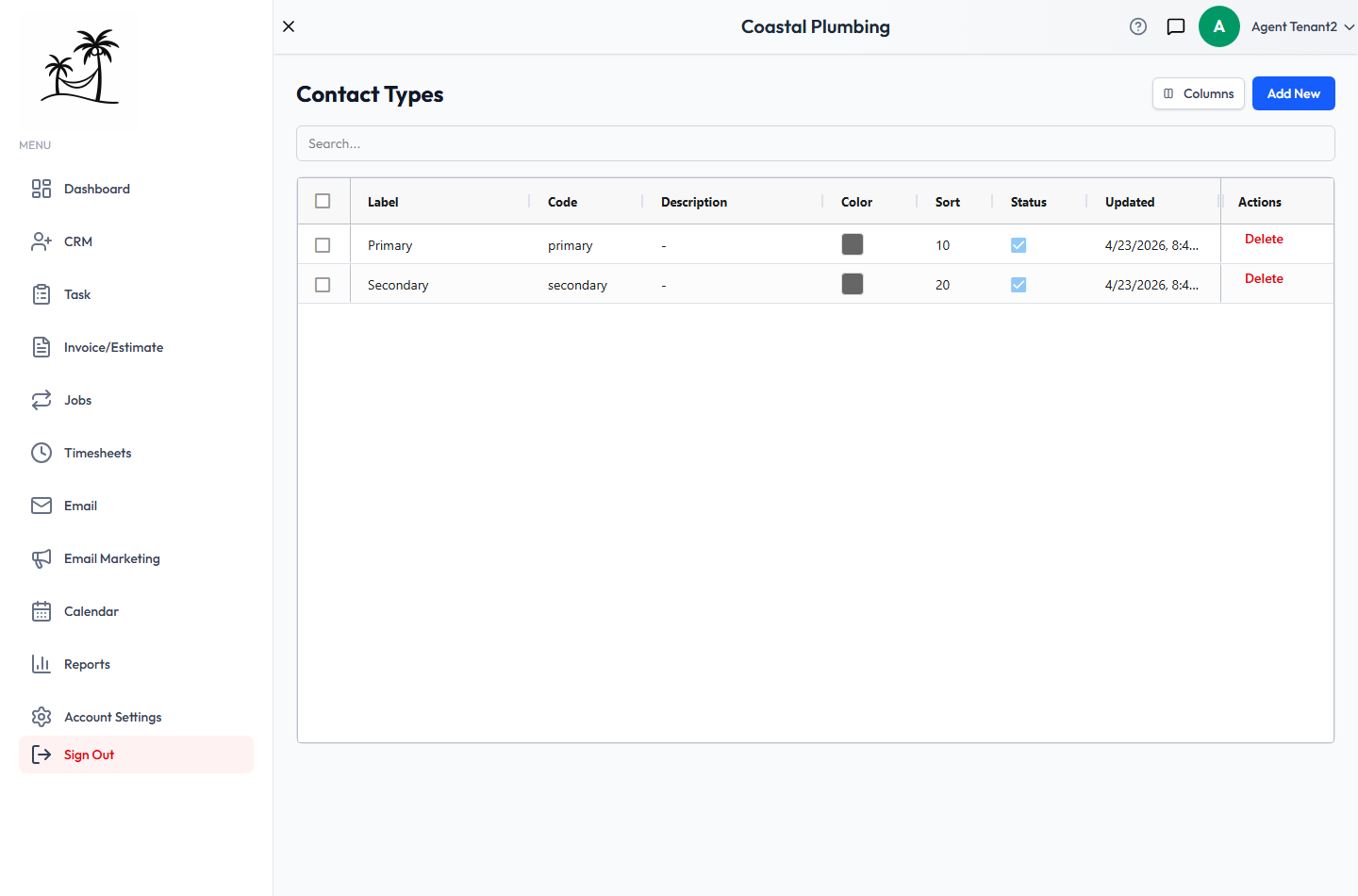
Find them at Account Settings → Contact Types. Every account starts with Primary, Secondary and Other.
Fields
- Label: the name shown next to the contact, such as "Billing".
- Code: the type's internal ID. It fills in automatically as you type the label, in lowercase with underscores (
billing). - Description: optional. Use it to say when to use this type.
- Color: the color of the type's badge.
- Sort Order: the position in the dropdown. Lower numbers come first.
- Active: inactive types no longer appear when choosing a type for a contact.
Click Add New to create a type. Double-click a row to edit it.
Deactivating vs. deleting
Deactivating hides a type from the dropdown for new contacts. Existing contacts keep their type.
Deleting removes the type permanently. You can't delete a type while any contact is using it. You'll see a message asking you to remove it from those contacts first. Only account administrators can delete.
Tips
- Add a Billing type if invoices often go to someone other than the person who booked the job. It saves a phone call to find the right inbox.
- For property managers and landlords, a Site Contact type separates the person who lets your tech in from the person who pays.