Client Types
Client types let you sort clients into categories that matter to your business, such as Residential, Commercial or Property Manager. You pick a type on each client record.
Find them at Account Settings → Client Types.
New accounts start with Residential, Commercial, Property Manager and Builder / GC. Rename, recolor or deactivate them to match how you split your customers.
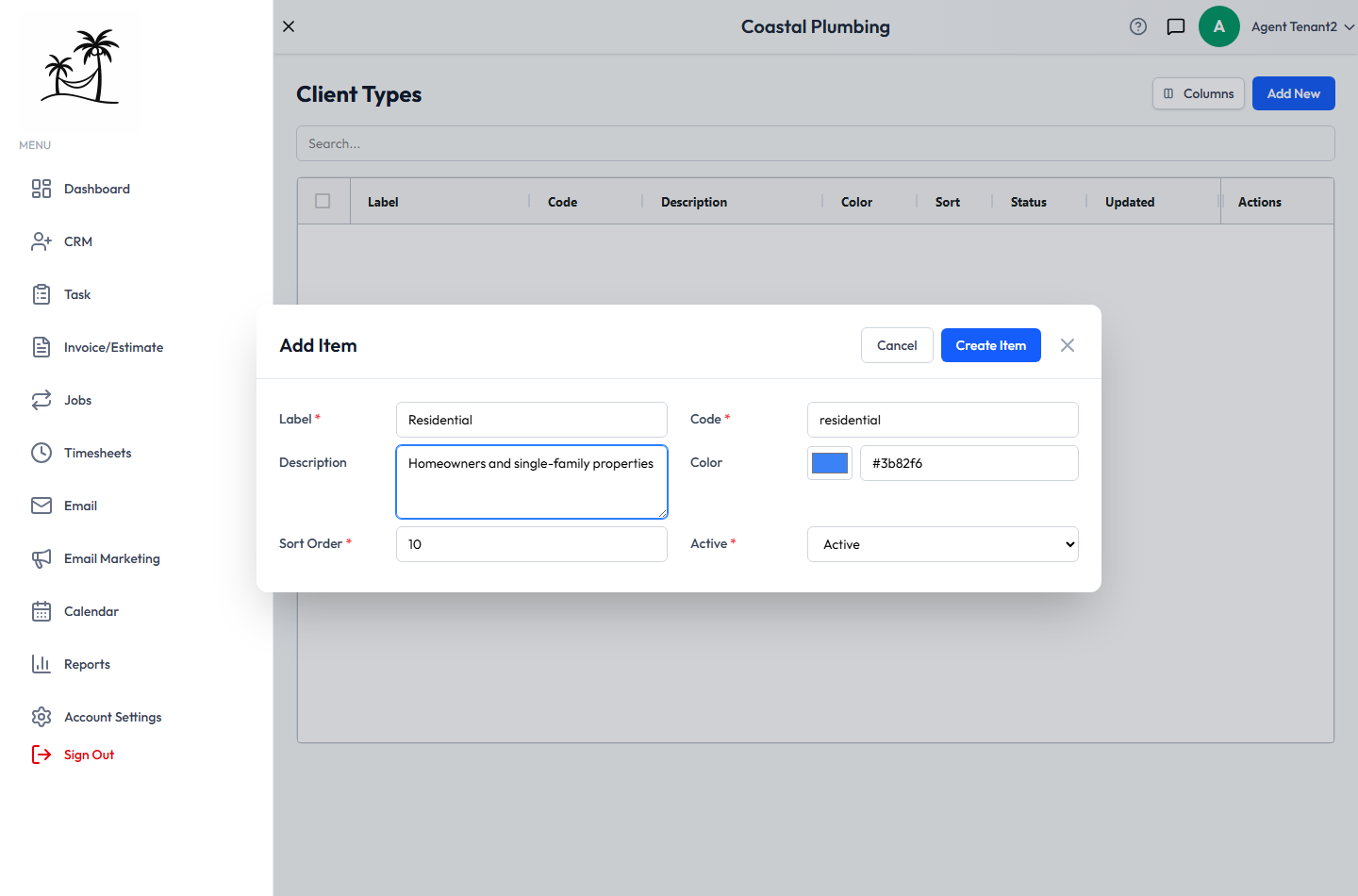
Fields
- Label: the name shown on the client record, such as "Residential".
- Code: the type's internal ID. It fills in automatically as you type the label, in lowercase with underscores (
residential). Safe to change. See Changing a code. - Description: optional. Use it to spell out who belongs in this category, so everyone assigns types consistently.
- Color: the color of the type's badge.
- Sort Order: the position in the type dropdown. Lower numbers come first.
- Active: inactive types no longer appear when choosing a type for a client.
Click Add New to create a type. Double-click a row to edit it.
Changing a code
Workflow automations that trigger on Client Type Change, such as sending a welcome sequence when a client becomes "Commercial", match a type by its code. When you change a code, those automations are updated to the new code automatically, so they keep working.
Deactivating vs. deleting
Deactivating hides a type from the dropdown for new selections. Clients that already have that type keep it.
Deleting removes the type permanently. You can't delete a type while any client is using it. You'll see a message asking you to remove it from those clients first. Only account administrators can delete.
Tips
- Keep the list short, usually three to five types. Once it grows much longer, people pick a type at random and the category stops meaning anything.
- Decide on your types before you add many clients. Changing your categories later means updating each client's type by hand.