Templates
A template is an email you write once and send many times — a maintenance reminder, an estimate follow-up, a seasonal promotion. Templates are the backbone of the marketing tools: a campaign can't send without one, and a workflow step sends one too.
The Templates tab appears in both Email and Email Marketing. It's the same library either way.
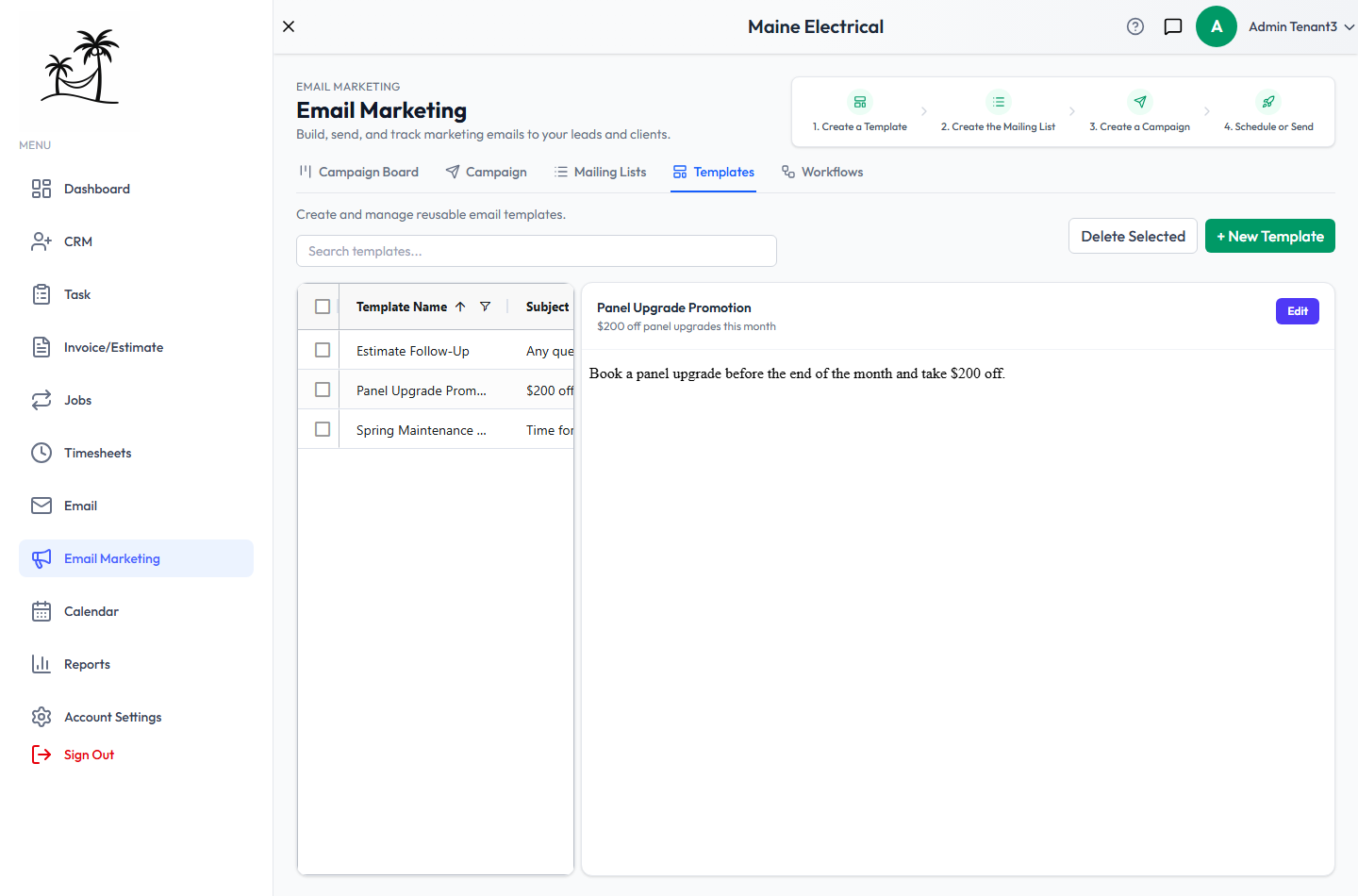
The list
- Search templates… matches the name and subject.
- Click a template to preview it on the right: its name, subject line and the message as a recipient sees it. Edit opens it.
- Double-click a row to go straight to the editor.
- Tick one or more rows and click Delete Selected to remove them. A template still used by a campaign or a workflow step can't be deleted until you point those at something else.
Writing a template
+ New Template opens the editor, and so does double-clicking an existing one.
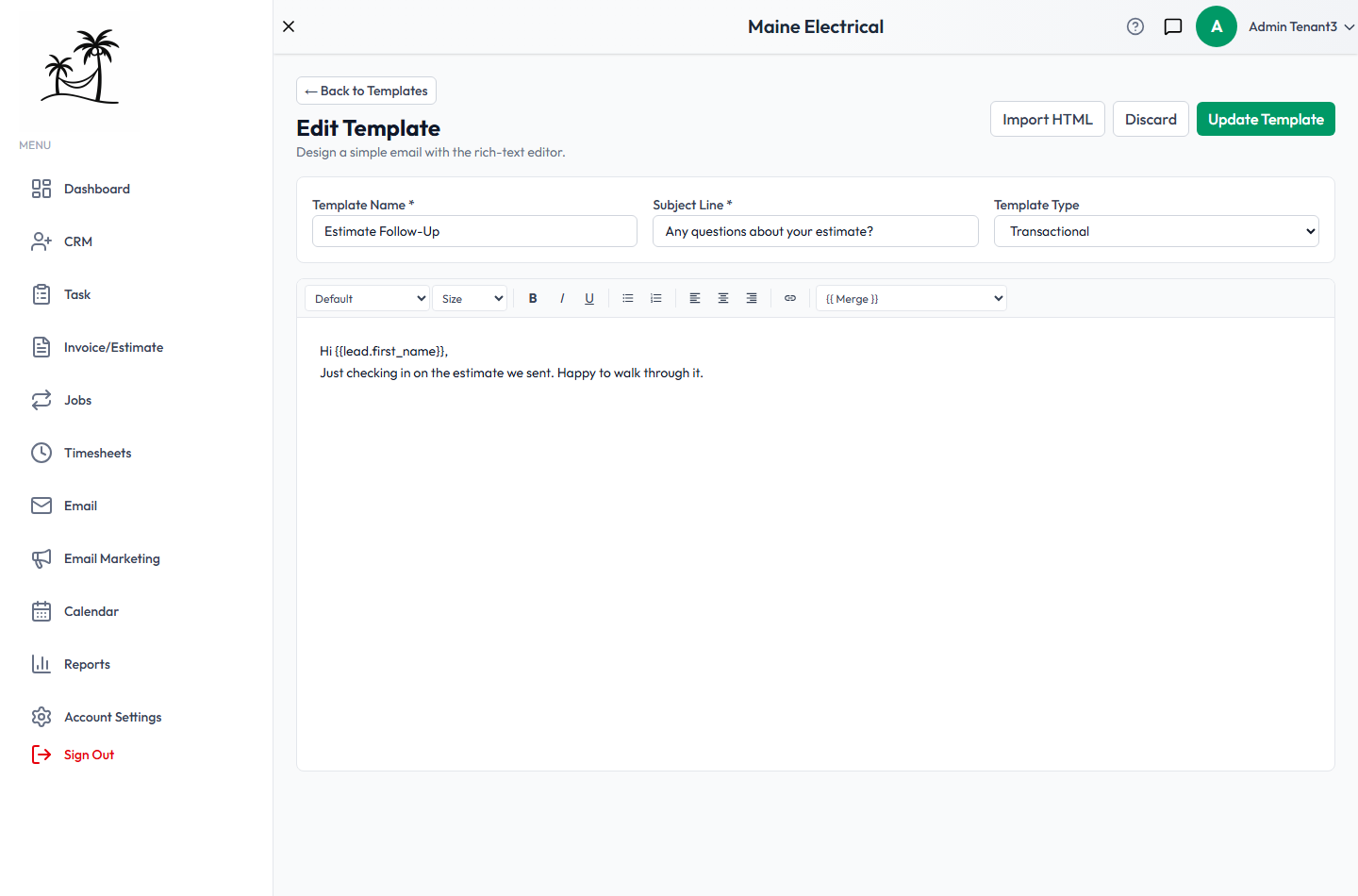
- Template Name is what you'll see in the list and in the campaign and workflow pickers. It's internal — recipients never see it.
- Subject Line is the subject of the email itself. Both of these are required.
- Template Type is the category, such as Newsletter or Transactional. See Template Types.
- The body is the same rich-text editor as the compose screen: fonts, sizes, bold, italic, underline, lists, alignment and links.
- Import HTML replaces the body with HTML you paste in, for a design built elsewhere.
- Update Template saves. Discard abandons your changes. ← Back to Templates returns to the list.
Merge fields
The {{ Merge }} dropdown inserts a placeholder that's replaced with the recipient's own details when the email sends. Hi {{lead.first_name}}, arrives as "Hi Grace,".
Pick merge fields from the dropdown rather than typing them — a misspelled placeholder sends as-is, and the recipient sees the raw {{...}} text.
Give every merge field a sensible fallback by writing around it. "Hi there," is safer than Hi {{lead.first_name}}, for a list where some records have no first name.
Where templates are used
| Used in | How |
|---|---|
| Campaigns | Template is required to create a campaign |
| Workflows | A Send Email step picks a template |
| Inbox | Send Email Template on a lead or client |
Because all three share the library, editing a template changes what future sends look like everywhere. Emails already sent are unaffected.
Related
- Template Types — the categories templates are filed under
- Campaigns — sending a template to a list
- Workflow — sending a template automatically