Template Types
Template types are categories for your email templates. You pick a type when you create or edit a template. It keeps a growing template library organized, so the right template is easy to find when building a campaign or automation.
Find them at Account Settings → Template Types. Every account starts with Newsletter, Promotional, Transactional and Announcement.
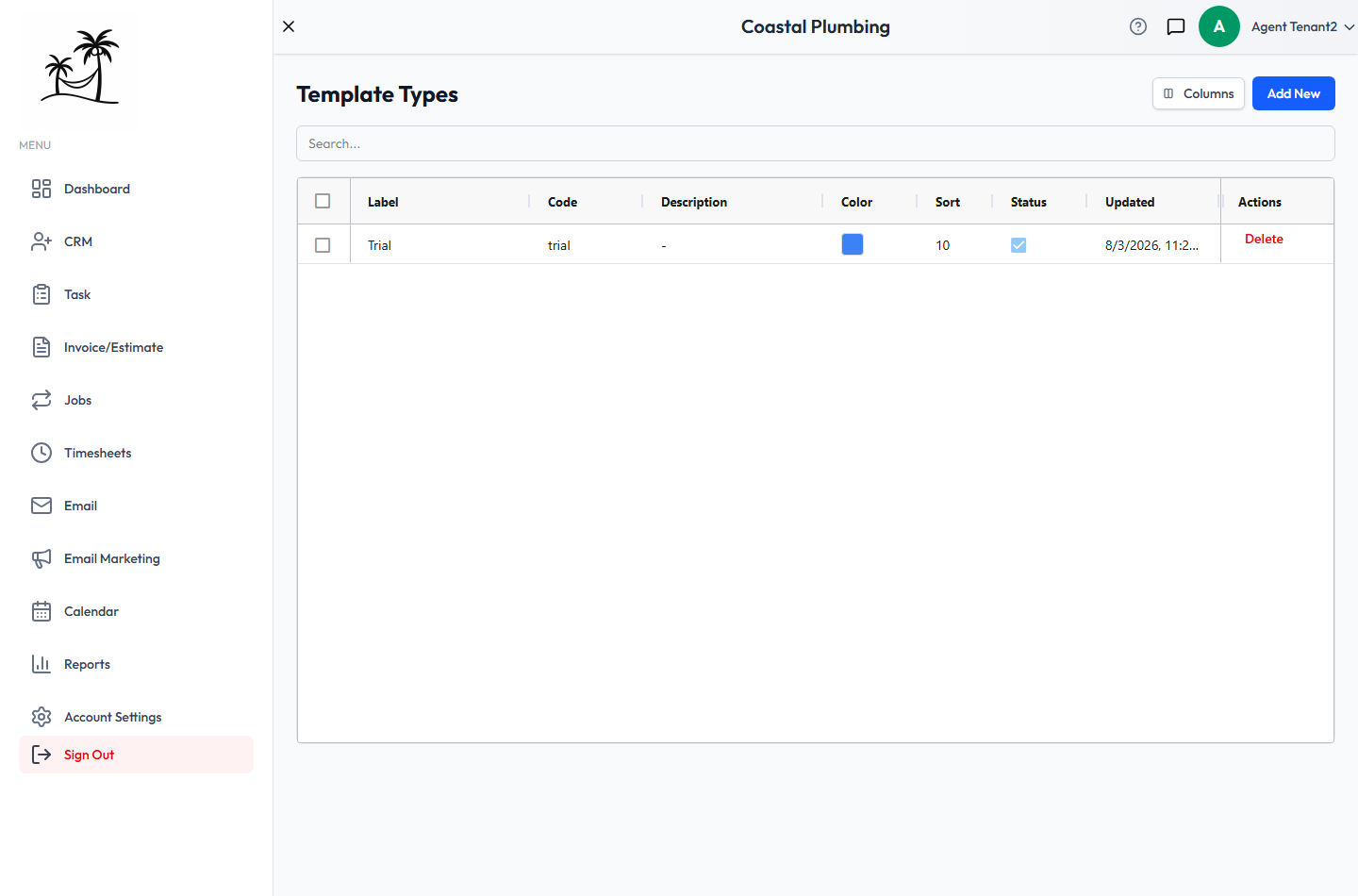
Fields
- Label: the name shown on the template, such as "Newsletter".
- Code: the type's internal ID. It fills in automatically as you type the label, in lowercase with underscores (
newsletter). - Description: optional. Use it to say which emails belong in this category.
- Color: the color of the type's badge.
- Sort Order: the position in the dropdown. Lower numbers come first.
- Active: inactive types no longer appear when choosing a type for a template.
Click Add New to create a type. Double-click a row to edit it.
Deactivating vs. deleting
Deactivating hides a type from the dropdown. Templates that already have that type keep it.
Deleting removes the type permanently. You can't delete a type while any email template is using it. You'll see a message asking you to remove it from those templates first. Only account administrators can delete.
Tips
- Keep Transactional for emails a customer needs, such as receipts, reminders and appointment confirmations. Keep marketing under Promotional or Newsletter. The two usually get written by different people and sent at different times, so separating them makes each easier to find.
- Add a type for any group you reuse often, such as "Seasonal Tune-Up". A category that holds one template isn't worth having.