Team Messaging
Messages is a simple, internal 1:1 chat between you and your teammates — not something a client or lead ever sees. Think of it as a lightweight way to say "can you call this customer back" without leaving Tropical Hill to text or email a coworker. If you need to message a customer, that's what Sending Campaigns' Email section is for, not this.
Starting a conversation
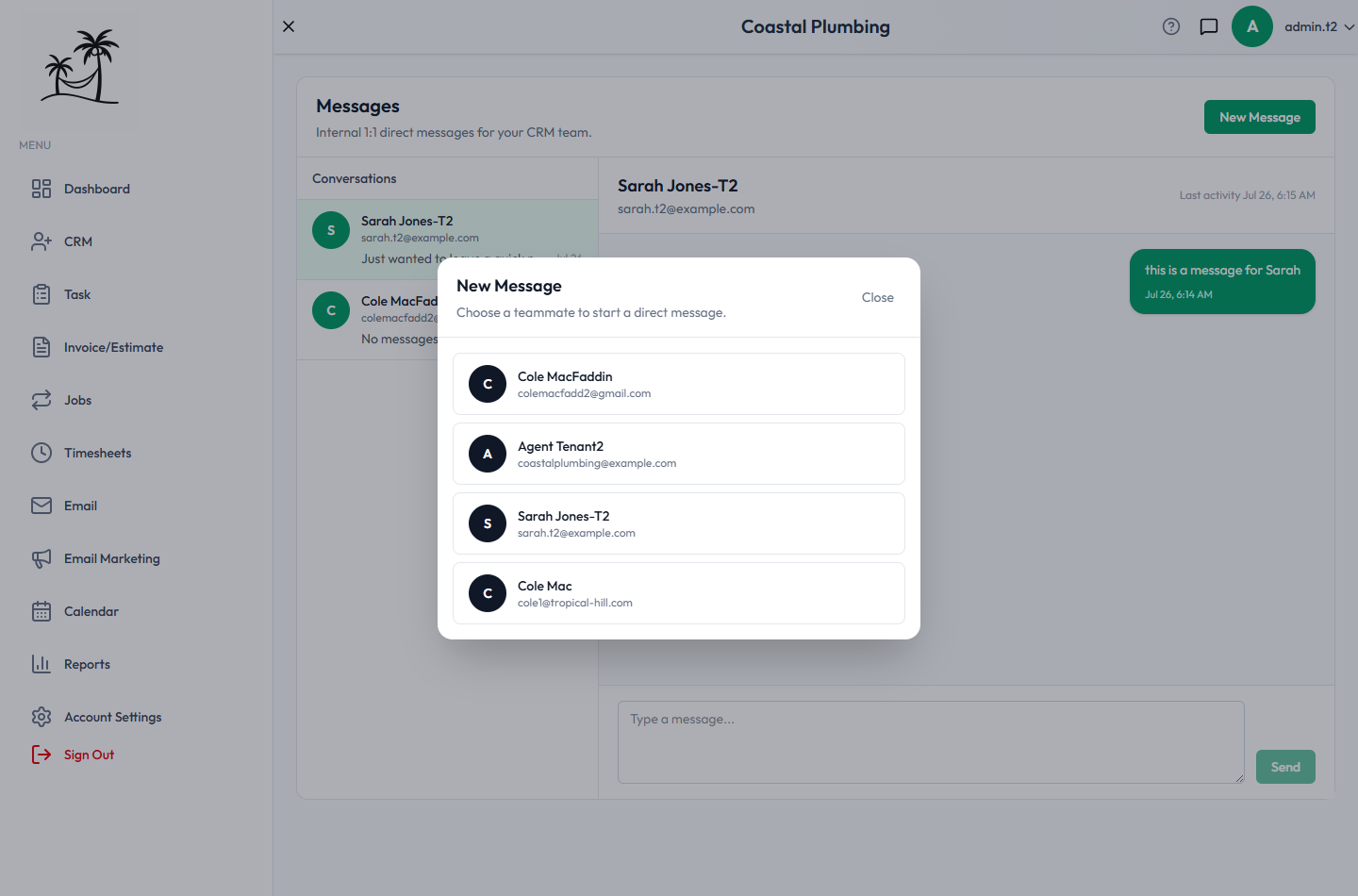
Click New Message and pick a teammate to start (or reopen) a direct conversation with them. Every active user on your account shows up here except yourself. Inactive user accounts are shown but can't be messaged. Selecting someone you already have a conversation with just reopens it rather than starting a duplicate thread.
The conversation list
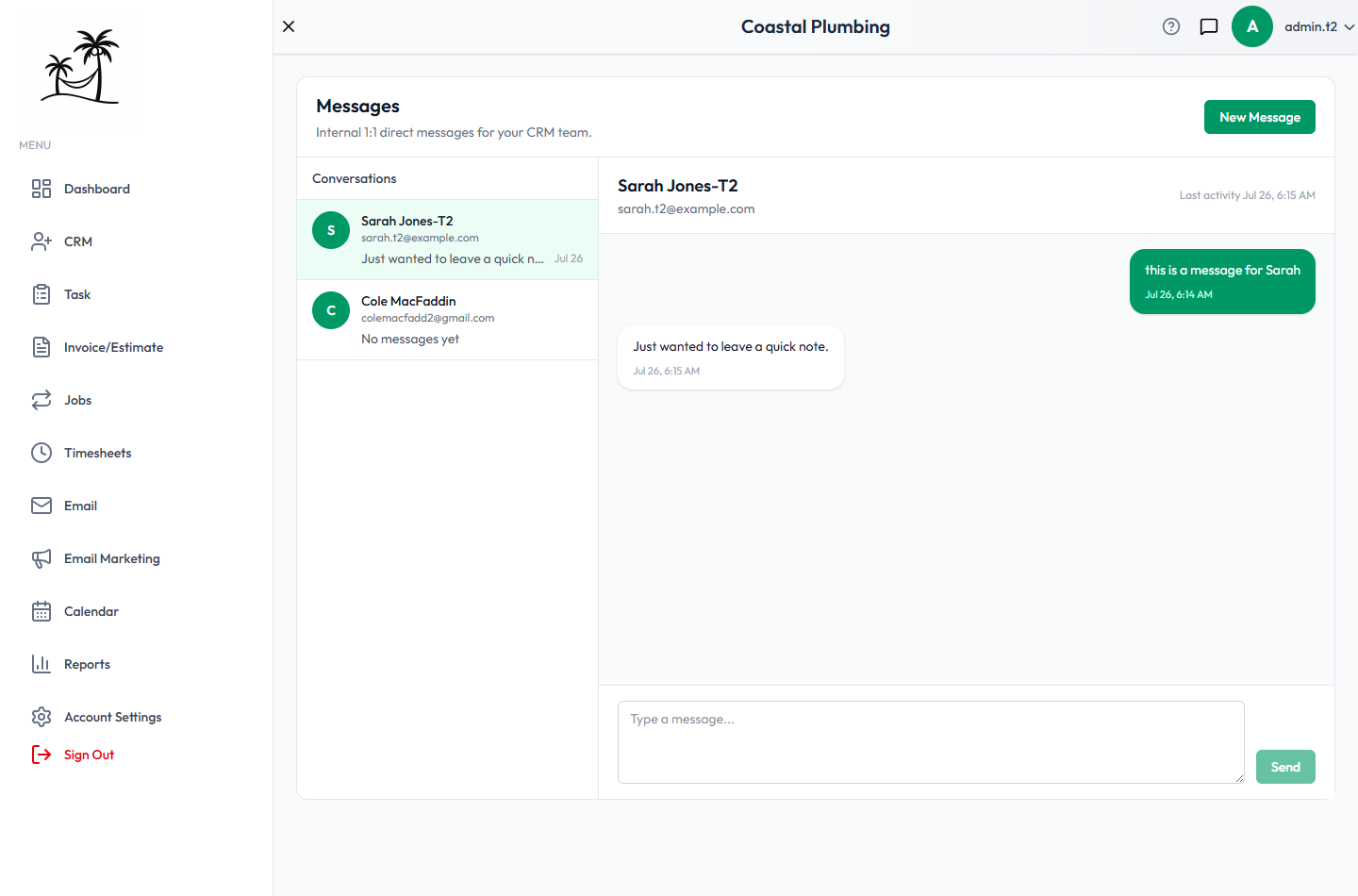
The left panel lists every conversation you're part of, most recently active first, with the other person's name, a preview of the last message, when it was sent, and an unread-count badge. It refreshes automatically in the background every 10 seconds.
Reading and sending messages
Click a conversation to open it — your messages appear on the right, theirs on the left, each with a timestamp. Opening a conversation automatically marks it read. Type in the box at the bottom and Send. While a conversation is open, it keeps checking for new messages every 5 seconds, so a back-and-forth updates live.
What Messages isn't
- No group messaging — every conversation is strictly one-on-one.
- No file or image attachment support — text only.
- Not tied to leads, clients, tasks, or any other record — for anything that needs to stay attached to a customer or job, use a task note instead.
- Entirely internal — never client-facing.
Tips
- Use Messages for quick internal coordination ("heads up, running late to the 2pm") rather than anything that needs a permanent record tied to a job or client.
- Since there's no group chat, anything more than one other person needs to know is better handled as a task or a note on the relevant lead or client.
- If a teammate shows up as inactive and you can't message them, check whether their account was deactivated under Managing Users & Roles.