Mailing Lists
A mailing list is a reusable audience. Build it once, then point as many campaigns at it as you like. The Mailing Lists tab is in Email Marketing.
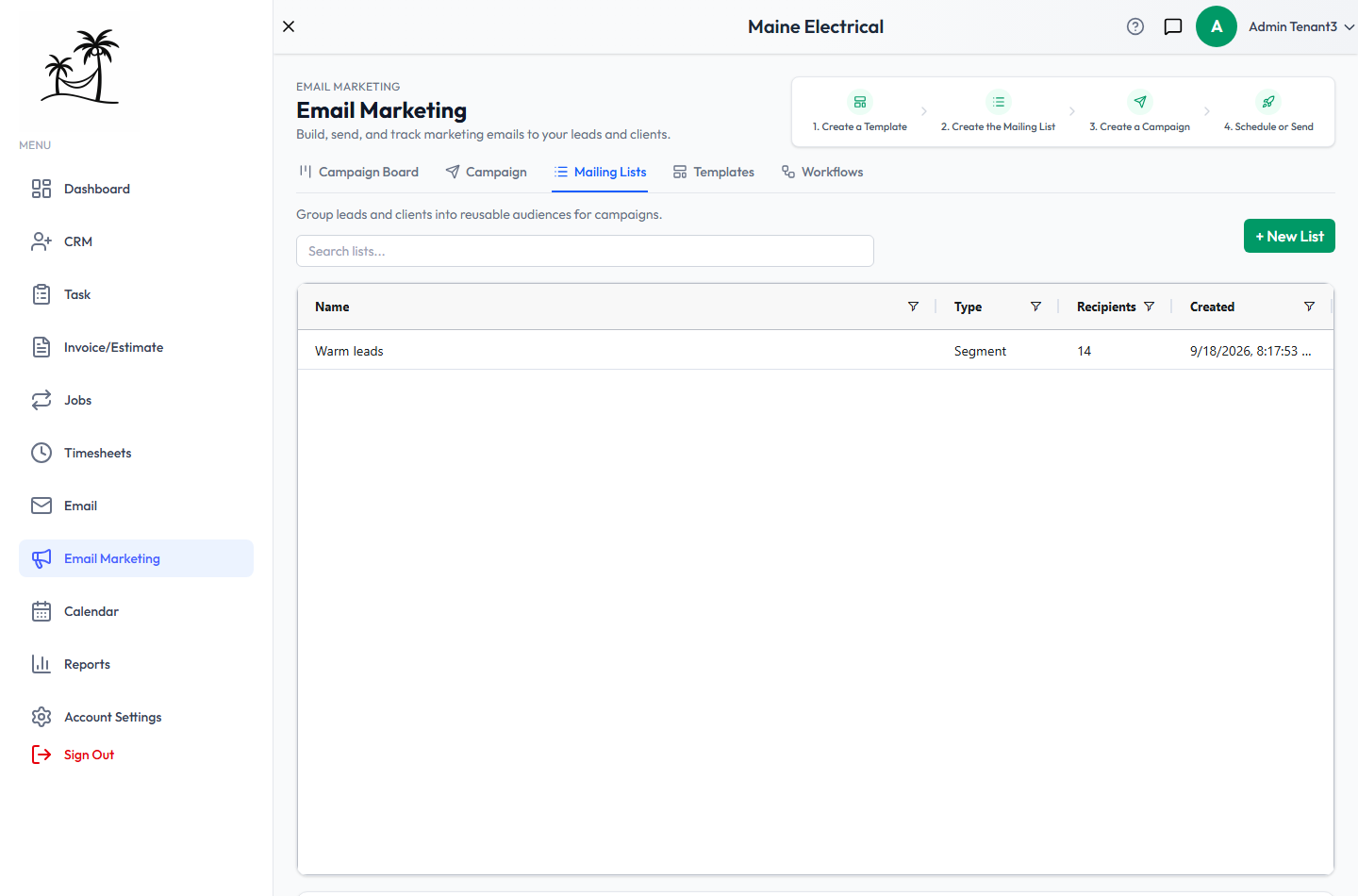
The list shows each audience's Name, its Type, how many Recipients it currently resolves to, and when it was Created. Search lists… matches the name. Double-click a row to edit it, or click + New List.
The two kinds of list
Selection — you pick specific leads and customers by hand. The list is exactly those records and doesn't change until you change it. Good for a one-off send to a handful of people.
Segment — you describe the audience with filters, and membership is worked out fresh every time a campaign sends. A segment of "leads tagged A or B" automatically includes the lead you tagged A this morning. Good for anything you'll send repeatedly.
Editing a list
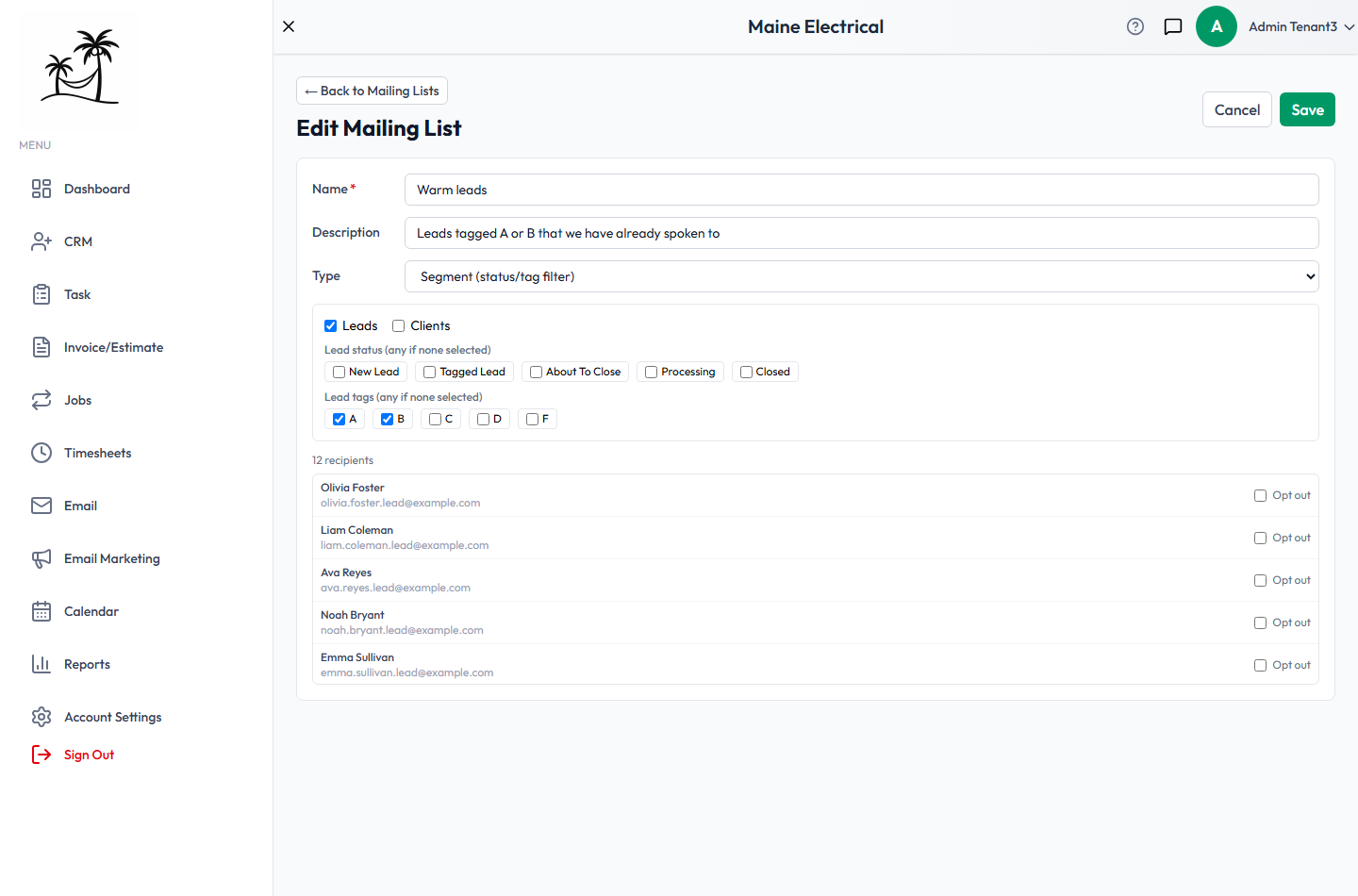
- Name is required and is what you'll pick from in the campaign window.
- Description is optional. Use it to record who the list is meant to reach, as in "Leads tagged A or B that we have already spoken to".
- Type switches between Selection and Segment.
For a segment, tick Leads, Clients, or both, then narrow with:
- Lead status — any of your lead statuses. Leaving them all unticked means any status.
- Lead tags — any of your lead tags. Again, none ticked means any tag.
Ticking several boxes widens the audience: A or B, not A and B.
Underneath, the recipients the filters currently resolve to are listed with a running count, so you can see the effect of a change before saving. Opt out beside a recipient removes that person from every future send.
Save keeps your changes; Cancel and ← Back to Mailing Lists leave without saving.
Opted-out contacts
Below the list grid is Opted-Out Contacts — everyone excluded from every mailing list and campaign, whether they clicked the unsubscribe link in an email or you added them by hand.
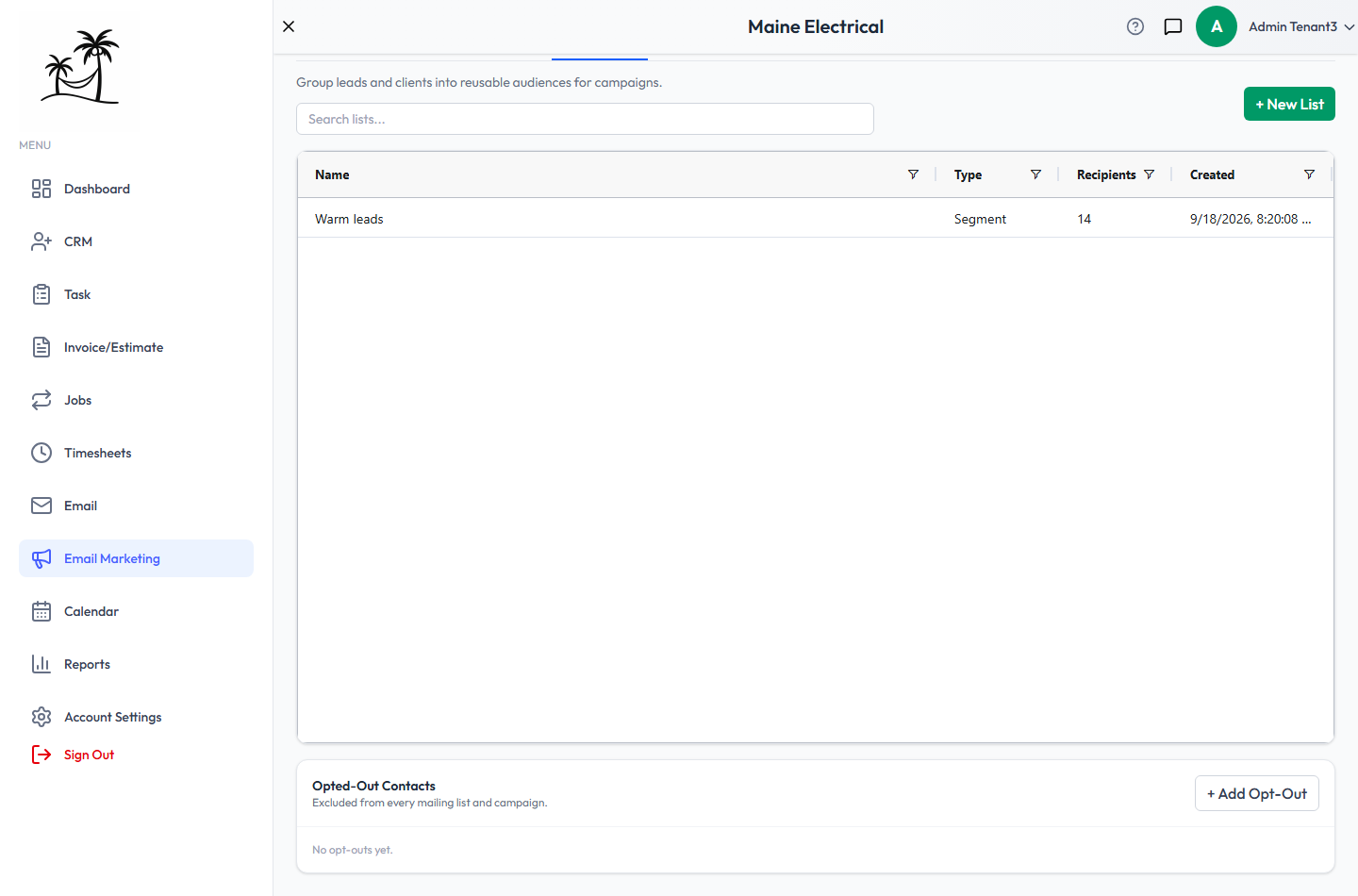
+ Add Opt-Out takes an email address, or a lead or client you search for, and adds them to the list. Removing someone from this panel lets them receive campaigns again — only do that if they've asked you to.
Opt-outs apply across the whole account and are honoured even if the person still matches a segment's filters. Don't remove someone here to get them back into a campaign.
Tips
- Prefer a segment over a selection for anything recurring. A hand-picked list quietly goes stale.
- Check the recipient count in the editor before saving — an empty count usually means the filters don't overlap.
- Keeping a description on each list saves you from guessing later what "Warm leads" meant.
Related
- Campaigns — sending to a list
- Lead Tags and Lead Statuses — what segments filter on