Inbox
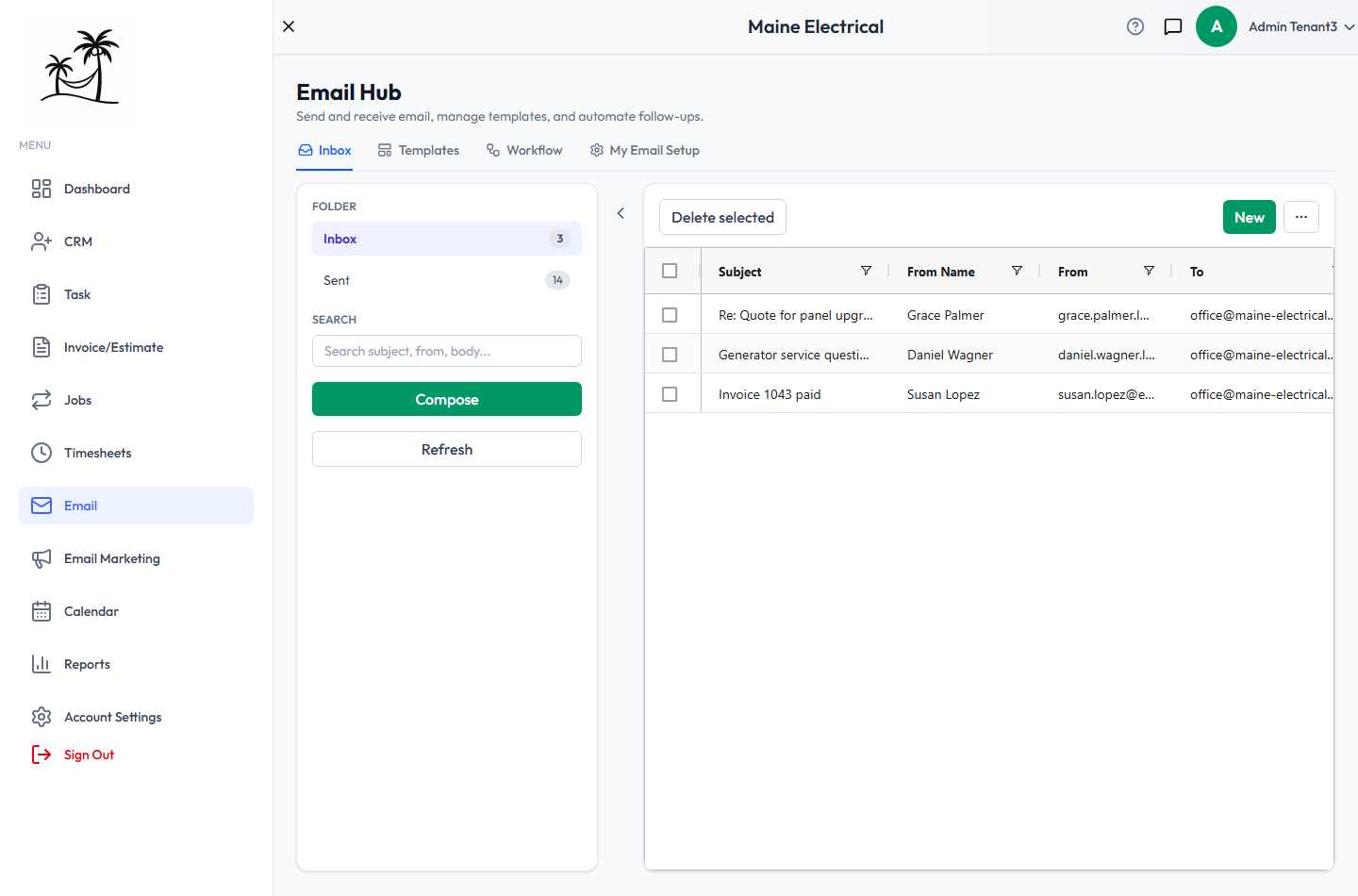
Email → Inbox is a working mailbox inside Tropical Hill. It shows the mail sent to and from the mailbox you connected, so you can answer a customer without switching to another program.
The mailbox has to be connected first. If nothing is connected, the Inbox has nothing to show — see Email Setup.
Finding a message
- Inbox and Sent are on the left, each with a count of the messages in it.
- Search matches the subject, sender, body text and recipients.
- The grid columns are Subject, From Name, From, To and the delivery and open-tracking details. Click a header to sort, or use the filter icon on a column.
- Refresh pulls in new mail. The Inbox doesn't poll continuously, so refresh when you're expecting something.
Reading and replying
Click a message to open it in the reading pane on the right.
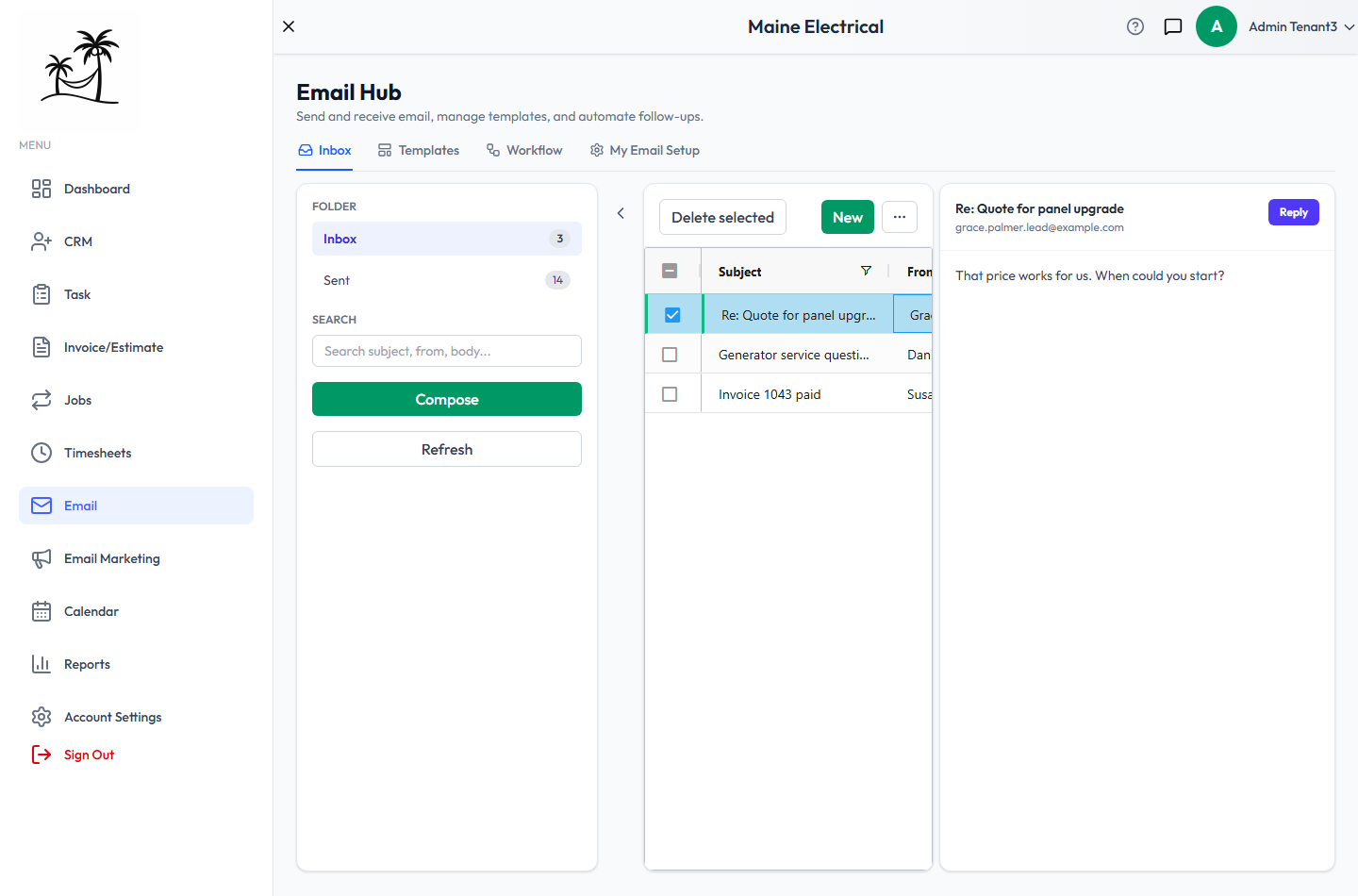
Reply opens the compose screen with the recipient and subject filled in. There's no Forward button.
Tick the checkboxes next to one or more messages and click Delete selected to remove them.
Composing a message
Compose (or New) opens a full-page editor.
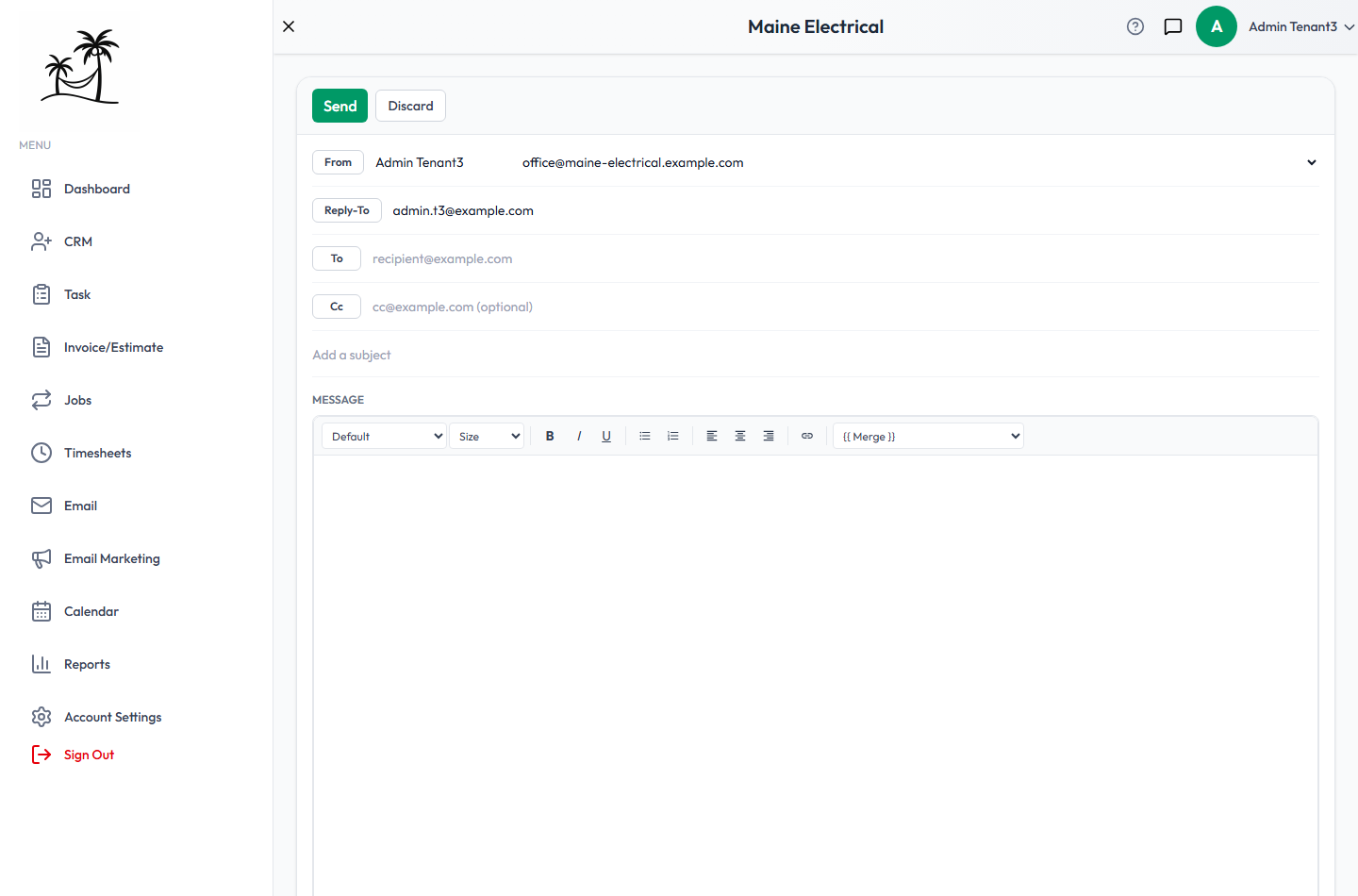
- From picks which connected mailbox the message sends from, when you have more than one.
- Reply-To is where replies land, if that differs from the sending address.
- To and Cc take one or more addresses. There's no Bcc.
- The message body is rich text: fonts, sizes, bold, italic, underline, lists, alignment and links.
{{ Merge }}inserts a field such as the contact's first name, which fills in from the record when the message sends.- Attach files up to 25MB each.
- Send sends it; Discard throws the draft away.
Opening compose from a lead's or client's Send Email button fills in the To address for you, and the message is recorded against that record.
When sending fails
A failed send almost always means the mailbox connection has stopped working — an app password that was revoked, or a Google account that needs reconnecting. You'll see a banner linking to Email Setup. Reconnect the mailbox and send again.
Related
- Email Setup — connecting the mailboxes you send from
- Templates — reusable emails for both one-off sends and campaigns
- Messages — internal chat with teammates, not customers