Email Setup
Nothing in Tropical Hill can send email until a mailbox is connected. There are two places to do it: Account Settings → Email Setup, which is where an administrator connects the mailboxes the whole company uses, and Email → My Email Setup, where anyone connects their own.
The company's mailboxes
Find them at Account Settings → Email Setup. Only account administrators can see this screen.
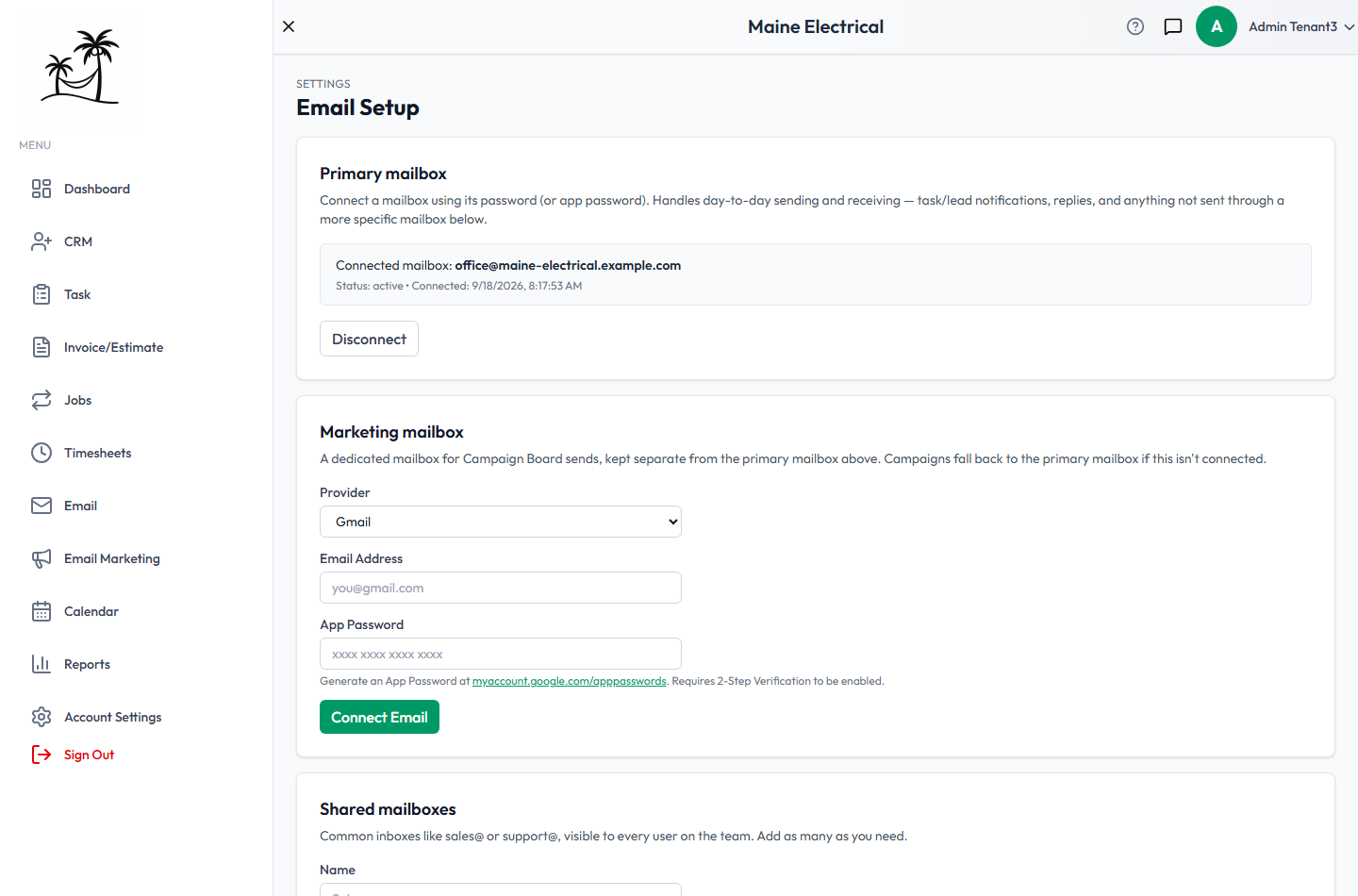
Primary mailbox handles day-to-day sending and receiving — task and lead notifications, replies, and anything not sent through a more specific mailbox. This is the one to connect first.
Marketing mailbox is a dedicated mailbox for campaign sends, kept separate from the primary one so a large send never disturbs your day-to-day mail. If it isn't connected, campaigns fall back to the primary mailbox.
Shared mailboxes are common inboxes such as sales@ or support@, visible to every user on the team. Add as many as you need, each with a name so people can tell them apart.
Connecting a mailbox
Each mailbox takes the same three fields:
- Provider — Gmail, or another provider over SMTP.
- Email Address — the address the mail sends from.
- App Password — not your normal account password. For Gmail, generate one at myaccount.google.com/apppasswords; it requires 2-Step Verification to be turned on first.
Click Connect Email. A connected mailbox shows its address, its status and when it was connected, with a Disconnect button.
An app password is a separate password your email provider issues for one program. Revoking it disconnects Tropical Hill without changing your own password.
Your own mailbox
Email → My Email Setup connects a mailbox that's yours alone, so email you send from the Email Hub goes out as you rather than from a team address.
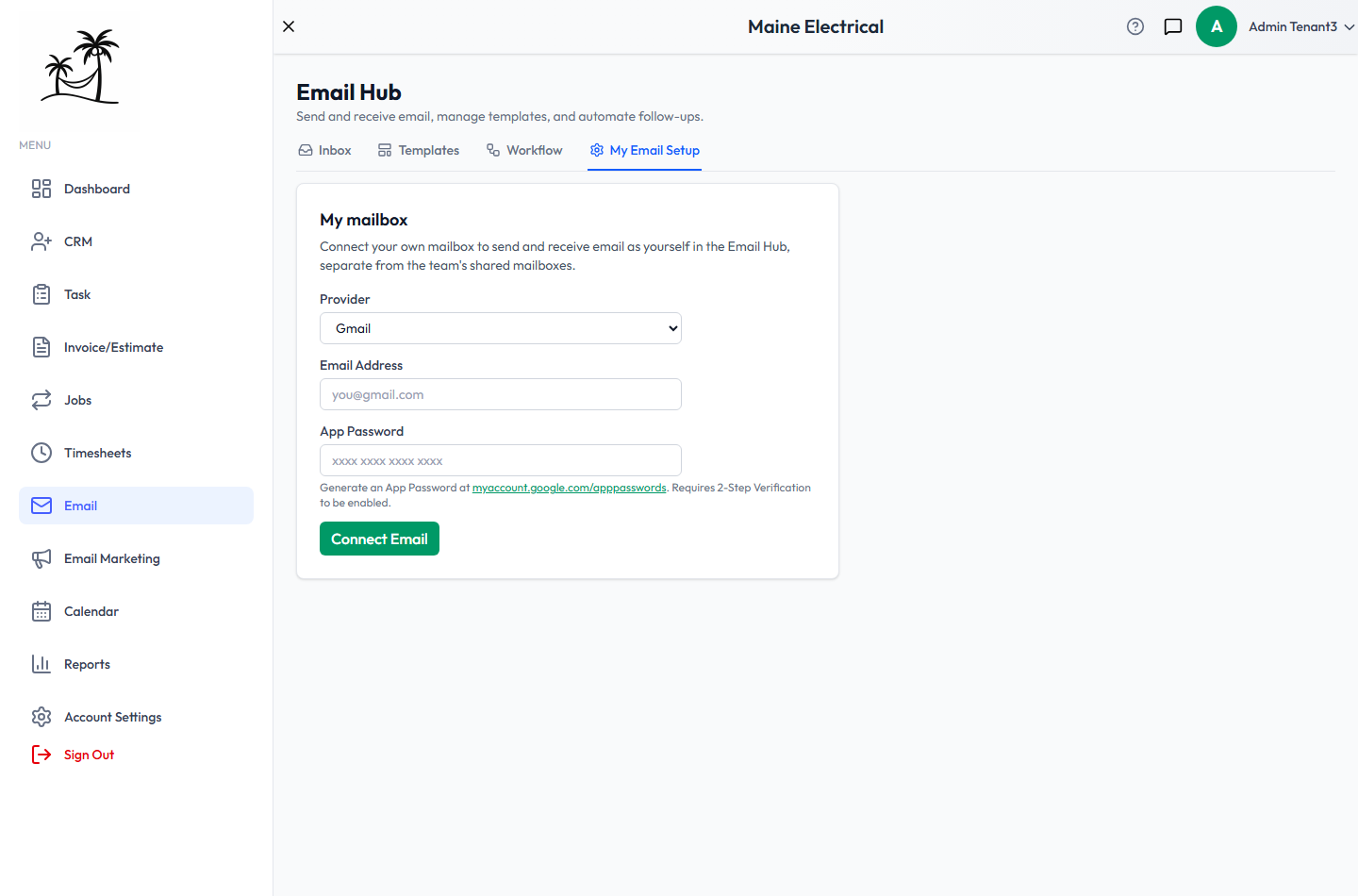
It takes the same Provider, Email Address and App Password, and doesn't need an administrator — every user can set up their own.
Which mailbox sends what
| What's sending | Mailbox used |
|---|---|
| A message you compose in the Inbox | Your personal mailbox, or whichever you pick in From |
| Notifications and automated follow-ups | The primary mailbox |
| A campaign | The marketing mailbox, falling back to the primary |
When a connection breaks
If sends start failing across the board, check here first — an expired or revoked app password is the most common cause. Reconnect the affected mailbox and the queued sends resume.
Related
- Inbox — reading, replying and composing
- Campaigns — bulk sends to a mailing list
- Company Profile & Branding — the rest of your company settings