Tracking Stock and Parts
Inventory tracks stock levels for the parts and materials you keep on hand — it's built directly on top of the Service Catalog, so anything you already price out on estimates and invoices can also carry a running stock count.
Turning on tracking for an item
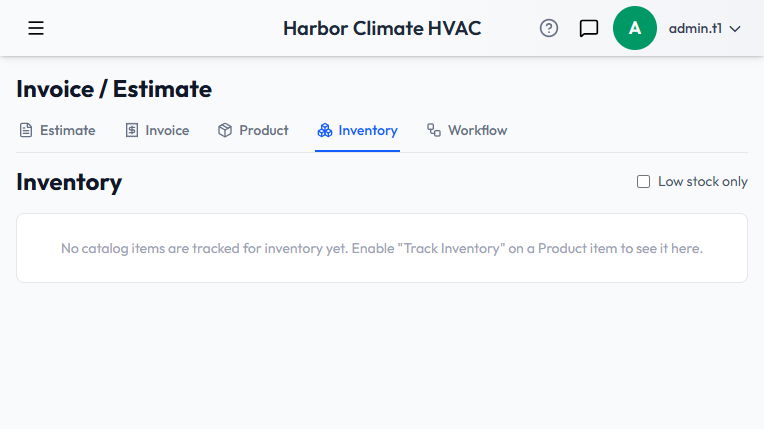
Inventory doesn't track anything by default — turn it on per item in the Service Catalog. Open a catalog item and check Track Inventory. While you're there, fill in SKU and Cost if you track them, plus a Reorder Point and Reorder Quantity — the reorder point is what drives the "low stock" flag. Only items with Track Inventory turned on ever show up on the Inventory page.
The Inventory page
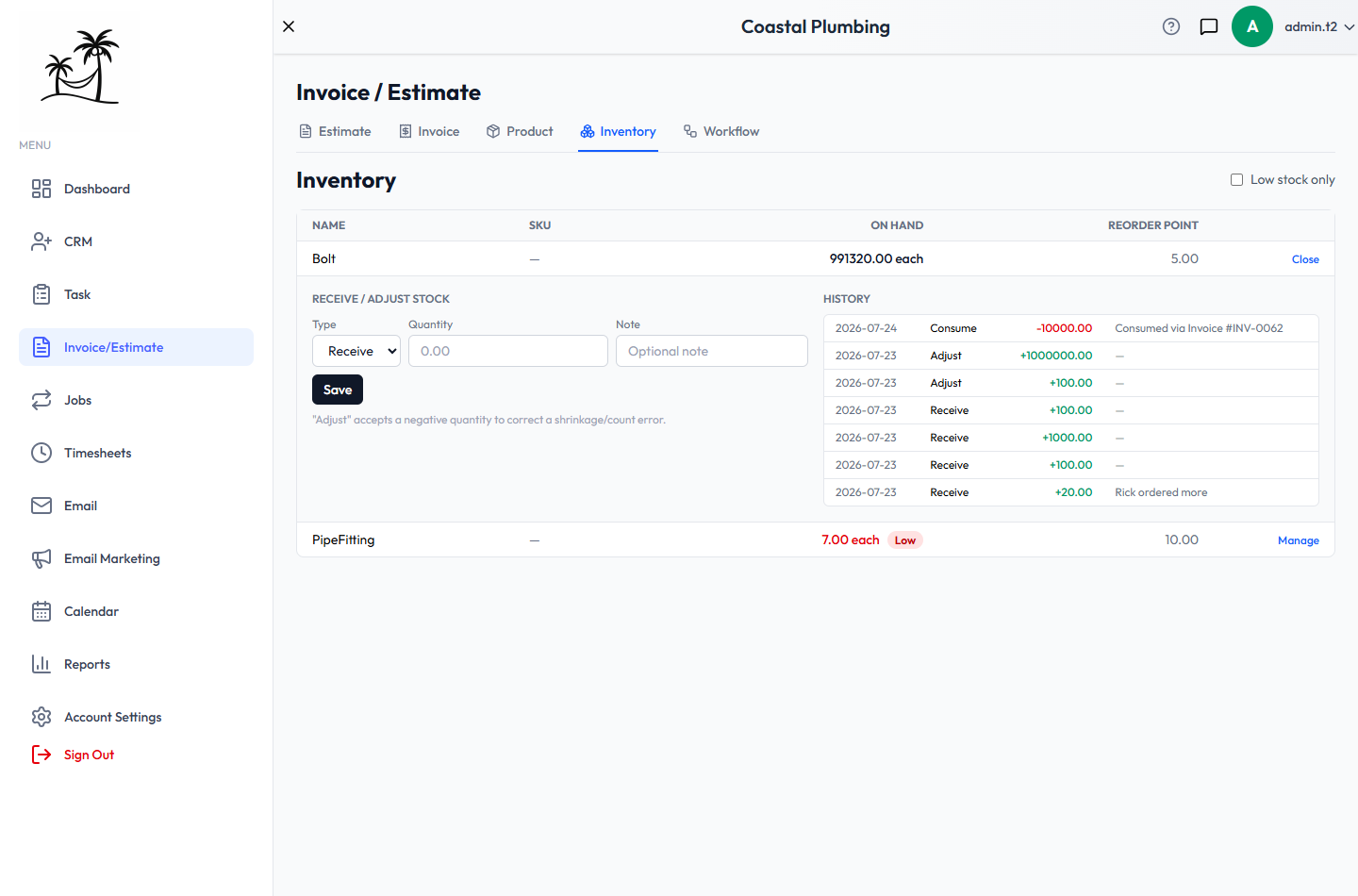
Lists every inventory-tracked item with its Name, SKU, quantity On Hand, and Reorder Point. An item shows a red Low badge the moment its on-hand quantity drops to or below its reorder point. Check Low stock only to filter down to just what needs attention.
Receiving and adjusting stock
Click Manage on any item to expand it and record stock movement:
- Receive adds stock — use it when a shipment or order comes in. Must be a positive quantity.
- Adjust is for corrections and accepts a negative quantity — use it to true up a count after a physical inventory check or to record shrinkage/loss.
- A Note field is optional but worth using — "PO #1042" or "damaged in transit" is a lot more useful six months from now than a bare number.
- Every item keeps a running History — date, type, quantity change, and note — visible below the Receive/Adjust form.
Stock also moves on its own
Not all stock changes are manual. When a recurring job generates an invoice and one of its line items is tied to an inventory-tracked catalog item, the system automatically records a consume transaction — a negative quantity change logged with a note like "Consumed via job billing" and a reference back to that invoice.
This happens without anyone touching the Inventory page directly, so if a quantity looks lower than expected, check the item's History first — a job invoice going out is the most likely explanation. Consume transactions are the only kind you won't create yourself from the UI; Receive and Adjust are the two manual options.
Tips
- Set a realistic Reorder Point, not zero — zero only flags an item after you're already out.
- Check Low stock only as a regular habit rather than scrolling the full list looking for red badges.
- Use Adjust with a note every time you do a physical stock count.
- If a job consumes materials you don't actually want auto-tracked, leave Track Inventory off for that catalog item.