Your Dashboard
The Dashboard is the first thing you see after logging in, and it's built to be rearranged rather than fixed. You get three built-in tabs — Leads, Sales, and Jobs — each pre-loaded with a curated set of widgets, plus a full catalog of widgets you can mix into any tab, including tabs you create yourself.
Leads tab
Your default view. Ships with four widgets:
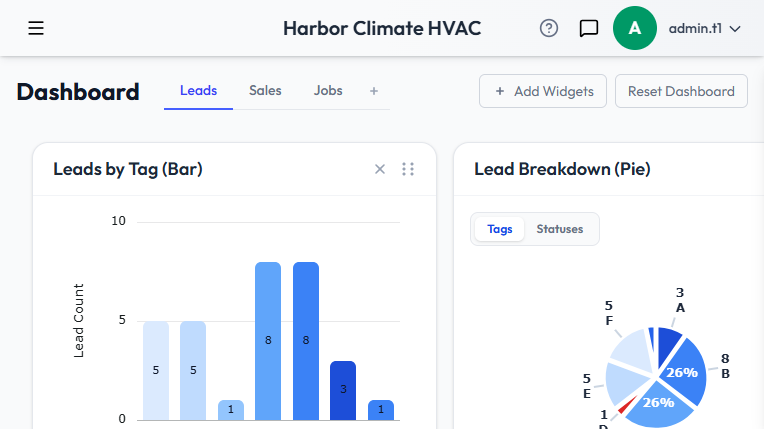
- Leads by Tag (Bar) — lead counts grouped by tag, so you can see at a glance which sources are actually bringing in leads
- Lead Breakdown (Pie) — your lead distribution, switchable between grouping by tag or by status
- Dashboard Tasks — a table of your recent tasks and their status
- Tasks Due — a stacked bar chart of tasks due per day, broken out by task type
Sales tab
The numbers-heavy view for revenue, estimates, and invoicing:
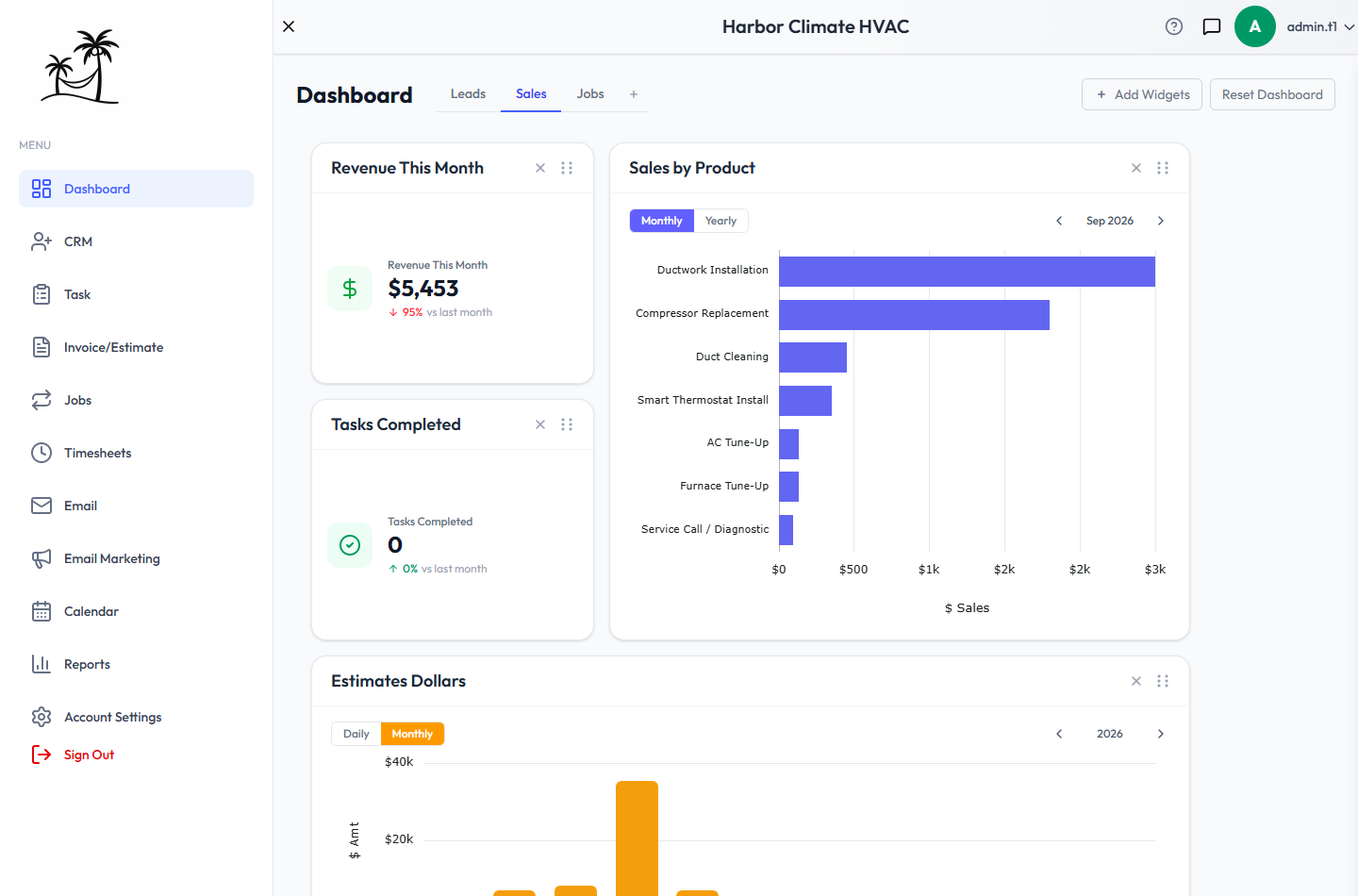
- Revenue This Month — invoice totals this month vs. last month
- Tasks Completed — this month vs. last month
- Sales by Product — sales totals grouped by product or service
- Estimates Dollars / Sales Dollars — bar charts of estimate and invoice totals per day or month
- Revenue by Month — invoiced vs. collected revenue over the trailing 12 months
- AR Aging — outstanding balance due, grouped by aging bucket
- Top Services by Revenue — your highest-revenue services over the trailing 12 months
- Sales Report (Table) — every invoice in the trailing 12 months, with subtotals and a grand total
Jobs tab
Built for day-to-day dispatching:
- Jobs Map — the next upcoming day's job visits plotted on a map
- Upcoming Schedule — jobs and tasks due today, tomorrow, and this week
For more than this widget offers, see Map & Route Planning for routes from your shop, and Dispatch for skill-based technician suggestions.
Adding, removing, and rearranging widgets
- Click Add Widgets to open the widget catalog. It marks widgets already on your current tab so you don't add the same one twice.
- Click a widget in the catalog to drop it onto the tab you're viewing.
- Drag a widget by its header to move it; resize from the handle in its bottom-right corner.
- Changes save automatically a moment after you stop dragging or resizing.
Custom tabs
Click the + next to the tab row to create a new tab and name it. Custom tabs start empty — add whichever widgets make sense. The three built-in tabs can be renamed but not deleted.
Reset Dashboard restores Leads, Sales, and Jobs to their original layout and removes any custom tabs — only use it when you actually want a clean slate.
Tips
- Put your most-used stat tiles at the top of a tab so they're visible without scrolling.
- If your team splits by role, try a lightweight custom tab per role instead of everyone sharing the same full Sales view.
- Use AR Aging alongside Sales Dollars if collections are a recurring issue.