Managing Users & Roles
Account Settings & Users is only visible to superusers — everyone else on your account won't see a Settings link at all.
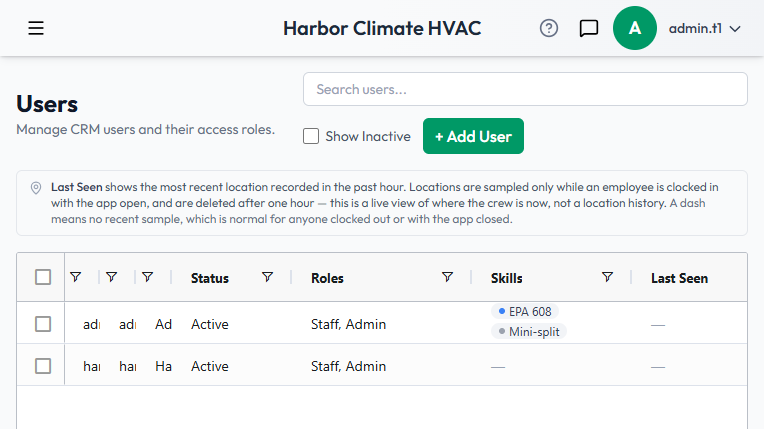
The Users grid
Shows Username, Email, Name, Status (Active/Inactive), and Role (Admin, Staff, or User). Inactive users are hidden by default — check Show Inactive to see them.
Adding a user
Click + Add User: Username, Email, and Password are required; First Name, Last Name, Active, Staff, and Superuser are optional (new users default to Active, non-Staff, non-Superuser).
- Staff access can manage things ordinary users can't — email mailboxes, SMTP settings, and team timesheets.
- If you use skill-based dispatch, attach Skills to a user's record — the Dispatch board matches technicians to jobs based on these.
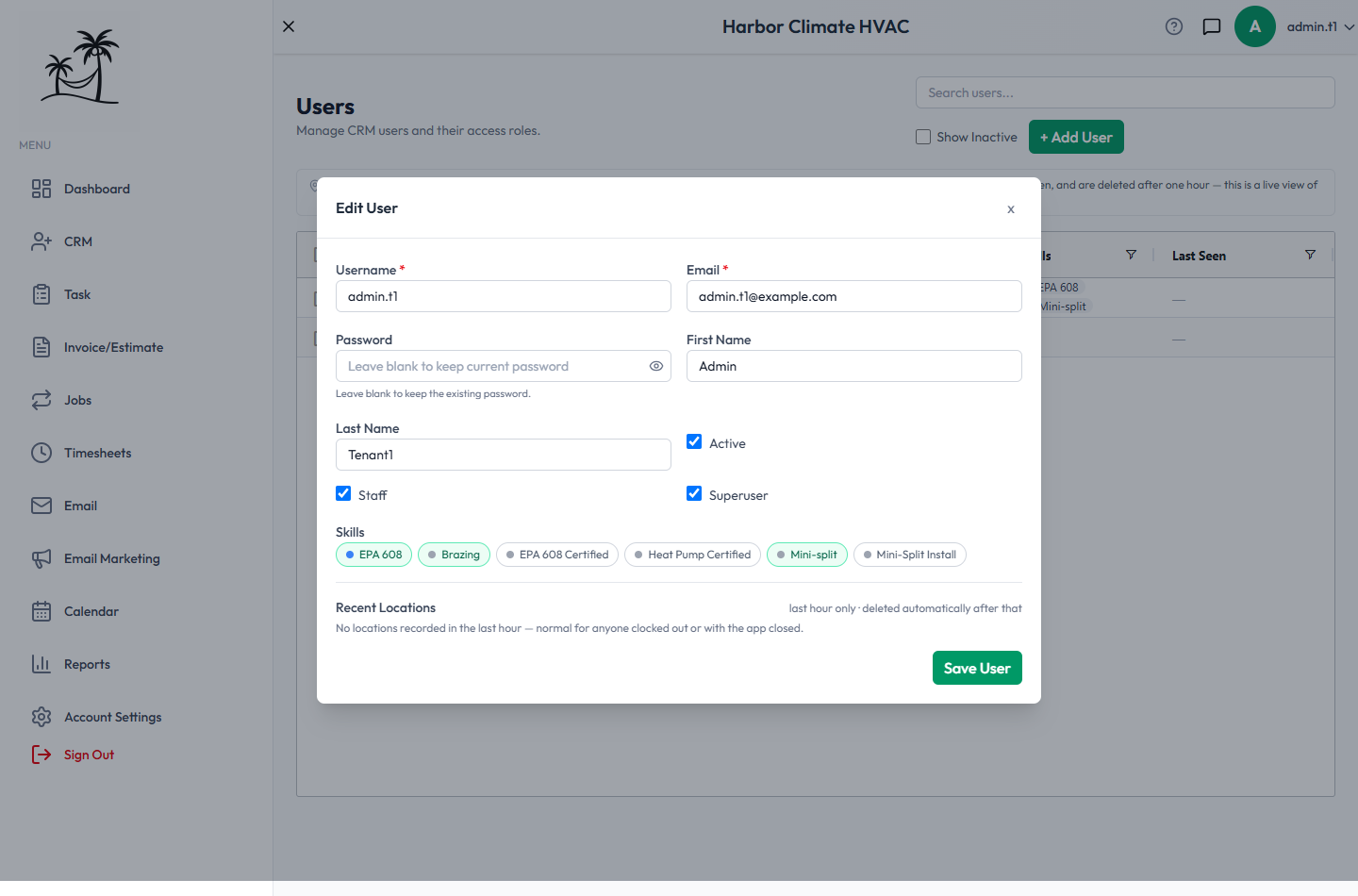
Double-click an existing user to edit them. The password field is optional when editing — leave it blank to keep their current password, or type a new one to reset it. There's no separate "reset password" action; this is how an admin resets a teammate's password.
Deactivating vs. deleting
- Deactivating (unchecking Active) keeps the user's record intact and just hides them and blocks login — the reversible option. Deactivate rather than delete when possible, so payroll and job history stay attached correctly.
- Deleting removes them permanently, from the row's right-click menu or a bulk-select delete.
- A tenant always needs at least one active superuser — if a user is your only one, their Active and Superuser checkboxes are disabled and they can't be deleted until you promote someone else first.
Seat limits
Your plan caps how many active users you can have — inactive/deactivated users don't count against that limit. There's no seat counter shown on the page itself; if you try to add a user past your limit, you'll get an error only after you submit the form, not a proactive warning beforehand. This check applies when a non-superuser creates the new user; a superuser adding a teammate isn't blocked by it directly, though your plan's actual seat allowance still reflects what you're paying for.
Tips
- Deactivate departing employees rather than deleting them, so their name still shows up correctly on old tasks, jobs, and communication history.
- If you're approaching your seat limit, check My Plan (see Company Profile & Branding) before you need the next hire.
- Promote a second superuser early — being the sole superuser is a single point of failure.