Invoicing & Payment Collection
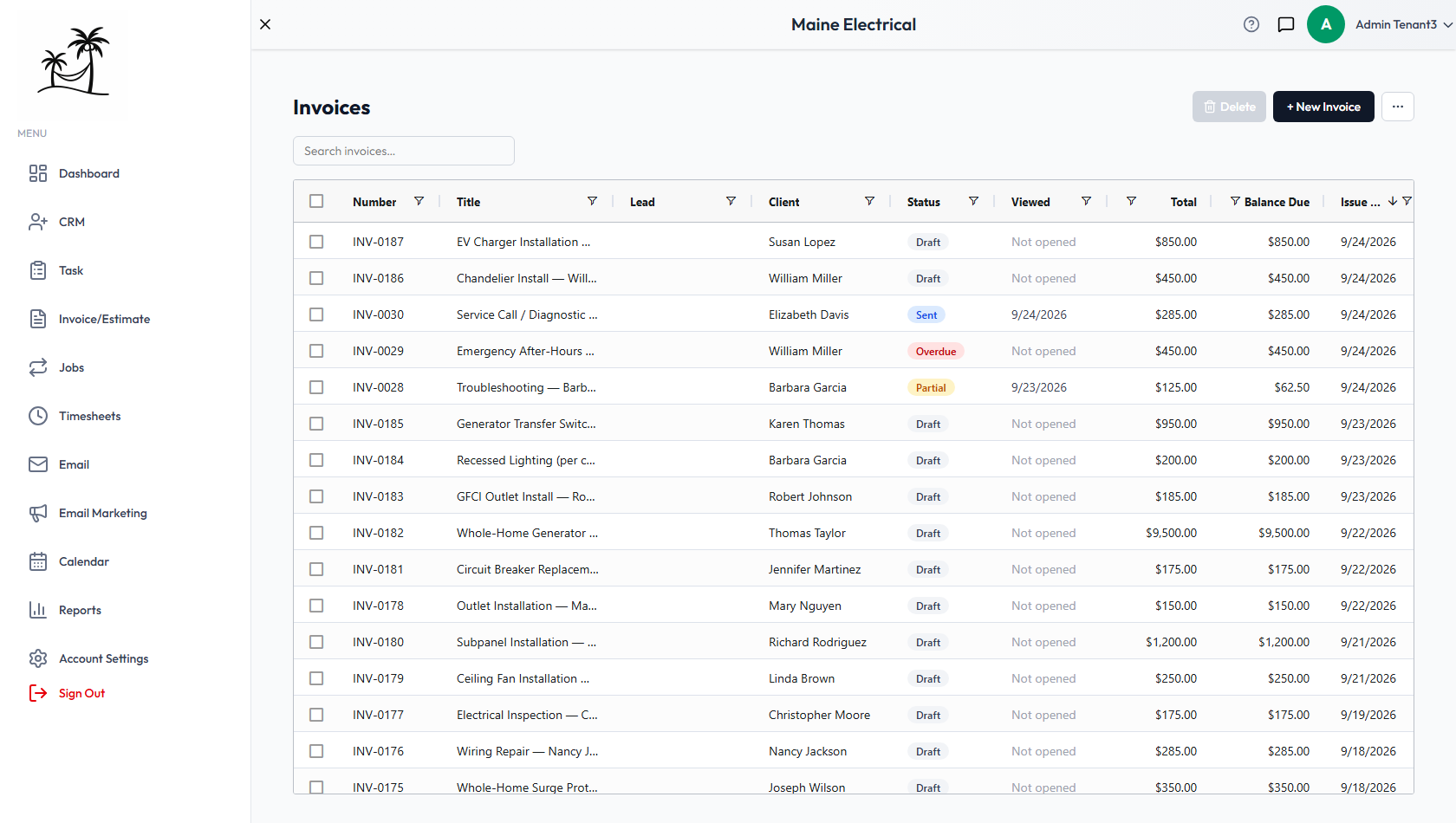
The Invoices grid
Columns: Number, Title, Lead, Client, Status, Viewed, Total, Balance Due, Issue Date (newest first by default), Due Date, and Assigned To. Same search, bulk-delete, and saved-column behavior as Estimates. There's no per-row "Convert" action here — invoices are the destination of that workflow, not the source (see Creating and Sending Estimates).
Creating an invoice
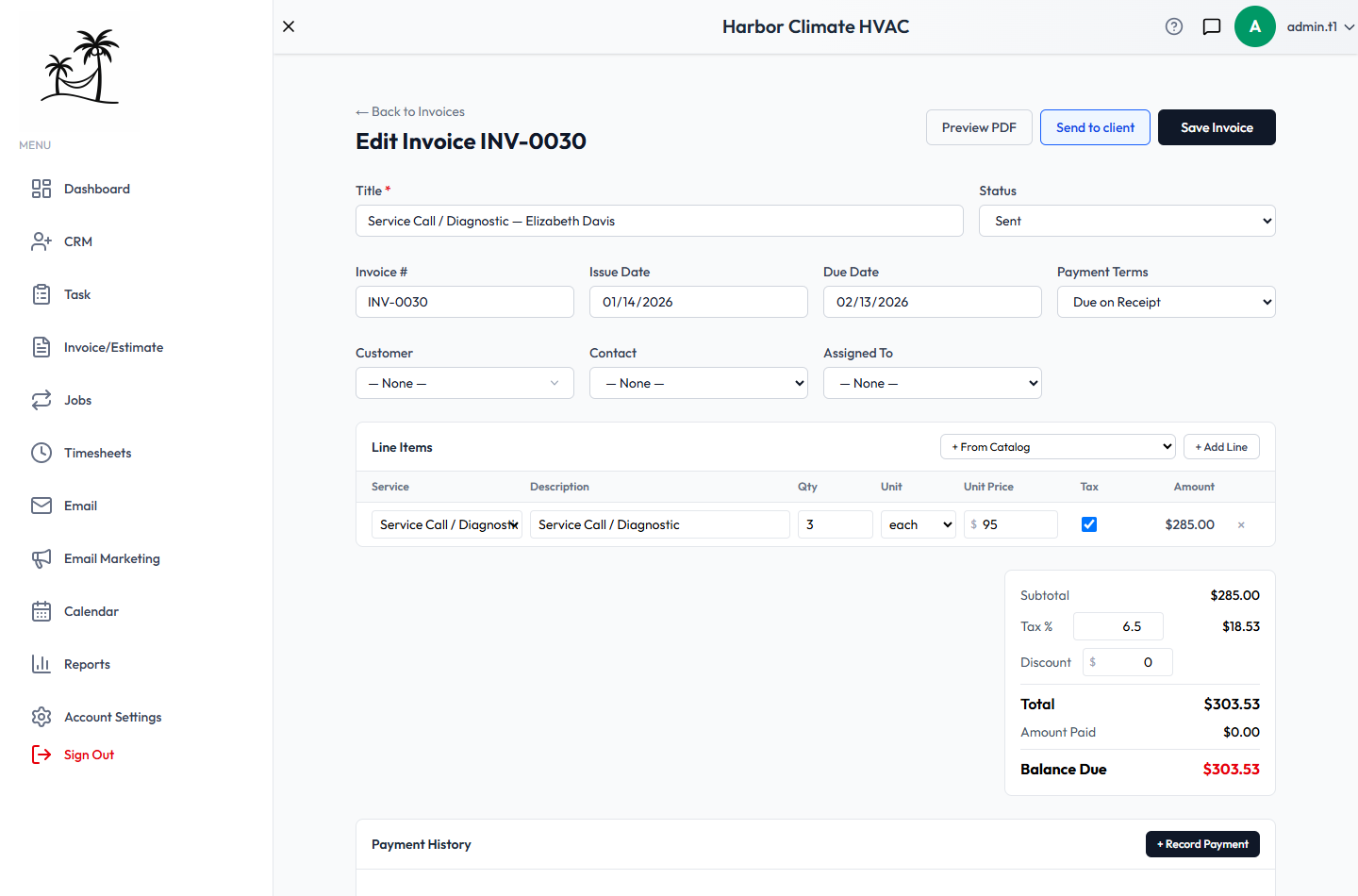
Same required Title field and line-item/catalog/tax/discount behavior as estimates — including a Discount that can be a dollar amount or a percentage of the subtotal.
- Status options are Draft, Sent, Paid, Partial, Overdue, and Void. Paid and Partial are set for you as payments are recorded, and a sent or part-paid invoice becomes Overdue on its own once its due date passes with a balance still owing — you don't have to mark it.
- Payment Terms — Due on Receipt, Net 15, Net 30, or Net 45/60.
- The number is filled in for you — INV-0001, INV-0002 and so on, counting on from your last invoice. You can type your own over it; the next automatic number skips anything already taken.
- If the invoice came from a converted estimate, a note shows which estimate number it came from.
- Below the totals, invoices show Amount Paid and Balance Due, calculated automatically from recorded payments.
Getting paid online
On Business and Growth plans, customers can pay an invoice by card directly through the customer portal — no phone call, no manual payment entry required on your end. They can pay the whole balance, or choose Pay part of this and send what they can now; a part payment marks the invoice Partial and leaves the rest owing. Payment goes through your own Stripe account, which you connect first under Account Settings → Payments. See Accepting Online Payments. Draft invoices are never shown in the portal, only invoices you've actually sent.
Recording a payment yourself
You can also log a payment manually — useful for checks, cash, or anything paid outside the portal:
- Open an existing invoice and use Record Payment: date, amount, method (check, cash, credit card, bank transfer, or other), a reference number, and notes.
- Every payment is listed in a running Payment History table, and any payment can be deleted if entered by mistake.
- Partial payments are fully supported — add as many payment rows as needed, and Balance Due updates automatically after each one.
Refunds
Set Type to Refund on the same form to record money going back to the customer. It lands in Payment History as a negative line, marked Refund and shown in red, and Balance Due goes back up by that amount. An invoice that was fully settled returns to Sent — or Overdue, if its due date has already passed.
You can't refund more than has actually been paid. Card refunds you issue from Stripe arrive here by themselves, so don't also enter them by hand.
Crediting an invoice
A refund returns money. A credit note cancels part of what's owed when no money moves — you overcharged for parts, you're knocking something off as goodwill, or materials came back before the invoice was ever paid.
Use Credit Notes → + Issue Credit on the invoice, with an amount and a short reason. The credit gets its own number (CN-0001, CN-0002, and so on) and shows as a Credited line on the invoice, the PDF, and the customer's portal view.
The point of doing it this way rather than editing the line items: the invoice keeps saying what you originally charged. The customer's copy still matches yours, and the reason for the difference is on the record instead of lost in a revision.
You can't credit more than is still outstanding — that would be a refund, not a credit. Delete a credit note entered by mistake and the balance goes straight back.
Sending and PDFs
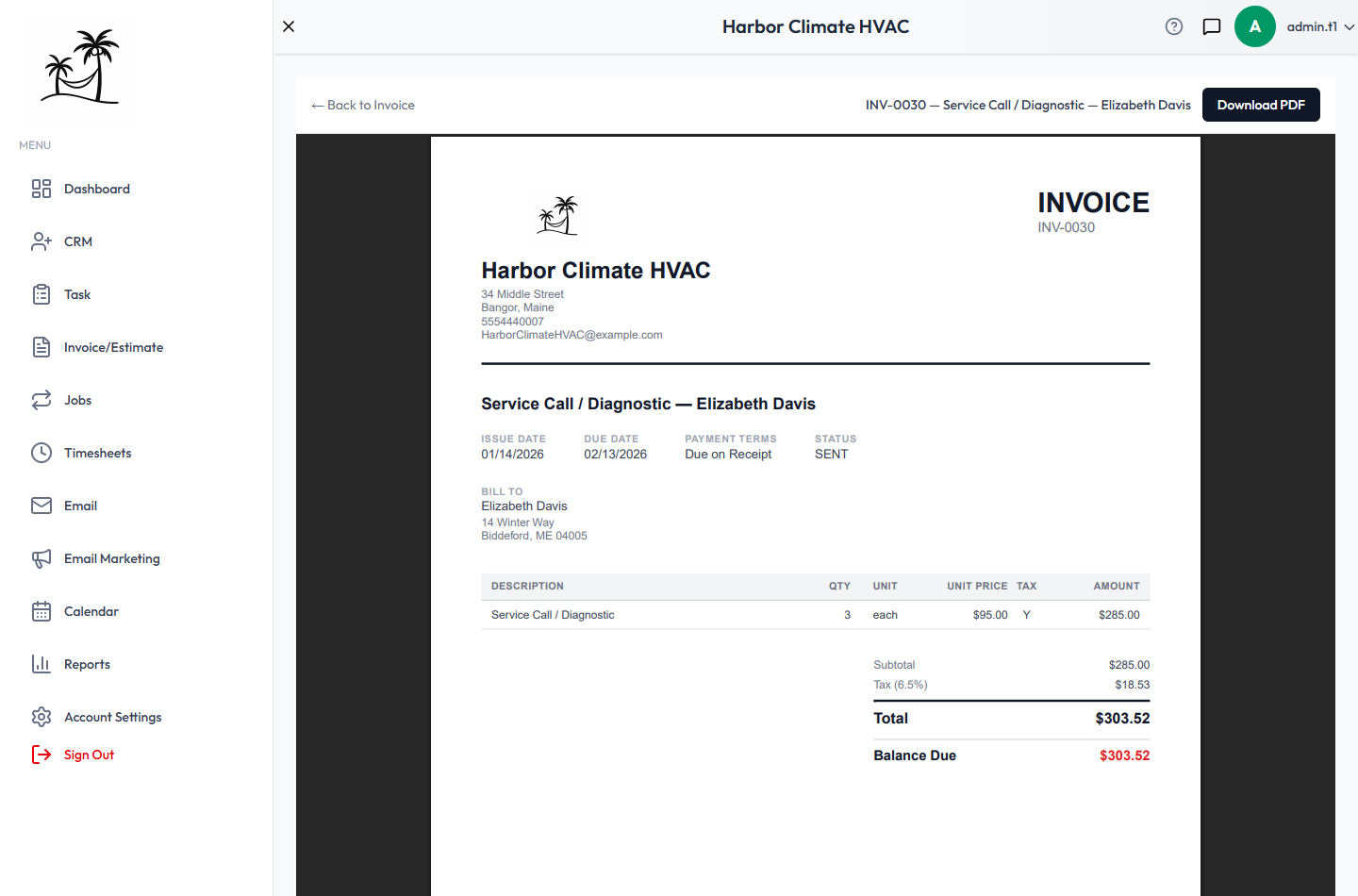
Preview PDF generates a branded PDF including your logo. Send to client emails the invoice directly from the editor, with that same PDF attached — the customer gets the document itself as well as a link to pay online, so it can be forwarded to a bookkeeper who won't use the portal.
Has the customer opened it?
The Viewed column shows the last time the customer opened the invoice in the portal, and reads Not opened until they do. Hover it to see how many times they've looked.
It only counts the customer. Opening the invoice yourself in the CRM never marks it viewed, so the column always answers "has it reached them", not "has anyone looked at this record".
That changes the follow-up: an invoice sent last week and never opened usually means the email went astray or to the wrong address, while one opened four times with no payment is a conversation about money.
Chasing an unpaid invoice
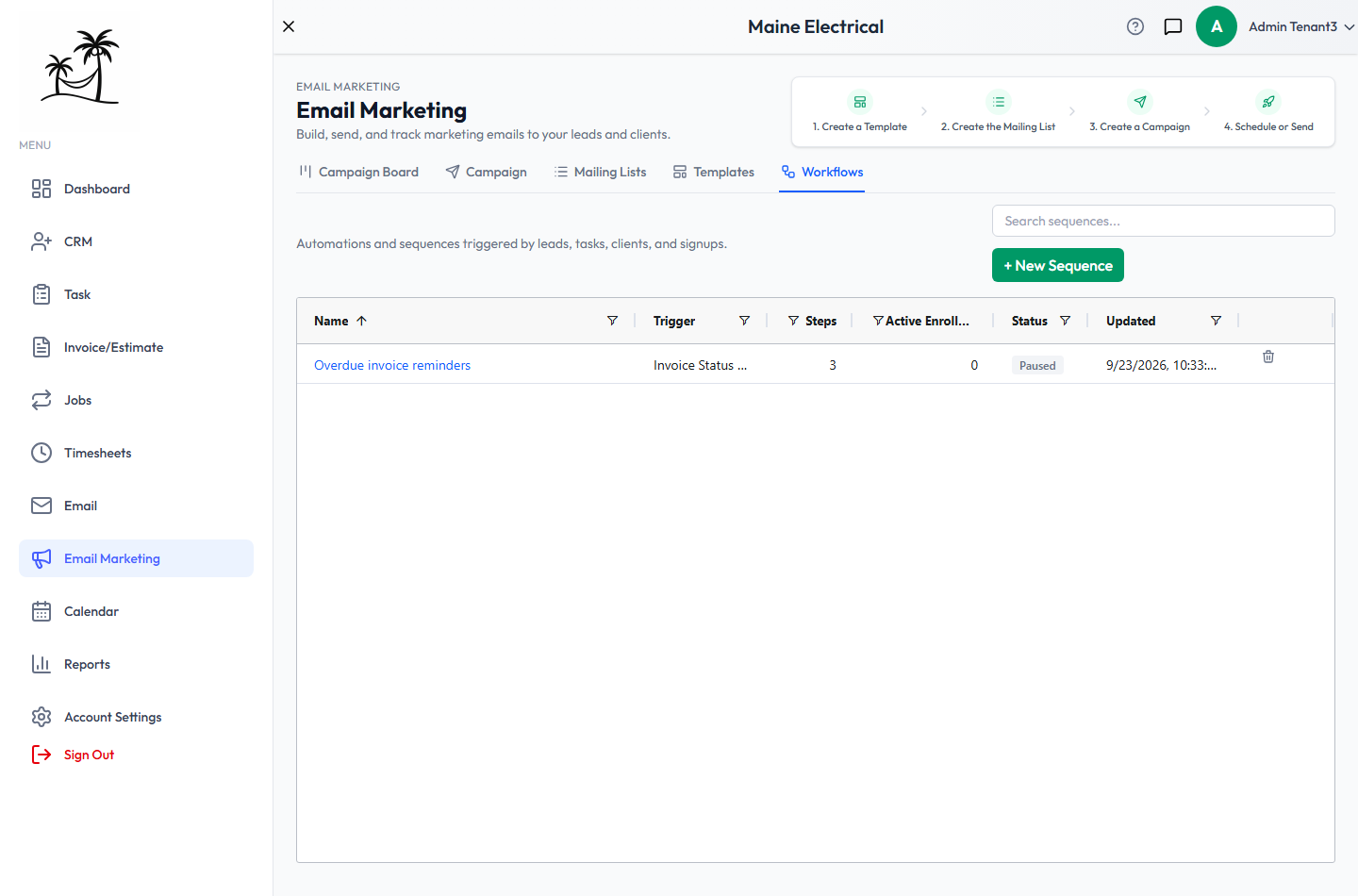
Every account comes with a ready-made Overdue invoice reminders workflow, under Email Marketing → Workflows. It arrives Paused — it emails your customers, so starting it is your call, not ours.
Turned on, it emails the customer the day an invoice goes overdue, again after 7 days, and again after 14. Each email names the invoice, what's still owed and when it was due, and links straight to the pay page. It stops as soon as the invoice is paid in full or voided, and a part payment is reflected in the next email rather than repeating the original figure.
Edit the wording under Templates → Invoice payment reminder, or change the timing by editing the workflow's steps. See Workflow.
Tips
- Double-check the due date right after converting an estimate — it doesn't carry over, and payment terms fall back to your default under Account Settings → Invoicing.
- Set your standing wording once under Account Settings → Invoicing → Default Terms & Notes rather than retyping it on every invoice.
- Refund or credit? Money going back is a refund; money never owed in the first place is a credit note. Keeping them apart is what makes your paid-versus-written-off figures mean anything.
- Use Internal Notes on the estimate for anything you don't want a client to see, since PDFs only ever show the public Notes field.
- If a customer pays online through the portal, the payment and balance update automatically — you don't also need to record it manually.
- Set a due date on every invoice. It's what makes an invoice turn Overdue by itself, and an invoice with no due date is never chased.
- The Viewed column tells you whether the customer has actually opened it. "Sent last week, not opened" is a different conversation from "opened four times".