Accepting Online Payments
Customers can pay invoices online by card, but only after you connect a payment account. Until then, no invoice can be paid online.
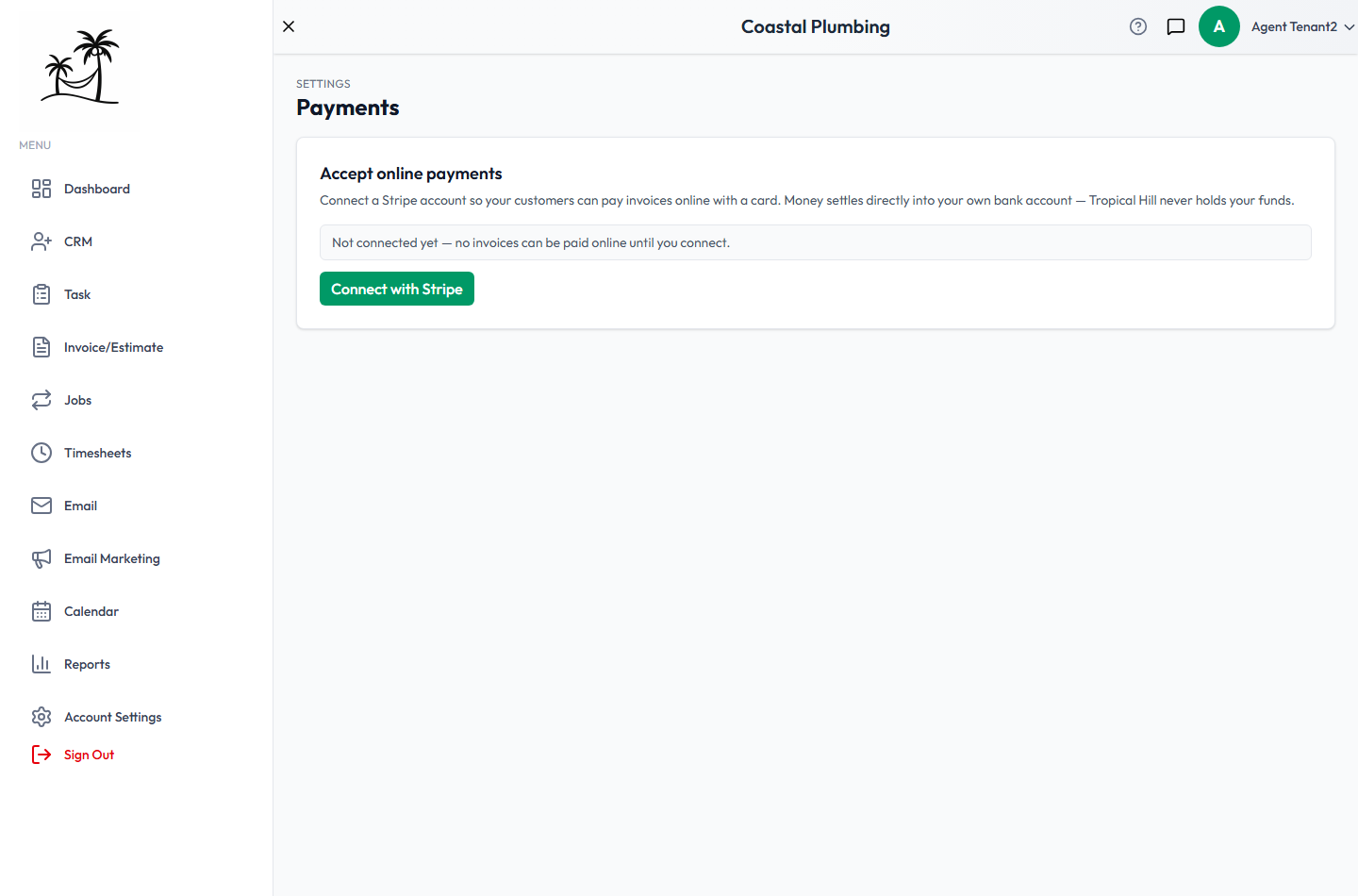
The setup is at Account Settings → Payments. It's available on the Business and Growth plans. On a plan without invoicing, you'll see an upgrade prompt instead.
How it works
Online payments go through Stripe. You connect your own Stripe account, and card payments go straight into your bank account. Tropical Hill never holds your money.
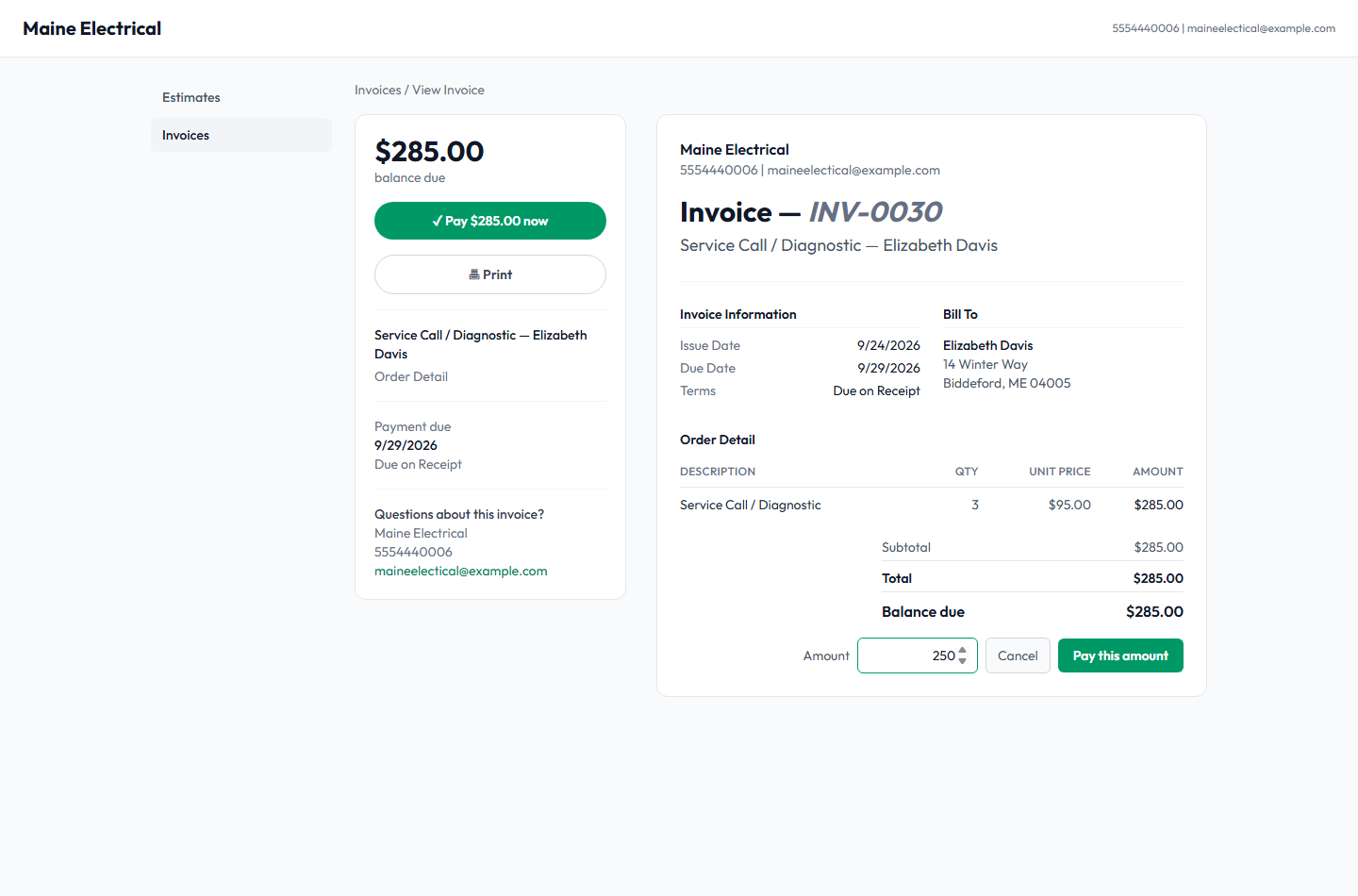
Once you're connected, customers see a Pay Now button on their invoices in the customer portal.
Connecting your account
- Go to Account Settings → Payments.
- Click Connect with Stripe. This takes you to Stripe to finish setup.
- Stripe asks for your business details and the bank account for payouts. Have your tax ID and bank details ready.
- When you finish, Stripe sends you back to Tropical Hill and the page shows your updated status.
If you stop partway through, your progress is saved. The button changes to Continue onboarding so you can pick up where you left off.
What the status means
| You see | What it means |
|---|---|
| Not connected yet | No Stripe account is linked. Invoices can't be paid online. |
| Onboarding was started but isn't complete | Stripe still needs information from you. Click Continue onboarding to finish. |
| Payments are enabled | Customers can pay online. You're done. |
| Payouts are still pending verification | Customers can already pay. Stripe is still verifying your account and holds payouts to your bank until it finishes. This usually clears on its own, and Stripe emails you if it needs anything. |
When a customer pays
- The customer can pay the full balance due, or choose Pay part of this and send whatever they can manage now. A part payment can't be more than the balance.
- Either way the payment lands on the invoice by itself — Amount Paid and Balance Due update, and a part payment leaves the invoice Partial with the rest still owing, so any reminders carry on until it's settled.
- Payments taken any other way can still be recorded by hand.
- Only invoices you've sent appear in the portal. Drafts never do.
Tips
- Connect before you send your first invoice. A customer who's ready to pay but can't find a way to do it often won't try again.
- Stripe's card processing fees apply to online payments. Your rates and payout schedule are in your Stripe dashboard.
- To change your bank account, business details, or payout timing, log in to Stripe. Those settings live in Stripe, not Tropical Hill.